Layouts: everything needed to design a timer screen layout in an exported tournament file: the file format, the layout editor, widgets, content items, and EZScript
# Layout file format
> How a Poker Club HQ timer layout is stored in an exported tournament file, for anyone, or any AI assistant, changing a layout outside the app.
An exported tournament (a `.pchq` file) is JSON, and the tournament’s timer layouts are in it. This page describes that part of the file, so that you, or an [AI assistant](/info/layouts-with-ai/) you’ve asked for help, can change a layout in the file and bring it back with **Import from file**.
Everything here can be done in the app too, in [Layout & content](/info/screen-contents/). That page explains what each setting does. This one says where each setting is kept.
Note
Importing a file never changes the tournament it came from. It always adds a new tournament, so you can import a file, delete the tournament it made, and try again.
## Where the layouts are
The tournament’s layouts are under the key `c` at the top level of the file. Leave everything outside `c` as it is: that’s the tournament itself, with its players, levels, and log.
| Key | What it holds |
| ----- | --------------------------------------------------------------------------- |
| `ly` | The layouts in the [Customize](/info/timer-display/#layouts) menu, in order |
| `tc` | What each layout shows, and how it looks |
| `v` | Content items every layout shares (**All layouts**) |
| `tcn` | The id of the layout on screen |
| `spp` | `false` when table diagrams show player names rather than photos |
A key that’s left out has its default, and so does `c` itself: a tournament whose layouts were never changed has no `c` at all.
### The layout list
Each item of `ly` is `{"i": id, "t": title}`. The three layouts a tournament starts with have the ids `""` (Current level, written with no `i`), `"seating"`, and `"payouts"`. A layout you add needs an id of its own. The app uses a ULID, 26 digits and capital letters such as `01K8Z3Q4M5N6P7R8S9T0V1W2X3`, and an id must never contain a dot.
When `ly` is missing, the tournament has the three layouts it started with. Once it’s there, it’s the whole list: a layout it doesn’t name isn’t in the menu. So to add a layout, list the ones already there as well.
### A layout’s entries
Each item of `tc` is an entry for one layout, named by its `n`:
| `n` | The entry for |
| ----------------------------------------------- | ------------------------- |
| The layout’s id, or `default` for Current level | The layout on every level |
| `.blinds`, `.break`, or `.pregame` | One type of level |
| `.` | A single level |
Current level’s entries for a type of level or a single level leave out the id and the dot: `blinds`, `break`, `pregame`, or the level’s `uid`. A layout only has those once it differs [from level to level](/info/screen-contents/#saving-one-level-or-all-of-them). The entry for every level is the one to work on.
An entry has these keys, all of them optional:
| Key | Holds | In the app |
| ---------- | --------------------------------------------------------------------------------------------------------------- | ----------------------------------------- |
| `c` | The layout’s outermost [cell](#cells) | **Layout & content** |
| `bc` | Background [color](#colors) | **Background color** |
| `bi` | Background image | **Background image** |
| `f` | Font: a Google Fonts family, named exactly as Google Fonts lists it, such as `Oswald` | **Font** |
| `fc` | Text [color](#colors) | **Font color** |
| `sc`, `st` | `true` or `false`: show the chips, or the tables, beside the layout | **Show/hide chips**, **Show/hide tables** |
| `v` | [Content items](#content-items) that belong to this layout (**This layout**). Only on the entry for every level | **Content** |
### Unchanged layouts aren’t in the file
The file only holds what differs from the app’s own layouts. A layout a tournament started with, and never changed, isn’t in the file at all, and neither is anything a layout shares with the app’s version of it.
So to work on a layout in the file, start from a copy. [**Duplicate**](/info/timer-display/#manage-layouts) the layout in **Manage layouts**, or add one from the [Layout gallery](/info/timer-display/#layout-gallery). A copy has no built-in version behind it, so everything about it is in the file.
## Cells
A layout is a tree of cells. Every cell is an object whose `type` is `"text"` or `"flex"`. A **text cell** shows one content item. A **flex cell** is a row or a column, holding other cells.
Numbers are whole numbers unless the table says they’re decimals. Sizes are proportions rather than points, because the timer scales the whole layout to fit the screen: the built-in layouts use font sizes from 7, for small print, up to 50, for the clock.
### Text cells
| Key | Holds |
| ----- | ---------------------------------------------------------------------------------------------------------------- |
| `v` | The name of the [content item](#content-items) the cell shows |
| `fs` | Font size, 2–100. Always set it: a cell without one is drawn at 2 |
| `fw` | Font weight, 0–8: 0 is thin (100), 3 regular (400), 6 bold (700), and 8 black (900). Without it, the weight is 0 |
| `lh` | Line spacing, 1.0–2.0, a decimal |
| `f` | Font, when it differs from the layout’s |
| `rgb` | Text [color](#colors), when it differs from the layout’s |
| `a` | Alignment, `"start"` (left) or `"end"` (right). Without it, the text is centered |
| `wr` | `true` to [wrap the text](/info/screen-contents/#wrapping-text-to-fit-the-screen) |
### Flex cells
| Key | Holds |
| ------------ | --------------------------------------------------------------------------------------------------------------------------------------------------------------------------------- |
| `ft` | `"row"` or `"column"` |
| `cd` | The cells inside, in order. Every flex cell needs it, even an empty one: `[]` |
| `au` | `true` for [Auto](/info/screen-contents/#rows-and-columns-that-follow-the-screen), a row on a wide screen and a column on a tall one. `ft` then says which it is on a wide screen |
| `c` | A [condition](/info/scripting/#expressions): the cell, and everything in it, shows only while it’s true |
| `a` | How the cells inside line up across the direction this one runs: `"start"` or `"end"`. Without it, they’re centered |
| `s` | Spacing between the cells inside, 0–100 |
| `pd` | Padding, 0–100 |
| `mg` | Margin, 0–100 |
| `mnw`, `mnh` | Minimum width and minimum height, 0–2000. Padding, margin, and borders use the same scale, and a font size of 20 is about 80 of these units tall |
| `bg` | Background [color](#colors) |
| `bw` | Border width, 0–20 |
| `bc` | Border [color](#colors) |
| `cr` | Corner radius, 0–100 |
| `ang` | Rotation in radians, a decimal: `0.26` turns the cell about 15° clockwise, and `-0.26` the other way |
| `img` | An image, as the app stores it |
| `fit` | How the image fills the cell, `"contain"` or `"fill"`. Without it, the image covers the cell |
| `sp` | `true` to [spread out](/info/screen-contents/#spreading-out-to-fill-the-screen). Only on the outermost cell |
| `vw` | `"chips"`, `"tables"`, or `"qrCode"` shows that [widget](/info/widgets/#chips-tables-and-the-qr-code) in place of cells. Give it an `mnw` or `mnh`, and an empty `cd` |
| `v` | [Content items](#content-items) only the cells inside it see (**This widget**) |
An image has to be uploaded in the app, with **Image** → **Upload image**, which needs a subscription. Keep an `img` or `bi` value exactly as you find it.
## Content items
A text cell doesn’t hold its text. It names a [content item](/info/content/), and the item’s value is a [template](/info/scripting/#templates) that can mix words with live tournament data.
In the file, a content item is a name and three strings: its [condition](/info/content/#condition-when-to-show-it-at-all), the language of its words, and its value. An empty condition always shows. For the language, use the code of the language you wrote the words in, such as `en` for English.
```json
"club name": ["", "en", "Thursday Night Poker"],
"winner": ["playersActive.isNotEmpty", "en", "Congratulations, {{ playersActive.first.name }}!"]
```
A value is a JSON string, so a quote inside it is written `\"`, and the `"\n"` that puts each item of a list on its own line is written `\"\\n\"`.
Content lives in one of three places in the file, the same three as in the app, and a cell takes a name from the nearest one that has it:
| In the app | In the file |
| --------------- | ------------------------------------------- |
| **This widget** | `v` on a flex cell, for the cells inside it |
| **This layout** | `v` on the layout’s entry for every level |
| **All layouts** | `v` in `c` |
The app’s built-in items, such as `clock`, `blinds`, and `tournament title`, aren’t in the file: a cell names one and the app supplies it. [Some built-ins worth knowing](/info/content/#some-built-ins-worth-knowing) lists the most useful. An item in the file with a built-in’s name takes its place. In a cell’s or a layout’s `v`, `null` in place of the three strings means the built-in itself, whatever the rest of the tournament sets that name to.
## Colors
A color is one whole number: its hex code, with `FF` in front for full opacity, written in decimal. A color written as text, like `"#FFFFFF"`, isn’t read, and the color stays at its default.
| Color | Hex | In the file |
| ---------- | --------- | ------------ |
| White | `#FFFFFF` | `4294967295` |
| Black | `#000000` | `4278190080` |
| Orange | `#F56818` | `4294273048` |
| Dark green | `#14532D` | `4279522093` |
To work one out, put `FF` in front of the six hex digits, `FFF56818`, and convert that from hexadecimal to decimal.
## An example
Here is `c` for a tournament with one layout added, **Club night**: the tournament’s title and the club’s name at the top, the clock and blinds while the tournament runs, and the winner in an orange box once it’s over. It uses the built-in `tournament title`, `clock`, and `blinds`, and adds `club name` and `winner` of its own.
```json
"c": {
"tcn": "01K8Z3Q4M5N6P7R8S9T0V1W2X3",
"ly": [
{ "t": "Current level" },
{ "i": "seating", "t": "Seating" },
{ "i": "payouts", "t": "Payouts" },
{ "i": "01K8Z3Q4M5N6P7R8S9T0V1W2X3", "t": "Club night" }
],
"tc": [
{
"n": "01K8Z3Q4M5N6P7R8S9T0V1W2X3",
"bc": 4279522093,
"fc": 4294967295,
"f": "Oswald",
"c": {
"type": "flex",
"ft": "column",
"s": 16,
"pd": 40,
"cd": [
{ "type": "text", "v": "tournament title", "fs": 24, "fw": 6 },
{ "type": "text", "v": "club name", "fs": 12, "fw": 3, "rgb": 4294273048 },
{
"type": "flex",
"ft": "column",
"c": "!isPostgame",
"s": 8,
"cd": [
{ "type": "text", "v": "clock", "fs": 60, "fw": 6 },
{ "type": "text", "v": "blinds", "fs": 24, "fw": 5 }
]
},
{
"type": "flex",
"ft": "column",
"c": "isPostgame",
"pd": 24,
"bw": 2,
"bc": 4294273048,
"cr": 16,
"cd": [
{ "type": "text", "v": "winner", "fs": 28, "fw": 7, "wr": true }
]
}
]
},
"v": {
"club name": ["", "en", "Thursday Night Poker"],
"winner": ["playersActive.isNotEmpty", "en", "Congratulations, {{ playersActive.first.name }}!"]
}
}
]
}
```
## Checking a file
Bring the file into the app as a new tournament: on an iPhone or iPad, tap the file to open it in Poker Club HQ, and on Android or in a web browser, use **+** → **Import from file** on the home screen. See [Opening a file someone sent you](/info/folders/#opening-a-file-someone-sent-you).
If the import fails, the file isn’t valid JSON, or a flex cell is missing its `cd`. If a cell reads `Missing variable "…"` in [edit mode](/info/screen-contents/#reading-the-editor), its `v` names a content item that doesn’t exist.
Some mistakes don’t stop the import. They just leave the layout looking wrong:
* A number with a decimal point, like `16.0`, where a whole number belongs can be ignored.
* A color written as text is ignored.
* A text cell without `fs` is tiny.
* A layout that `ly` doesn’t list isn’t in the menu.
# Scripting overview
> Where scripting is used in Poker Club HQ, the difference between conditions and templates, and how the script editor helps you get it right.
Several parts of Poker Club HQ let you write a small piece of code instead of picking from a fixed list of options. That’s how a payout structure can grow more places as the field grows, how an alert can fire at exactly the right moment, and how the timer screen can show your league’s own scoring.
The language is called **EZScript**. It’s deliberately small — closer to a spreadsheet formula than a programming language — and it’s sandboxed: a script can read your tournament, but it can’t change it, reach the network, or slow the app down.
You don’t need to learn it to use the app. Every default works out of the box, and the built-in examples are there to copy.
## Where scripts are used
There are seven places, and they come in two flavors.
| Where to find it | What you write | Must produce |
| -------------------------------------------------------------------------- | -------------- | ----------------- |
| [Content](/info/content/) → **Value** | Template | Text |
| [Content](/info/content/) → **Condition** | Expression | True or false |
| [Layout & content](/info/screen-contents/) → row or column → **Condition** | Expression | True or false |
| [Alerts](/info/alerts/) → **Condition** | Expression | True or false |
| [Alerts](/info/alerts/) → **TTS text** | Template | Text to speak |
| [Payouts](/info/payouts/) → **Script** | Script | A list of amounts |
| [Stats](/info/stats/) → **Player points formula** | Script | A number |
### Expressions
An **expression** is a single question with a yes-or-no answer. You write it bare, with no braces:
```plaintext
totalChipsInPlay > 0
```
```plaintext
currentLevel.ante > 0 && currentLevel.bigBlind == 0
```
Conditions decide whether something appears or fires. Nothing else.
### Templates
A **template** is ordinary text with expressions embedded in double curly braces. Text outside the braces is used exactly as written; each `{{ … }}` is replaced by its result:
```plaintext
Chips in play {{ totalChipsInPlay }}
```
```plaintext
Level {{ blindLevelNumber }} of {{ blindLevelCount }}
```
```plaintext
The tournament starts in about {{ round(secondsLeftInLevel/60) }} minutes.
```
A template can have as many braces as you like, or none at all.
### Scripts
The payout and points editors take a **script** — several lines that end in a result. Intermediate values get names along the way, and the last line is what counts:
```plaintext
places = 1 + totalBuyIns / 5
defaultPayoutPercentages(places).map(func(p) { p * netPrize })
```
## The editor
All seven fields share one editor, so learning it once is enough.
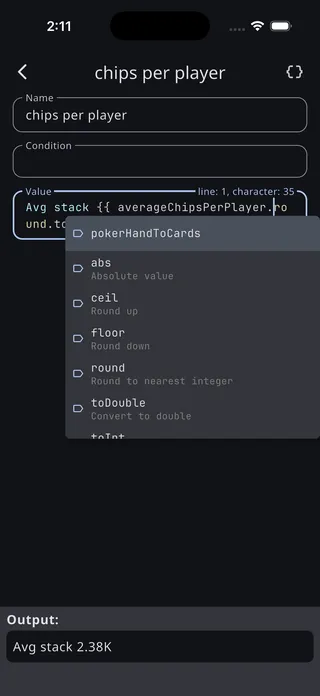
* **Syntax highlighting** colors names, numbers, strings, and keywords, which makes an unclosed quote or brace obvious at a glance.
* **Autocomplete** offers matching values as you type, each with a description. In template fields it only fires inside `{{ }}`, where it’s useful.
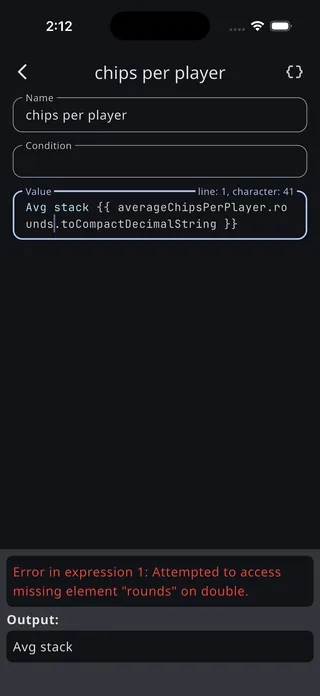
* **Live results** appear under the field and update as you type — the rendered text, the resolved payouts, the points for your top five finishers. This is the fastest way to know a script does what you meant.
* **Errors** appear in red rather than silently failing, and name the problem.
### The Script explorer
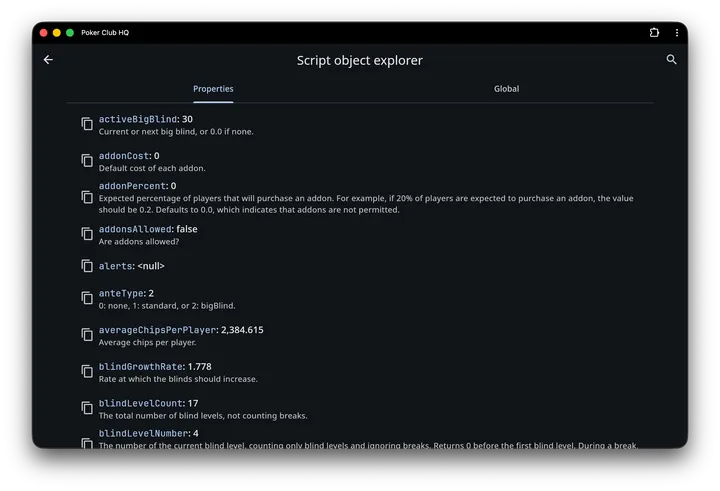
The `{ }` icon in the app bar opens the **Script object explorer**, which has two tabs:
* **Properties** — everything about *this tournament* the current field can reference, each with a description and its value right now. You can drill into objects — a player, a level, a table — to see what they contain.
* **Global** — the language’s own built-in functions and constants.
Search the list from the app bar, and tap the copy icon beside any name to put it on the clipboard.
It’s the best answer to “what’s that value called again?”, and it’s tailored to the field you opened it from — the payouts explorer, for instance, doesn’t list values a payout script isn’t allowed to use.
## When a script goes wrong
A broken script never breaks your tournament. What happens depends on where it is:
| Where | What happens |
| ------------------------- | ------------------------------------------------------------------------------------- |
| Content **Condition** | Treated as false, so the cell hides |
| Content **Value** | The failing `{{ … }}` becomes empty; if nothing is left, the cell draws nothing |
| Row/column **Condition** | Treated as false, so the block hides |
| Alert **Condition** | The alert doesn’t fire |
| **Payouts script** | Payouts silently fall back to the percentages, and the Payouts screen shows a warning |
| **Player points formula** | That player scores 0 |
Inside [edit mode](/info/screen-contents/) a cell that produces nothing still holds its place — with a striped label bar, and a preview of its raw text — so a silently empty cell is easy to find. To see *why* it’s empty, open the cell’s content or condition: the editor evaluates as you type and reports the error in red.
## Limits
Scripts are capped so a mistake can’t freeze the timer:
* Each script gets about **10 milliseconds** to run; alert conditions, which are checked every second for every alert, get a tighter budget still.
* Functions can call themselves up to **500** levels deep.
A script that exceeds either limit stops with an error and is treated as failed. In practice you’d have to write a runaway loop to hit them — every built-in script in the app finishes in a fraction of the budget.
## Where next
* **[Language reference](/info/scripting-language/)** — the syntax, and the built-in functions and formatters
* **[Tournament data](/info/scripting-data/)** — every value you can read, and what’s in a player, table, level, or log entry
* **[Examples](/info/scripting-examples/)** — real scripts from the app, explained
* **[Scripts with AI](/info/scripts-with-ai/)**: getting an AI assistant to write scripts for you
# Language reference
> The EZScript language used in Poker Club HQ — values, operators, conditions, loops, functions, and the built-in formatters for money, time, and blinds.
EZScript is the small language behind every scriptable field in Poker Club HQ. This page is the syntax; [Tournament data](/info/scripting-data/) is the list of things to point it at.
## Values
| Kind | Examples |
| ------------- | ------------------------------- |
| Number | `10`, `1.5`, `-20` |
| Text | `"1st"`, `" • "`, `"\n"` |
| True or false | `true`, `false` |
| List | `[100, 60, 40]` |
| Object | `{name: "Alice", chips: 12000}` |
Numbers are decimals
Every number is a decimal, even one that looks whole. `totalBuyIns / 5` with 12 buy-ins is `2.4`, and a count that has been divided will print as `2.4` rather than `2`.
This is why almost every built-in script ends in `.round` or a formatter:
```plaintext
{{ (secondsUntilNextBreak / 60).round }} min.
```
## Names and assignment
Give a value a name with `=`, then use the name:
```plaintext
places = 1 + totalBuyIns / 5
```
`+=`, `-=`, `*=`, `/=`, and `%=` update an existing name in place.
In a multi-line script, several statements can share one line if you separate them with `;` — useful inside a template, where the whole script has to fit between one pair of braces:
```plaintext
{{ cards = highHand.pokerHandToCards; cards.pokerCardsToHandName }}
```
## Operators
| Category | Operators |
| ---------- | --------------------------- |
| Arithmetic | `+` `-` `*` `/` `%` |
| Comparison | `==` `!=` `<` `>` `<=` `>=` |
| Logical | `&&` `\|\|` `!` |
Precedence follows normal arithmetic: `*` `/` `%` bind tighter than `+` `-`, comparisons come next, then `&&`, then `\|\|`. Use parentheses when in doubt.
`+` joins text as well as adding numbers:
```plaintext
{{ p = chipLeaders.first; p.shortName + " — " + p.currentChips.round.toCompactDecimalString }}
```
## Conditions
`if` is an *expression* — it produces a value rather than just choosing a branch, so you can use it anywhere a value belongs, including in the middle of a bigger calculation:
```plaintext
if totalBuyIns < 10 { [100, 60, 40] }
else if totalBuyIns < 17 { [150, 90, 60] }
else { [180, 110, 70, 40] }
```
```plaintext
{{ "Players" + if (currentPlayerCount == 1) { "" } else { "s" } }}
```
The test must genuinely be true or false. A number or a piece of text won’t do — write `count > 0`, not `count`.
Parentheses around the test are optional.
## Loops
Most of the time a list method like `map` or `where` is shorter and clearer than a loop, but loops are there when you need them:
```plaintext
// Over the items of a list
for p in playersActive { … }
// With the position as well — index first, item second
for i, p in playersActive { … }
// While something holds
while (n > 0) { n -= 1 }
// Counting
for i = 0; i < 10; i += 1 { … }
```
`break` leaves a loop early and `continue` skips to the next pass. A loop’s variables belong to the loop and disappear when it ends.
## Functions
A function is written with `func`, and is most often handed straight to a list method:
```plaintext
players.where(func(p) { p.bountyChipWinnings > 0 })
```
Give one a name when you want to use it more than once:
```plaintext
func toName(p) { p.shortName }
```
A function returns the value of its last line — there’s no `return`.
## Lists and objects
```plaintext
amounts = [100, 60, 40]
amounts[0] // 100
amounts.count // 3
amounts[1] = 75 // change an entry
player = {name: "Alice", chips: 12000}
player.name // Alice
player.chips = 15000
player.seat = 4 // a name that didn't exist is added
```
Objects also accept `player["name"]`, which is handy when the key is itself in a variable.
## Comments
```plaintext
// This is a comment
points = ln(c + 1) / p * 10 // and so is this
```
Comments are the tidiest way to keep an alternative formula around without deleting it — the built-in points formula ships with two disabled alternatives above the active line.
## Built-in functions
| Function | Description |
| -------------------------------------------- | --------------------------------------------------------------------------------------------------------- |
| `now()` | The current time, in milliseconds |
| `was(x)`, `changed(x)`, `becameTrue(x)` | Compare against a second ago — [alert conditions](/info/alerts/#firing-once-instead-of-every-second) only |
| `round(x)` | Round to the nearest whole number |
| `min(a, b, …)`, `max(a, b, …)` | Smallest / largest of the values |
| `asNumber(x)`, `asInteger(x)`, `asString(x)` | Convert between kinds |
| `sqrt(x)`, `cbrt(x)`, `hypot(a, b)` | Roots and hypotenuse |
| `exp(x)`, `ln(x)`, `log10(x)`, `log2(x)` | Exponential and logarithms |
| `sin(x)`, `cos(x)`, `tan(x)` | Trigonometry, in radians |
| `asin(x)`, `acos(x)`, `atan(x)` | Inverse trigonometry |
| `degToRad(x)`, `radToDeg(x)` | Angle conversion |
`PI` is available as a constant.
## Formatting numbers
These are the properties that turn a raw number into something worth putting on a screen. Write them without parentheses.
| Property | Turns `1250` into | Good for |
| --------------------------------- | ----------------- | -------------------------------------- |
| `toCompactDecimalString` | `1.25K` | Blinds and chip counts |
| `toCurrencyString` | `$1,250` | Payouts and prize pools |
| `toCompactCurrencyString` | `$1.25K` | Money in tight spaces |
| `toPercentString` | — | Fractions shown as percentages |
| `withOrdinalSuffix` | `1250th` | Finishing places — `1st`, `2nd`, `3rd` |
| `round`, `ceil`, `floor`, `abs` | `1250` | Tidying up a division |
| `toInt`, `toDouble`, `toString` | | Changing kind |
| `isEven`, `isOdd` | | Alternating output |
| `isFinite`, `isInfinite`, `isNaN` | | Guarding against divide-by-zero |
The compact forms keep three significant digits, so 1500 becomes `1.5K` but 1250 becomes `1.25K`. Round first if you want a shorter result.
### Times and durations
These read a number as **milliseconds**, which is the unit `now()` and every `…Dt` value use. A count of seconds needs `* 1000` first.
| Property | Example output |
| ------------------------------- | ------------------------------------------------------------------------------------------ |
| `toTimeString` | `8:15:00 PM` |
| `toHMTimeString` | `8:15 PM` |
| `toDateString` | `Jul 20` — with the year added when it isn’t this year |
| `toDateAndTimeString` | `Jul 20, 8:15:00 PM` |
| `toDateIfNotTodayAndTimeString` | `8:15:00 PM` today, with the date added on other days |
| `toTimeDurationString` | `0:20:00` |
| `toHMTimeDurationString` | `0:20` — hours and minutes, with the seconds dropped rather than rounded |
| `toCompactTimeDurationString` | `20:00` |
| `toApproximateDurationString` | `50 min.` — a single unit, and the only one of these whose words follow the app’s language |
`toApproximateDurationString` picks the unit for you: hours above two hours, minutes above two minutes, seconds below that. Within the unit it rounds to the nearest one, so two hours fifty minutes reads `3 hr.` It suits a countdown, where `0:50` is ambiguous — fifty minutes or fifty seconds? — and where the exact seconds are noise with hours still to go.
```plaintext
{{ (secondsLeftInLevel * 1000).toCompactTimeDurationString }}
```
```plaintext
{{ now().toTimeString }}
```
## Working with text
**Properties** — written without parentheses:
`isEmpty`, `isNotEmpty`, `count`, `length`, `toUpperCase`, `toLowerCase`, `toSentenceCase`, `toNumber`, `toInt`
**Methods** — written with parentheses:
| Method | Description |
| ------------------------------------------- | ----------------------------------------------- |
| `contains(text)` | Does it contain this? |
| `startsWith(text)`, `endsWith(text)` | Does it begin or end with this? |
| `indexOf(text)` | Where does it appear? `-1` if it doesn’t |
| `replace(from, to)`, `replaceAll(from, to)` | Substitute text |
| `substring(start [, end])` | A piece of it |
| `slice(start [, end])` | Same, but negative positions count from the end |
| `split(separator)` | Break into a list |
| `strip([characters])` | Trim the ends |
## Working with lists
**Properties:** `isEmpty`, `isNotEmpty`, `count`, `length`, `first`, `last`
**Methods:**
| Method | Description |
| ----------------------------------------------- | --------------------------------------------------------------------- |
| `map(fn)` | Transform every item |
| `where(fn)` | Keep the items that match |
| `sort([keyFn])` | A sorted copy — by natural order, or by whatever the function returns |
| `take(n)`, `skip(n)` | The first `n`, or everything after the first `n` |
| `takeFirstWhere(n, fn)`, `takeLastWhere(n, fn)` | The first or last `n` matches |
| `reverse()` | A reversed copy |
| `reduce(fn [, initial])` | Combine everything into one value |
| `flatMap(fn)` | Transform, then flatten the results |
| `join([separator [, lastSeparator]])` | Join into text |
| `zip(list, … [, combineFn])` | Pair up with other lists, item by item |
Two of these deserve a closer look.
**`sort` takes a key.** To sort descending, negate the key:
```plaintext
players.sort(func(p) { -p.totalEliminated })
```
**`join` takes a second separator** for the last item, which is what makes a spoken alert sound human:
```plaintext
{{ e.players.map(func(p) { p.toPlayerName() }).join(", ", ", and ") }}
```
With three players that reads *“Alice, Bob, and Carol”* rather than *“Alice, Bob, Carol”*. The last separator is used exactly as written, so include the comma — with two players it gives *“Alice, and Bob”*.
Use `"\n"` as a separator to put each item on its own line — that’s how the payout and knockout widgets build their columns.
## Templates
In a **Value** or **TTS text** field, anything outside `{{ }}` is literal and anything inside is an expression:
```plaintext
Level {{ blindLevelNumber }} of {{ blindLevelCount }}
```
An expression that fails, or produces nothing, contributes an empty string.
There’s one rule worth knowing: if **every** expression in a template comes out empty, the whole template is treated as empty — the literal text around the braces is dropped too. So this:
```plaintext
Ante {{ anteText }}
```
renders as nothing at all when `anteText` is empty, rather than leaving a stranded `Ante `. It’s how the built-in `title` and `subtitle` items disappear on levels that don’t have them, without needing a condition.
The rule is all-or-nothing. If a template has two expressions and only one comes out empty, the literal text stays and the empty one just leaves a gap.
## Coming from JavaScript
EZScript looks like JavaScript, but a lot of JavaScript isn’t in it, and an [AI assistant](/info/scripts-with-ai/) writing EZScript reaches for these most often:
| Instead of | Write |
| ---------------------------------------------- | ---------------------------------------------------------------------------------------------------------------- |
| `'text'` | `"text"`. Text takes double quotes only |
| `` `Level ${n}` `` | `"Level " + n`, or `Level {{ n }}` in a template |
| `let x = 5`, `var`, `const` | `x = 5` |
| `function f(x) { return x * 2 }`, `x => x * 2` | `func f(x) { x * 2 }`, `func(x) { x * 2 }`. A function gives the value of its last line, and there’s no `return` |
| `a ? b : c` | `if a { b } else { c }` |
| `if (x > 0) total += x` | `if x > 0 { total += x }`. The braces are required |
| `===`, `!==` | `==`, `!=` |
| `x++`, `x--` | `x += 1`, `x -= 1` |
| `if (count)` | `if count > 0`. A condition must be true or false |
| `null`, `undefined` | Neither exists. Test with `isEmpty`, `count > 0`, or a value like `hasHighHand` |
| `Math.round(x)`, `Math.max(a, b)`, `Math.PI` | `round(x)` or `x.round`, `max(a, b)`, `PI` |
| `x.toFixed(2)` | `(x * 100).round / 100`, or a [formatter](#formatting-numbers) |
| `x.round()`, `list.count()` | `x.round`, `list.count`. Properties take no parentheses, while methods like `map(…)` and `contains(…)` do |
| `list.filter(f)` | `list.where(f)` |
| `list.find(f)` | `list.where(f).first`, after checking `list.where(f).isNotEmpty`, because `first` fails on an empty list |
| `list.includes(x)` | `list.where(func(i) { i == x }).isNotEmpty` |
| `.5` | `0.5` |
Comments work as in JavaScript, both `// …` to the end of the line and `/* … */`.
# Content
> Named content items in Poker Club HQ — the Name, Condition, and Value fields behind every piece of text on the timer screen, and the built-in items you can start from.
A text cell on the timer screen doesn’t hold fixed text. It points at a named **content item**, and that item decides what — and whether — to draw.
Every content item has three parts:
* **Name** — what you pick it by, e.g. `clock`, `blinds`, `player count`
* **Value** — the text shown on the timer, which can pull in live tournament data
* **Condition** — an optional test; while it’s false, any cell using this content hides itself
Separating the three is what lets one layout work all tournament long. The built-in `ante` item, for example, is conditioned on the level actually having a standard ante — so the ante line simply isn’t there during levels without one, and you don’t have to build a different screen for each phase of the tournament.
## Where to find it
From [edit mode](/info/screen-contents/):
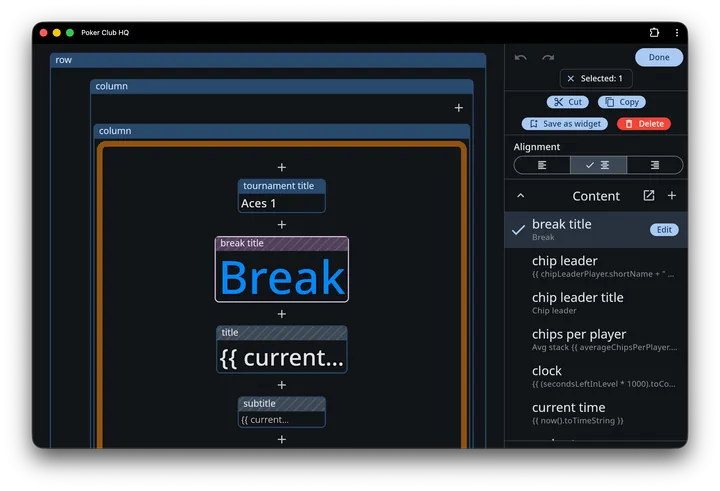
* Tap **+** → **Content** to insert a text cell and choose its content in one step.
* Select an existing text cell and open its **Content** setting to point it somewhere else, or to tap **Edit** and change the item itself.
* **Manage content**, from that same setting, opens the full list: every item that cell can see, whether or not the timer currently uses it.
Each list shows what can be seen from where you are, the selected cell or the spot you’re inserting into, grouped by [where it lives](#where-content-lives).
## Value: mixing text and live data
Inside **Value**, double curly braces insert live tournament data. Everything outside the braces is shown as-is, so you can mix the two freely:
```plaintext
Chips in play {{ totalChipsInPlay }}
```
Anything between the braces is an expression, so it can do arithmetic and formatting, not just name a value:
```plaintext
Level {{ blindLevelNumber }} of {{ blindLevelCount }}
```
```plaintext
{{ (secondsLeftInLevel * 1000).toCompactTimeDurationString }}
```
A footer under the field always shows the rendered result, so you can see exactly what the timer will draw. See [Scripting](/info/scripting/) for the language and [Tournament data](/info/scripting-data/) for everything you can reference.
### Chips in your text
Two kinds of token in the finished text are drawn as pictures rather than letters, wherever they turn up on the timer screen:
* A **chip value followed by an `s`** — `25s`, `1,000s` — becomes that chip, using your own colors or chip photo. The value has to match one of the tournament’s [chips](/info/chips/) exactly, written the way the app writes it, and it has to stand on its own: the `100s` inside `2,100s` isn’t a token.
* A **card** — `A♠`, `10♥` — becomes a small bordered card, red or black by suit.
So a content item whose value is
```plaintext
Color up the {{ colorUpChips.map(func(c) { c.value.toString + "s" }).join(" and the ") }}
```
draws real chips in the sentence. That’s how the [Color up!](/info/widgets/#color-up) widget is built, and nothing stops you using it in a line of your own.
## Condition: when to show it at all
The **Condition** field takes the same expressions, but without the braces, and it must come out true or false. Leave it empty and the content always shows.
```plaintext
chipLeaders.isNotEmpty
```
```plaintext
currentLevel.ante > 0 && currentLevel.bigBlind == 0
```
Note
A condition on a content item hides the cells that use it. A condition on a row or column hides that container and everything inside it. Use the first for a single line of text, the second for a whole block — see [Layout & content](/info/screen-contents/#conditions).
## Writing the fields
Both fields use the same editor: syntax highlighting, line and column readout, and autocomplete. Start typing a name and matching tournament values are offered with their descriptions.
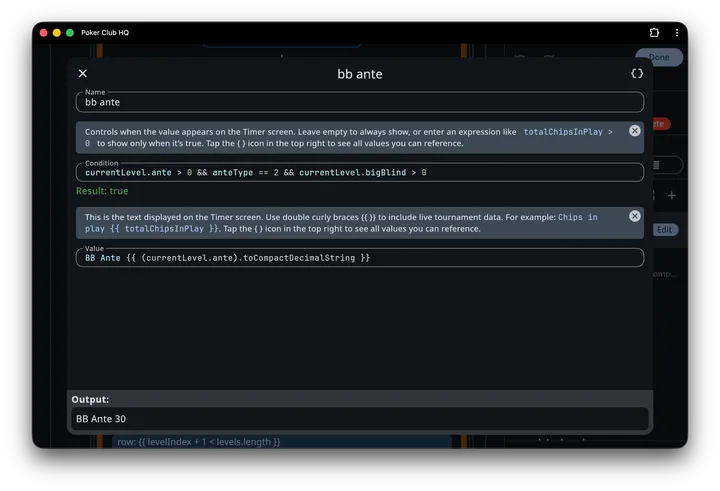
The `{ }` **Script explorer** button in the app bar is the fastest way to find something. It lists every value available with a description and its current value, lets you drill into objects like a player or a level, and copies a name to the clipboard with one tap.
If an expression is wrong, the editor says so in red underneath rather than failing silently. A condition that produces something other than true or false is rejected with **Condition must evaluate to true or false.**
Tip
There’s no Save button in the content editor — your edits go straight into the layout draft. It’s the **Save** button in the timer’s editing toolbar that commits them, and **Cancel** there discards them along with everything else you changed.
## Where content lives
Content is kept in one of four places, and the lists group it under the same headings, nearest first:
* **This widget**: content a [widget](/info/widgets/#saving-your-own-widgets) carries. Only the cells inside it see it.
* **This layout**: content that belongs to the [layout](/info/timer-display/#layouts) showing. All its cells see it, at every level, and other layouts don’t.
* **All layouts**: content every layout in the tournament shares.
* **Built-in**: the items the app comes with.
When a name is defined in more than one place, the nearest wins: a widget’s own `title` comes before the layout’s, which comes before the one all layouts share. The list shows each name once, under the place the cell gets it from.
New content asks where it goes, **This layout** or **All layouts**, and starts on This layout. That suits something one screen needs, like seat changes or a points table. Pick All layouts for something every screen shows, like your club’s name. Content under This layout belongs to the layout: [duplicating](/info/timer-display/#manage-layouts) the layout copies it, and deleting the layout deletes it.
## Built-in and custom items
An edit changes an item where it lives, except that built-in content is never changed in place:
* Editing a **built-in** item gives this tournament its own version under **All layouts**, which then stands in for the shipped one.
* Editing built-in content listed under **This widget** gives that widget its own copy, and leaves the rest of the tournament alone.
Items that differ from what the app ships are shown in **bold**: every item you created, and every built-in you’ve changed.
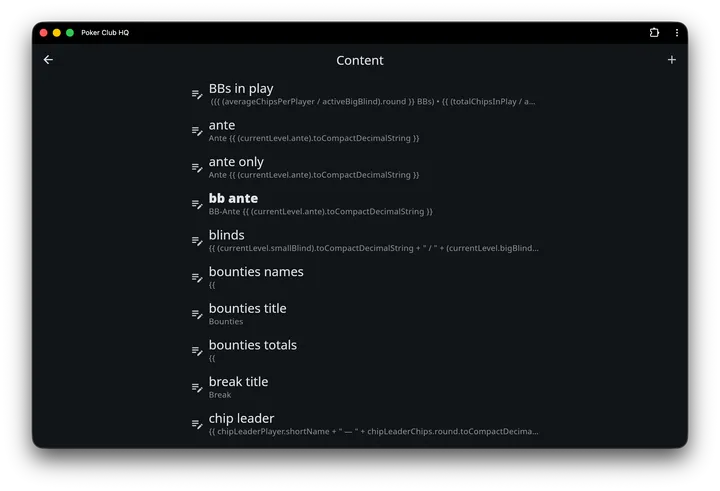
Swipe an item left in **Manage content** to delete it from where it lives. If a cell on the timer shows it from there, the app warns you and names it first. Built-in items can’t be deleted.
Getting a built-in back
Deleting your All layouts version of a built-in brings the shipped one back, which is the undo for “I changed `clock` and want the default back”. A widget’s copy of a built-in works the same way: swipe it, and the widget shows the built-in again.
Names must be unique among everything the cell can see, built-in names included. So you can’t make a second `clock`. Either edit `clock` itself, or create one under another name like `clock big` and point the cell at that.
Content travels with the cells that use it. [Saving a widget](/info/widgets/#saving-your-own-widgets) puts the content its cells use inside the widget, and cutting or copying a cell does the same, so text you paste into another layout or out of a widget still reads the same. **Import layouts** copies a whole look across, layouts and content together.
### Some built-ins worth knowing
These are ordinary content items — open any of them to see how it’s put together, or copy the approach into your own.
| Name | Value | Condition |
| ------------------------ | --------------------------------------------------------------------------------- | --------------------------------------------------------------------------- |
| `tournament title` | `{{ title }}` | always |
| `title` | `{{ currentLevel.title }}` | always |
| `break title` | `Break` | `isBreakLevel && currentLevel.title.isEmpty` |
| `level number` | `Level {{ blindLevelNumber }} of {{ blindLevelCount }}` | `isBlindsLevel` |
| `clock` | `{{ (secondsLeftInLevel * 1000).toCompactTimeDurationString }}` | always |
| `blinds` | small / big blind, compactly formatted | `currentLevel.bigBlind > 0` |
| `ante` | `Ante {{ (currentLevel.ante).toCompactDecimalString }}` | standard antes only |
| `bb ante` | `BB Ante {{ … }}` | big-blind antes only |
| `next level blinds` | the next level’s blinds | `nextLevel.bigBlind > 0` |
| `next break time` | `, break in {{ (secondsUntilNextBreak / 60).round }} min.` | a break is coming |
| `player count` | `{{ currentPlayerCount }} of {{ totalPlayerCount }} players` | always |
| `chips per player` | `Avg stack {{ averageChipsPerPlayer.round.toCompactDecimalString }}` | always |
| `BBs in play` | average and total stacks in big blinds | `activeBigBlind > 0` |
| `current time` | `{{ now().toTimeString }}` | always |
| `chip leaders` | the top three stacks, names and totals | `chipLeaders.isNotEmpty` |
| `high hand` | the hand’s owner, name, and cards | `hasHighHand` |
| `rebuy countdown` | `Rebuys end in {{ (secondsUntilRebuysEnd * 1000).toApproximateDurationString }}!` | a rebuy period is running |
| `rebuy countdown paused` | `Rebuys end after Level {{ rebuyEndLevel }}!` | the same, but the timer is paused |
| `color up title` | `Color up!` | it’s a color-up level (a break, by default) and a chip has become retirable |
| `color ups` | the chips to retire, drawn as chips | the same |
| `separator` | `•` | always |
### Level numbers and breaks
Breaks are levels too, so `levelIndex` counts them — with a break between them, level 4 is followed by level 6. To number only the blind levels, use `blindLevelNumber` and `blindLevelCount`, which is what the built-in `level number` item does. Its condition is `isBlindsLevel`, so the cell hides during breaks rather than holding at the level that just finished.
# Layout & content
> How to rearrange the Poker Club HQ timer screen — edit mode, cells, selection, cell settings, rows and columns that turn with the screen, the live preview, and saving your layout to one level or all of them.
The timer screen isn’t a fixed design. Everything on it — the tournament title, the countdown, the blinds, the payout list — lives in a cell you can move, restyle, or remove. **Layout & content** is the editor for it, and it works directly on the timer itself: what you see while editing is the real screen, rendered with the real tournament data.
Note
Editing the layout is a **Director** privilege. Table Captains and players see the timer read-only and don’t get the **Customize** menu at all. See [Roles & shared control](/info/roles/).
## Turning edit mode on
Tap the display settings icon (**Customize**) in the top app bar, then **Layout & content** in the **Customize** section. The screen splits, and an editing toolbar appears. You’re editing the layout that’s showing; to edit another, pick it in the menu’s [Layouts](/info/timer-display/#layouts) section first.
Where the toolbar lands depends on the space available:
* **Wide screens** — landscape, or anything at least 800 points across — put the timer on the left and a fixed editing **panel** down the right side. Cell settings open inside that panel.
* **Portrait phones** put the timer on top and a compact bar underneath with **Cut**, **Copy**, **Delete**, and an **Edit settings** button that opens the settings as a sheet.
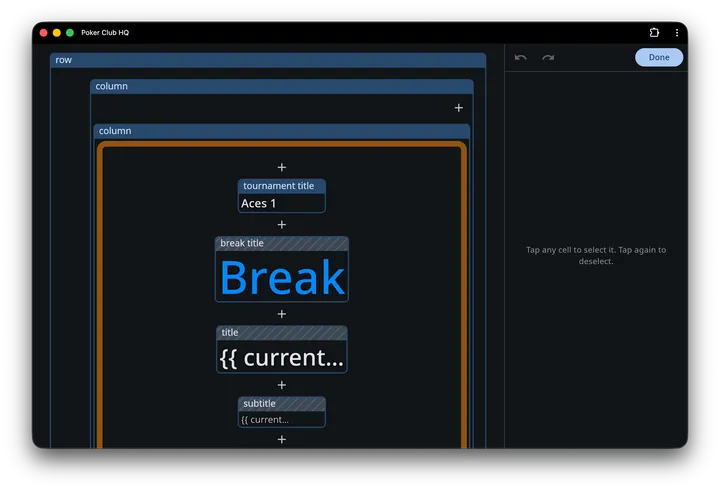 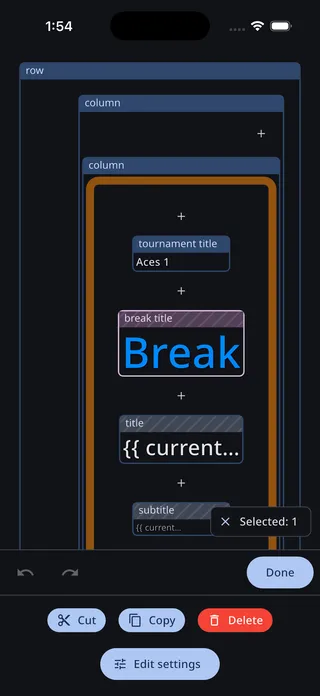
Both layouts share the same toolbar buttons:
* **Undo** and **Redo** step through your changes. History holds the last 50 edits, and rapid tweaks to the same setting — dragging a font-size slider, say — collapse into one step so undo doesn’t crawl back through every intermediate value.
* **Save** keeps your changes, **Cancel** throws them away. Cancel is red, because it discards everything since you entered edit mode.
* If you haven’t changed anything yet, a single **Done** button appears instead of Save and Cancel.
Tip
Unsaved edits survive leaving the screen. If you wander off to Players or Log and come back, the timer reopens in edit mode with your work still in progress. Nothing is written to the tournament until you tap **Save**.
## Reading the editor
In edit mode every cell is outlined and labelled, including cells that the live timer would be hiding right now:
* **Text cells** are labelled with the name of the [content](/info/content/) they display — `clock`, `blinds`, `player count`.
* **Rows and columns** are labelled `row`, `column`, or `auto`, followed by their condition when they have one, e.g. `column: {{ totalCollected > 0 }}`.
* **Chips**, **Tables**, and **QR code** [widgets](/info/widgets/#chips-tables-and-the-qr-code) are labelled with their names. One with nothing to show right now says why, inside the cell.
* **Hidden cells** — ones whose condition is currently false, or whose content produces no text — keep their place in the layout but get a **diagonally striped label bar**. They’re still fully editable; the stripes just tell you the live timer wouldn’t be drawing them at this moment.
* A text cell whose content evaluates to nothing shows a short preview of its raw text instead of blank space, so the cell stays findable. If the content name doesn’t resolve at all, the cell reads `Missing variable "…"`.
Note
The crossed-out eye and the **Currently hidden** explanation belong to the [widget gallery](/info/widgets/#why-a-widget-looks-empty), not to this editor. Here, striping is the signal.
## Live preview
The editing view is deliberately annotated — cells outlined, labelled, and striped so you can find and grab them. To see the screen the way viewers actually see it, the wide-screen editing panel carries a **live preview** at the bottom: a clean, read-only render of the timer with no outlines, no labels, and hidden cells genuinely hidden. It’s shaped to match your window, so it reads as a true miniature of the real thing.
It updates as you edit. Restyle the text, swap a background, drop in a widget — the preview picks up your draft immediately, rendered against the real tournament with chips and tables in place, exactly as it’ll look once you **Save**.
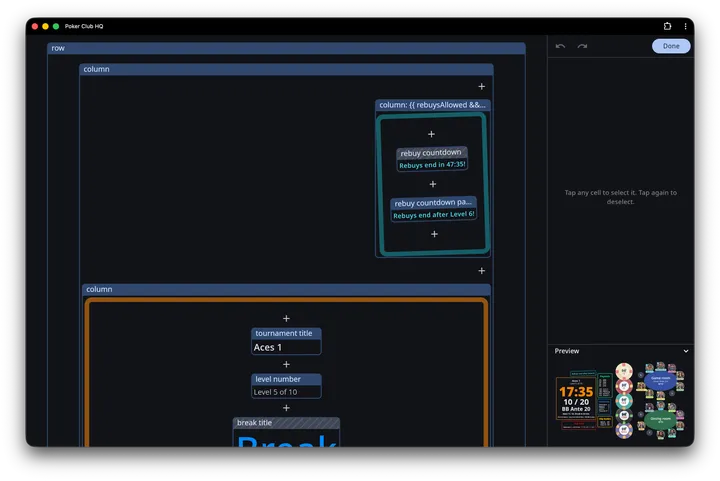
Tap the **Preview** header to collapse it and hand that height back to the editing controls above; tap again to bring it back. The app remembers which way you left it between sessions.
The preview belongs to the wide-screen layout only — portrait phones, where the controls already fill a compact bar, have no room for it. It also tucks itself away on any window too short to show both the controls and a usefully sized preview.
## Selecting cells
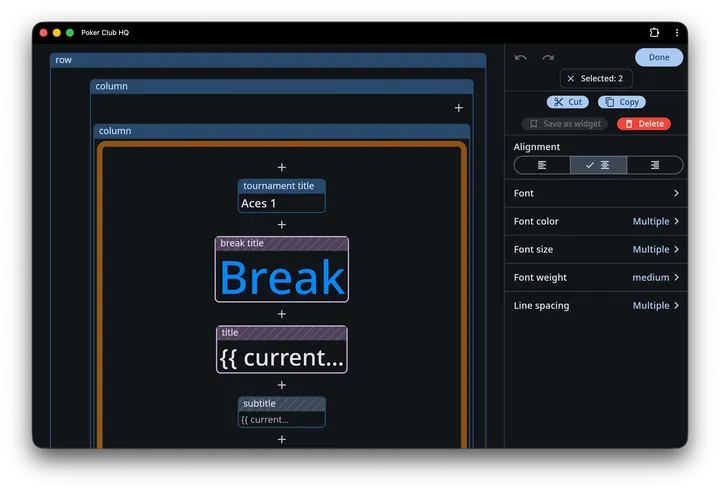
Tap a cell to select it, and tap it again to deselect. **Selection is additive** — tapping a second cell adds it to the selection rather than replacing it, which is how you restyle several cells at once.
A **Selected: 2** chip shows how many cells are in play; tap the chip to clear the selection entirely. On wide screens the chip sits in the editing panel; on phones it floats over the timer.
When more than one cell is selected:
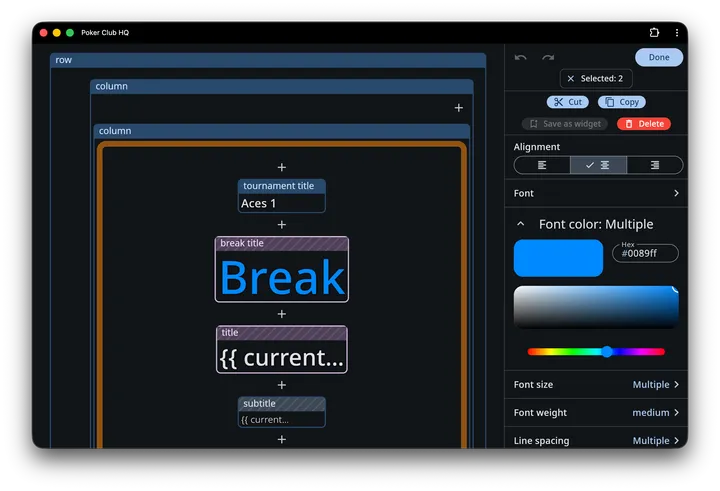
* Settings that differ across the selection show **Multiple** instead of a value. Changing one writes it to every selected cell; leaving it alone leaves each cell’s own value intact.
* **Content** and **Condition** drop out of the settings list — those are inherently per-cell.
Caution
There’s no drag-to-reorder. To move a cell, **Cut** it and then paste it where you want it using the **+** button — see [Adding content](#adding-content).
## Acting on a selection
With at least one cell selected, these commands are available:
| Command | What it does |
| ------------------ | ------------------------------------------------------------------------------------- |
| **Cut** | Removes the cell and puts it on the clipboard |
| **Copy** | Puts a copy of the cell on the clipboard |
| **Save as widget** | Adds the cell to your [widget gallery](/info/widgets/) for reuse — one cell at a time |
| **Delete** | Removes the cell |
Cut and Delete are unavailable for the outermost cell, since something has to hold the layout. If you select a container and something inside it, the command applies to the container only — the child comes along with it.
On a portrait phone, **Save as widget** isn’t on the inline bar; it’s inside the sheet that **Edit settings** opens.
## Adding content
**+** buttons appear at every insertion point inside every row and column — before the first child, between children, and after the last. Tapping one opens an **Add** menu:
* **Paste from clipboard** — only listed when you’ve cut or copied something, and always first. Pasting empties the clipboard, so a cut cell lands exactly once. A pasted cell keeps the [content](/info/content/#where-content-lives) it showed where you cut or copied it, unless the new spot already shows the same.
* **Content** — insert a text cell and pick which [content item](/info/content/) it shows.
* **Column** — insert an empty column (children stacked vertically).
* **Row** — insert an empty row (children side by side).
* **Widget** — open the [widget gallery](/info/widgets/) and drop in a complete, pre-built block.
After the new cell lands, the timer scrolls to bring it into view. A row or column isn’t stuck that way: its **Direction** setting changes it later, to the other one or to **Auto**.
## Cell settings
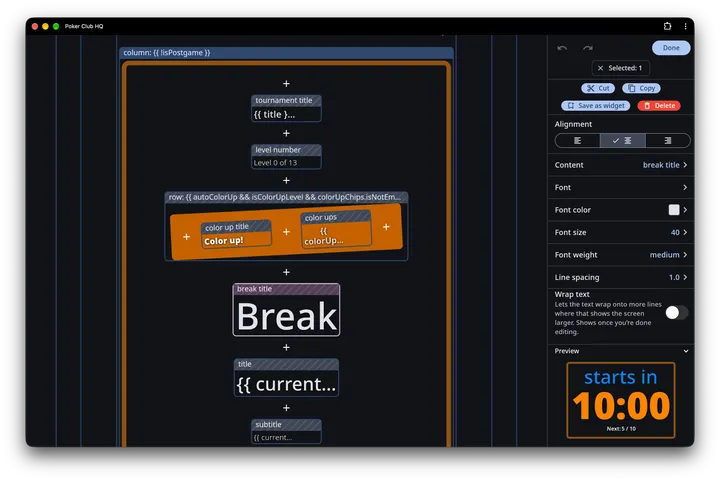
On wide screens, tapping a setting expands its controls inline, right below the row; a chevron collapses it again. On phones, **Edit settings** opens the same list as a sheet. Either way the settings are listed alphabetically.
### Text cells
A text cell shows one piece of content, and everything else about it is typography:
| Setting | Notes |
| ---------------- | ---------------------------------------------------------------------------------------------------------------------------------------------------------------------- |
| **Content** | Which [content item](/info/content/) the cell displays |
| **Font** | Any of about 1,900 Google Fonts, listed by popularity or A–Z and filterable by style, with a search box |
| **Font size** | 2–100. This is a *relative* size — the timer scales the whole layout to fit the screen, so think of it as proportion, not points |
| **Font weight** | Light through black |
| **Line spacing** | 1.0–2.0, for content that spans several lines like a payout list |
| **Alignment** | Left, center, or right |
| **Font color** | With a reset button to fall back to the screen’s text color |
| **Wrap text** | Lets the text wrap onto more lines where that shows the screen larger, as for a list of names. See [Wrapping text to fit the screen](#wrapping-text-to-fit-the-screen) |
### Rows and columns
Rows and columns arrange their children and carry all the decoration:
| Setting | Notes |
| -------------------- | ------------------------------------------------------------------------------------------------------------------------------------------------------------------------------ |
| **Direction** | **Row**, **Column**, or **Auto**, which turns with the screen. See [Rows and columns that follow the screen](#rows-and-columns-that-follow-the-screen) |
| **Alignment** | How children line up across the direction the cell runs. A row, or an Auto cell running as one, shows this as **Alignment, vertical** |
| **Condition** | An expression deciding whether the whole cell — and everything inside it — appears. See [Scripting](/info/scripting/) |
| **Spacing** | 0–100, the gap between children |
| **Spread out** | Only on the outermost row or column. Fills the screen, sharing the room evenly between its children. See [Spreading out to fill the screen](#spreading-out-to-fill-the-screen) |
| **Padding** | 0–100, inside the cell’s border |
| **Margin** | 0–100, outside it |
| **Minimum width** | 0–2000. The cell is never narrower than this, however little it contains. 0 means no minimum |
| **Minimum height** | 0–2000, the same for height |
| **Background color** | |
| **Image** | A picture for this cell |
| **Image fit** | How that picture fills the cell. Only appears once the cell has an image |
| **Border width** | 0–20 |
| **Border color** | |
| **Corner radius** | 0–100 |
| **Rotation** | −180° to 180° |
Padding, margin, border width and the two minimums all share one scale, so they add up the way you’d expect: a cell with a minimum width of 300 and padding of 20 leaves 260 for its contents. Note that text is measured on a different scale — a font size of 20 is roughly 80 of these units tall — so minimums are usually larger numbers than the font sizes beside them.
### Rows and columns that follow the screen
A row puts its children side by side and a column stacks them, on every screen. A layout that looks right on a TV can waste most of a phone held upright. Set **Direction** to **Auto** and the cell turns with the screen instead: a row on a wide screen, a column on a tall one.
An Auto cell directly inside another Auto cell goes the other way, so the two always run across each other. Inside an ordinary row or column, an Auto cell follows the screen again.
For example, the default **Current level** layout is a row of two columns: the timer and the results. Set **Direction** to **Auto** on both the row and the results column. A wide screen looks just as before, and on a tall one the timer sits on top, with the results side by side beneath it.
It goes by the shape of the whole screen, or of the app’s window, not by the space the cell happens to have, so the layout doesn’t flip partway through a game as a payout list grows. In edit mode you see the direction for the screen you’re editing on; rotate the device or resize the window to check the other one. An Auto cell’s **Alignment** switches between its vertical and horizontal choices as it turns.
The default layouts, and any you’ve customized, keep their rows and columns as they are. Set **Direction** to **Auto** on the ones you want to turn.
Note
A device still on an older version of the app shows an Auto cell the way it runs on a wide screen. Saving the layout from that device turns it back into a plain row or column.
### Spreading out to fill the screen
A layout is scaled to fit the screen, so when its shape doesn’t match the screen’s, there’s room left over above and below it, or on either side. Turn on **Spread out** for the outermost row or column and it fills the screen in the direction it runs, sharing that room evenly before, between, and after its children. **Spacing** stays the smallest gap, and chips shown below or beside the layout move to the edge of the screen.
The switch only appears on the outermost row or column, the one that holds everything else, because that’s the only cell the screen gives extra room to. A column spreads its rows down a tall screen, and a row spreads its children across a wide one. The room depends on the screen, so a column spreads further on a phone held upright than on a TV.
Edit mode shows the layout without spreading it, so the change appears once you’re done editing.
Note
A device still on an older version of the app shows the layout without spreading it. Saving the layout from that device turns **Spread out** off.
### Wrapping text to fit the screen
A text cell keeps to the lines its content gives it, however long they are. The timer scales the whole layout to fit the screen, so one long line, like the list of players at a table, makes everything on the screen small. Turn on **Wrap text** and the text wraps onto more lines, at the width that shows the layout largest on the screen it’s on, beside the chips, tables, and QR code.
Where another part of the layout is wider, like a large clock, the text wraps at that width. Where the text is the widest thing, it wraps where the layout best fills the screen: narrower on a phone held upright, wider on a TV. Rotating the screen, or a change in the text such as a player busting out, wraps it again.
Edit mode shows the text on its own lines, so the change appears once you’re done editing.
Note
A device still on an older version of the app shows the text on its own lines. Saving the layout from that device turns **Wrap text** off.
### Reserving space
A cell normally shrinks to fit its contents, which means it changes size as those contents do — a payout list grows as places are paid, a conditional label appears and shoves its neighbours along. Giving the cell a **Minimum width** or **Minimum height** holds its footprint steady, so the rest of the layout stops shifting underneath it.
The cell still grows past the minimum if its contents need the room; the minimum is a floor, not a fixed size. When contents are smaller than the floor, the leftover space is distributed according to the cell’s **Alignment**.
### Images
Note
There is no separate “image cell”. An image is a property of a row or column, so to place one you add a row or column and give it an image.
The **Image** setting offers **Manage cloud images** to reuse pictures you’ve already uploaded, and **Upload image** to add a new one. Uploading your own images requires a subscription; without one the upload action shows a lock.
An image behaves one of two ways, depending on what else is in the cell:
* **Behind other cells.** If the row or column has children, the image sits behind them as a backdrop, and the children decide how big the cell is.
* **On its own.** If the cell has no children, the image is the content — this is how you place a club logo or a sponsor badge.
A cell showing only an image needs a **Minimum width** or **Minimum height**, because a picture on its own has no size to give the cell. Set just one of the two and the other follows the image’s shape, so a logo keeps its proportions: give it a minimum width of 400 and the height works itself out.
Whenever the cell’s shape is decided by something other than the picture — both minimums set, or a backdrop sized by the cells in front of it — **Image fit** settles the mismatch:
| Fit | What it does |
| ----------- | ---------------------------------------------------------------------------------------------------------- |
| **Cover** | Fills the whole cell, cropping whatever overflows. Best for backdrops |
| **Contain** | Fits the picture entirely inside the cell, leaving space on two sides if the shapes differ. Best for logos |
| **Fill** | Stretches the picture to the cell exactly, distorting it if the shapes differ |
Tip
For a logo, set one minimum and leave the other at 0. The cell takes the picture’s own shape, so there’s nothing to crop or stretch and **Image fit** doesn’t come into it.
### Chips, tables, and QR code widgets
The **Chips**, **Tables**, and **QR code** widgets from the [gallery](/info/widgets/#chips-tables-and-the-qr-code) are cells of their own. With nothing inside to arrange, they have no **Direction**, **Alignment**, **Spacing**, or **Image**, and no **+** buttons. Everything else works as on a row or column, and the two minimums decide their size.
### Conditions
A row or column with a **Condition** only appears when that condition is true, which is how a payout block stays out of the way until money has been collected. Leave it empty and the cell always shows.
The condition editor has syntax highlighting and completion, shows what the expression currently evaluates to, and rejects anything that isn’t true or false. The `{ }` button in its app bar opens the **Script explorer**, which lists every value you can reference along with its current value.
See [Scripting](/info/scripting/) for the language, and [Tournament data](/info/scripting-data/) for the full list of values.
## Saving: one level, or all of them
A layout starts out the same on every level, so tapping **Save** applies your change to all of them.
It can also differ per level — something calm during breaks, something busier during blind levels. To allow that, open the tournament’s **Settings** screen, turn on **Advanced settings**, and turn on **Allow custom content per level or level type**. **Save** then asks how far the change should reach in this layout with an **Update:** menu:
* **this level** — only the level you’re looking at
* **all blind levels**, **all break levels**, or **all pregame levels** — every level of that type
* **all levels** — the whole tournament
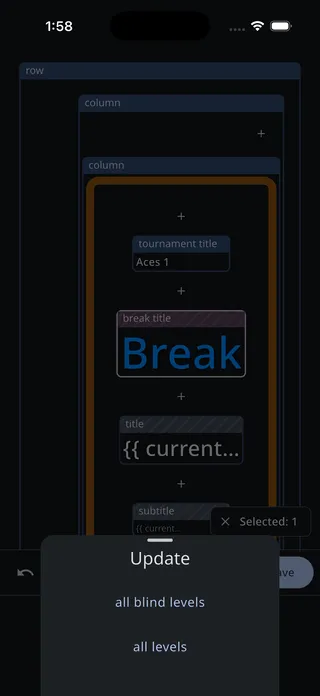
The menu also appears with that setting off, in a layout where a level or a type of level already has its own content. Tournaments brought over from the old app often do.
Caution
Choosing **all levels** when individual levels already have their own layouts replaces those layouts. The app warns you first with an **Apply to all levels?** confirmation.
Cancelling the Update menu doesn’t lose your work — you stay in edit mode with the draft intact.
## Starting over
Both live in the **Customize** menu, and both are covered on the [Timer display](/info/timer-display/#reset-and-import) page:
* **Reset to defaults** lists exactly what you’ve customized in the layout that’s showing, so you can reset one thing, or all of it.
* **Import layouts** replaces this tournament’s layouts with another tournament’s, which beats rebuilding a layout you already like.
# Tournament data
> Every value a Poker Club HQ script can read — timer state, level, player counts, money, payouts, high hand, chip leaders, Club stats — plus what's inside a player, table, level, and log entry.
This is the reference for everything a script can point at. The `{ }` **Script explorer** in any script editor shows the same list with each value’s *current* value alongside, which is usually quicker than reading this page — but this page has the whole picture in one place.
Values are read-only. A script can look at the tournament; it can’t change it.
## Timer and level
| Value | Description |
| ----------------------- | ----------------------------------------------------------------------------------------------------------------------------------------------------------------------- |
| `isTimerRunning` | Is the timer running? |
| `isTimerPaused` | Is the timer paused? |
| `levelIndex` | The current level’s position in the list — **breaks count**, so a break between level 4 and level 5 makes the latter index 5 |
| `secondsLeftInLevel` | Seconds remaining in the current level |
| `secondsUntilNextBreak` | Seconds until the next break, or 0 if none is scheduled |
| `rebuysOpen` | Is the [rebuy period](/info/setup/#buy-in-and-features) still open? Always true when no end level is set |
| `secondsUntilRebuysEnd` | Seconds until it closes, or 0 if it has closed or was never limited |
| `currentLevel` | The current [level](#level) |
| `nextLevel` | The next level, or nothing if this is the last |
| `levels` | Every level in the structure |
| `blindLevelNumber` | The current blind level, **ignoring breaks**. 0 before the first one; during a break, the level that just finished |
| `blindLevelCount` | How many blind levels there are, not counting breaks |
| `breakNumber` | The current break, **counting only breaks**, and not a break before the first blind level. 0 before the first break; during a blind level, the break that just finished |
| `breakCount` | How many breaks there are, not counting a break before the first blind level |
| `isBlindsLevel` | Is the current level a blind level? |
| `isBreakLevel` | Is the current level a break, after the first blind level? |
| `isPregameLevel` | Is the current level before the first blind level? |
| `dt` | The current time, in milliseconds |
Tip
For anything a player reads, use `blindLevelNumber` — not `levelIndex`. With breaks in the structure, `levelIndex` skips numbers.
## Tournament phase
| Value | Description |
| ------------ | ---------------------------------- |
| `isPregame` | The tournament hasn’t started |
| `isInGame` | It has started but hasn’t finished |
| `isPostgame` | It has finished |
`isPregame` is about the *tournament*; `isPregameLevel` is about the *level* you’re looking at. They differ when you scroll the timer back to an earlier level mid-game.
## Players
| Value | Description |
| ----------------------------- | ------------------------------------------------------------- |
| `players` | Every [player](#player) |
| `playersActive` | Players still in |
| `playersEliminated` | Players knocked out or removed, in finishing order |
| `playersWithPayouts` | Players who have finished in the money |
| `currentPlayerCount` | How many players are still in |
| `totalPlayerCount` | How many actually played — bought in *and* were seated |
| `expectedPlayerCount` | The larger of the buy-in count and your expected player count |
| `tables` | Every open or occupied [table](#table) |
| `tablesOutOfBalanceThreshold` | The seat difference at which tables count as unbalanced |
## Money and chips
| Value | Description |
| ---------------------------------------------------------------------- | ------------------------------------------------------------- |
| `totalCollected` | Buy-ins + addons + rebuys |
| `netPrize` | `totalCollected` plus the payout adjustment |
| `totalBuyIns`, `totalAddons`, `totalRebuys` | Counts |
| `totalBuyInsCollected`, `totalAddonsCollected`, `totalRebuysCollected` | Money from each |
| `totalBuyInChips`, `totalAddonChips`, `totalRebuyChips` | Chips from each |
| `totalChipsInPlay` | Buy-in + addon + rebuy chips |
| `expectedChipsInPlay` | Projected total, given expected players |
| `averageChipsPerPlayer` | Chips in play divided by players remaining |
| `activeBigBlind` | The current big blind, or the next one if this level has none |
| `estimatedLastBigBlind` | Where the blinds are projected to end |
| `estimatedSecondsUntilEnd` | Projected time remaining, or nothing if it can’t be estimated |
Note
Bounty chip purchases are deliberately *not* part of `totalCollected` — the bounty pool is separate from the prize pool.
### Chips in play
As the blinds climb, denominations stop being needed. Two values track that:
| Value | Description |
| --------------- | -------------------------------------------------------------------------------------------------------------------------------------------------------------- |
| `colorUpChips` | The [chips](#chip) that became retirable since the last break — no blind, ante, or bring-in from here on needs them. Smallest first, empty when there are none |
| `colorUpTarget` | The smallest chip still needed, which the others are exchanged into |
Each item is a [chip](#chip), so read `value` from it. This is what the [Color up!](/info/widgets/#color-up) widget is built on:
```plaintext
{{ colorUpChips.map(func(c) { c.value.toString + "s" }).join(" ") }}
```
Writing a chip’s value with an `s` after it is what draws it as a chip rather than as text — see [Chips in your text](/info/content/#chips-in-your-text).
## Payouts
| Value | Description |
| ----------------------------------------------------------------------- | ----------------------------------------------------------------------- |
| `payouts` | The payout amounts, largest first |
| `payoutsToShow` | How many places to display — it shrinks as places are filled in by name |
| `playersWithPayouts` | Players who have finished in the money |
| `eliminationsUntilBubbleBurst` | Knockouts left before the money |
| `chops` | Any [chops](#chop) that have been agreed |
| `payoutCount`, `payoutPercentages`, `payoutRoundTo`, `payoutAdjustment` | The configured settings |
## High hand
| Value | Description |
| ---------------- | -------------------------------------------------------- |
| `hasHighHand` | Has a high hand been recorded? |
| `highHand` | The hand, as a number you decode with `pokerHandToCards` |
| `highHandPlayer` | The [player](#player) who made it |
Decoding takes two steps — turn the number into cards, then ask the cards for what you want:
| Applied to | Property | Result |
| ---------- | ---------------------- | ----------------------------- |
| `highHand` | `pokerHandToCards` | The five cards |
| the cards | `pokerCardsToHandName` | `Full House` |
| the cards | `pokerCardsToHandType` | `fullHouse` |
| the cards | `pokerCardsToText` | `A♠ A♥ A♦ K♠ K♥` |
| the cards | `pokerCardsToValue` | A number, for comparing hands |
```plaintext
{{ cards = highHand.pokerHandToCards; highHandPlayer.shortName + " — " + cards.pokerCardsToHandName + " " + cards.pokerCardsToText }}
```
`pokerCardsToHandName` gives the name in the app’s language, so a script that checks for a kind of hand should use `pokerCardsToHandType`, which is never translated: `highCard`, `onePair`, `twoPair`, `threeOfAKind`, `straight`, `flush`, `fullHouse`, `fourOfAKind`, `straightFlush` or `royalFlush`. Each hand in a Player hands [log entry](#log-and-log-entries) decodes the same way.
## Chip leaders
Fed by the counts players report themselves — see [Player profile updates](/info/player-updates/).
| Value | Description |
| ------------- | --------------------------------------------------------------------------------------------------------------------- |
| `chipLeaders` | The active [players](#player) with a recorded chip count, most chips first — ties in player-name order, empty if none |
Each item is a [player](#player), so read `currentChips` and `shortName` from it. Test it with `chipLeaders.isNotEmpty`. To show the top three:
```plaintext
{{ chipLeaders.take(3).map(func(p) { p.shortName + " — " + p.currentChips.round.toCompactDecimalString }).join("\n") }}
```
## Club stats
The season standings of the folder the tournament is in, subfolders included: the season totals of that folder’s [Club stats](/info/club-stats/) screen. On a [shared tournament](/info/qr-sharing/), that’s the owner’s folder, wherever the viewer keeps the link.
| Value | Description |
| --------------------------- | ------------------------------------------------------------------------------------------ |
| `clubStats.players` | The [Club stats players](#club-stats-player), most points first, as on the Leaderboard tab |
| `clubStats.tournamentCount` | How many completed tournaments the season has |
Only completed tournaments count, so during a game these are the standings coming into it, and the tournament joins them when it finishes. Reopen a finished tournament and they’re the standings as they stood right after it, without the games played since. A tournament that isn’t in a folder gets an empty list, so test it with `clubStats.players.isNotEmpty`. To show the top five with their season points:
```plaintext
{{ clubStats.players.take(5).map(func(p) { p.shortName + ": " + p.totalPoints }).join("\n") }}
```
The [Leaderboard widget](/info/widgets/#leaderboard) is this, ready made.
## Tournament settings
Everything on the [Setup](/info/setup/) screen is readable too. The most useful:
| Value | Description |
| ------------------------------------------------------------------ | ----------------------------------------------------- |
| `title` | The tournament’s name |
| `startingChips` | Starting stack |
| `buyInCost`, `addonCost`, `rebuyCost` | Configured costs |
| `addonsAllowed`, `rebuysAllowed` | Whether each is permitted |
| `rebuyEndLevel` | The blind level rebuys run through, or 0 for no limit |
| `useBountyChips`, `bountyChipCost` | Bounty settings |
| `anteType` | 0 none, 1 standard, 2 big-blind ante |
| `initialBigBlind`, `blindGrowthRate` | Blind structure inputs |
| `levelMinutes`, `breakMinutes`, `levelsPerBreak`, `pregameMinutes` | Timing |
| `pauseAfterLevel`, `pauseAfterBreak` | Automatic pauses |
| `defaultSeatsPerTable`, `minPlayersForConsolidation` | Table settings |
| `chips` | The [chip](#chip) set |
| `log` | The tournament [log](#log-and-log-entries) |
## Objects
### Player
| Property | Description |
| --------------------------------------------------------- | ------------------------------------------------------------------------------------------------------------------------ |
| `name`, `shortName`, `initials` | How the player is displayed |
| `id` | The player’s number |
| `isActive` | Still in the tournament? |
| `tableId`, `seat` | Where they’re sitting, if they are |
| `place`, `placeCount` | Finishing place, and how many share it |
| `payout` | Their prize, or 0 |
| `points` | Their score under the tournament’s [points formula](/info/stats/#points-formula), or 0 until they have a finishing place |
| `totalWinnings` | Prize plus bounty winnings, including a bounty chip still held |
| `currentChips` | Latest reported stack, or 0 |
| `currentChipsDt` | When it was reported |
| `totalChips` | Chips received from buy-in, addons, and rebuys |
| `totalPaid` | Money paid in |
| `totalEliminated` | Players knocked out — a fraction when a pot was split |
| `timesEliminated` | How many times *they* were knocked out, for re-entry tournaments |
| `hasBountyChip`, `bountyChipValue` | Their bounty chip, if any |
| `bountyChipsWon`, `bountyChipWinnings`, `totalBountyPaid` | Bounty totals |
| `msActive`, `msSeated` | Time in the tournament and at a table, excluding breaks and pauses |
### Club stats player
| Property | Description |
| ------------------------------- | ---------------------------------------------------------------------------------------------------- |
| `name`, `shortName`, `initials` | How the player is displayed |
| `id` | The player’s number |
| `gamesPlayed` | Completed tournaments they played in |
| `wins` | First-place finishes |
| `finalTables` | Top-9 finishes |
| `itmFinishes` | In-the-money finishes: games where they won part of the prize pool. Bounty money alone doesn’t count |
| `avgFinish` | Average finishing place, over the games where they got one |
| `knockouts` | Players they knocked out |
| `totalPoints` | Season points: what each tournament’s points formula gave them, added up |
| `avgPoints` | Season points divided by games played |
| `totalWinnings` | Prize money plus bounty winnings |
| `totalBuyIns` | Money paid in, including add-ons, rebuys, and bounty chips |
### Table
| Property | Description |
| --------------- | -------------------------------------- |
| `name`, `color` | Optional label and color |
| `seats` | How many seats |
| `isOpen` | Accepting players? |
| `closeOrder` | 0 first, 1 any, 2 last |
| `players` | The players seated here, in seat order |
### Level
| Property | Description |
| ------------------------------------------------ | ----------------------------- |
| `title`, `subtitle` | The level’s labels |
| `smallBlind`, `bigBlind`, `ante` | Blinds for this level |
| `minutes` | Its length |
| `isBreakLevel`, `isBlindLevel`, `isPregameLevel` | What kind of level it is |
| `pauseAfter` | Pause the timer when it ends? |
### Chop
`place`, `totalPayout`, `type`, `players`, `stacks`, `percents`, `payouts`.
### Chip
`value`, `count`, `image`, `svgId`, plus whatever parameters the chip’s artwork defines.
### Log and log entries
`log.entries` is every entry in the [tournament log](/info/log/), oldest first. Each entry has:
| Property | Description |
| ----------- | --------------------------------------------------------------------------------------------------------- |
| `type` | `"buyIn"`, `"knockout"`, `"seating"`, `"blindsChanged"`, and so on — or your own name, for a custom entry |
| `dt` | When it happened, in milliseconds |
| `status` | `"enabled"` when the entry counts |
| `createdBy` | Who recorded it |
Beyond those four, the properties depend on the type — `cost`, `chips`, and `players` on a buy-in; `players` and `byPlayers` on a knockout; `table` and `seats` on a seating entry; `bigBlind`, `smallBlind`, `ante`, and `level` on a blinds change. A custom log entry exposes one property per field you defined, named by the field’s label. Player chips and Player hands entries work the same way: their `type` is `"Player chips"` or `"Player hands"`, and each has `players` and a second list in the same order — `chips` for each player’s count, or `hand` for each player’s hand, a number you decode like the [high hand](#high-hand).
`players` and `byPlayers` hold player **numbers**, not players. Turn them into something useful with the helpers below.
## Turning numbers into players and tables
| Method | Result |
| ---------------------- | -------------------------------------- |
| `.toPlayer()` | The [player](#player) with that number |
| `.toPlayerName()` | Their full name |
| `.toPlayerShortName()` | Their short name |
| `.toPlayerInitials()` | Their initials |
| `.toTable()` | The [table](#table) with that number |
```plaintext
{{ e = log.entries.last; e.players.map(func(p) { p.toPlayerName() }).join(", ", ", and ") }}
```
Caution
`.toPlayer()` and `.toTable()` fail if the number doesn’t match anything. `.toPlayerName()` falls back to the number itself, so it’s the safer choice inside an alert.
## Values only some fields get
### Alerts
Alert conditions and TTS text get some extras, which is what makes them fire once rather than every second:
| Value | Description |
| ------------------- | ------------------------------------------------------------------------------------------------------------------------------------ |
| `becameTrue(x)` | Is the condition true now, and wasn’t a second ago? |
| `changed(x)` | Is the value different from a second ago? |
| `was(x)` | What any tournament value was one second ago — `was(levelIndex)`, `was(secondsLeftInLevel)`, and so on |
| `handTimer` | The [hand timer](/info/hand-timer/): `isRunning`, `seconds`, `defaultSeconds` |
| `previousHandTimer` | The hand timer a second ago |
| `previous` | The whole tournament as it was one second ago. The three functions above replace it; conditions written with `previous` keep working |
See [Alerts](/info/alerts/#firing-once-instead-of-every-second) for why these matter.
### Player points formula
The [points formula](/info/stats/#points-formula) is evaluated once per player, and gets `playerId` — that player’s number. Turn it into a player with `playerId.toPlayer()`.
It can’t read [`clubStats`](#club-stats). Season totals are built from every tournament’s formula, so a formula that read them would go in circles.
### Payout scripts
A [payout script](/info/payouts/#script) runs *before* payouts exist, so it deliberately can’t see `payouts` or `playersWithPayouts` — referencing them is an error rather than a silent zero. It gets a focused set instead:
`netPrize`, `totalCollected`, `totalBuyIns`, `totalAddons`, `totalRebuys`, `totalPlayerCount`, `currentPlayerCount`, `expectedPlayerCount`, `payoutCount`, `payoutRoundTo`, `buyInCost`, `addonCost`, `rebuyCost`
plus one function of its own:
| Function | Result |
| --------------------------------- | ---------------------------------------------------------------------------------------------------- |
| `defaultPayoutPercentages(count)` | The app’s default split for that many places — `defaultPayoutPercentages(3)` gives `[0.5, 0.3, 0.2]` |
# Examples
> Real Poker Club HQ scripts, explained — timer text, leaderboards, alert conditions, payout structures, and league points formulas you can copy.
Every script here either ships with the app or is built from parts that do. Copy one, paste it into the field named above it, and adjust.
## Timer screen text
These go in a [content item’s](/info/content/) **Value** field.
### The countdown
```plaintext
{{ (secondsLeftInLevel * 1000).toCompactTimeDurationString }}
```
`secondsLeftInLevel` is seconds, and the duration formatters read milliseconds, so it’s multiplied by 1000 first. `toCompactTimeDurationString` gives `20:00`; `toTimeDurationString` would give `0:20:00`.
### Level number that ignores breaks
```plaintext
Level {{ blindLevelNumber }} of {{ blindLevelCount }}
```
With a condition of `isBlindsLevel`, so the line disappears during breaks instead of freezing on the level that just ended.
### Blinds, compactly
```plaintext
{{ (currentLevel.smallBlind).toCompactDecimalString + " / " + (currentLevel.bigBlind).toCompactDecimalString }}
```
`toCompactDecimalString` turns 1500 into `1.5K`, which keeps big-stack tournaments from overflowing the cell.
### Average stack in big blinds
```plaintext
{{ (averageChipsPerPlayer / activeBigBlind).round }} BBs
```
Give it a condition of `activeBigBlind > 0` so it can’t divide by zero before the blinds start.
### Estimated finish time
```plaintext
ends around {{ (now() + estimatedSecondsUntilEnd * 1000).round.toHMTimeString }}
```
`now()` is milliseconds, so the estimate is converted to match, then formatted as a clock time. Condition it on `isTimerRunning` — the estimate is meaningless while paused.
### Chip leaders
```plaintext
{{ chipLeaders.take(3).map(func(p) { p.shortName + " — " + p.currentChips.round.toCompactDecimalString }).join("\n") }}
```
`chipLeaders` is the active players with a reported chip count, most chips first, so `take(3)` gives the top three; `map` turns each into a “name — stack” line and `join` stacks them. Condition: `chipLeaders.isNotEmpty`.
### High hand
```plaintext
{{ cards = highHand.pokerHandToCards; highHandPlayer.shortName + " — " + cards.pokerCardsToHandName + " " + cards.pokerCardsToText }}
```
Two statements on one line, separated by `;`, because a template has to fit inside one pair of braces. The first decodes the hand into cards; the second builds the line. Condition: `hasHighHand`.
## Leaderboards
The trick to a leaderboard is `where` to filter, `sort` with a negated key to rank, `take` to cut it off, and `join("\n")` to stack the results into a column.
### Top five knockouts
```plaintext
{{
eliminators = players.where(func(p) { p.totalEliminated > 0 }).sort(func(p) { -p.totalEliminated })
eliminators.take(5).map(func(p) { p.shortName }).join("\n")
+ if (eliminators.count > 5) { "\n…" } else { "" }
}}
```
The trailing `if` adds an ellipsis when there are more players than fit — and adds nothing when there aren’t, since `if` produces a value either way.
The totals column beside it is the same script with two changes — `p.totalEliminated` in place of `p.shortName`, and a bare `"\n"` in place of `"\n…"`:
```plaintext
{{
eliminators = players.where(func(p) { p.totalEliminated > 0 }).sort(func(p) { -p.totalEliminated })
eliminators.take(5).map(func(p) { p.totalEliminated }).join("\n")
+ if (eliminators.count > 5) { "\n" } else { "" }
}}
```
Only the names column gets the ellipsis; the totals column just adds the blank line, so the two columns stay the same height and their rows line up.
### Final standings
The built-in **Points** widget, in two columns. `playersEliminated` is already ordered by place, and the winner is the one *active* player with a place, so they’re prepended once the tournament is over — `take` of a conditional count adds them then and nobody now:
```plaintext
{{
scored = playersActive.take(if (isPostgame) { 1 } else { 0 }) + playersEliminated
scored.take(10).map(func(p) { p.shortName }).join("\n")
+ if (scored.count > 10) { "\n…" } else { "" }
}}
```
The points column beside it swaps `p.shortName` for `p.points`, and the ellipsis for a bare `"\n"`:
```plaintext
{{
scored = playersActive.take(if (isPostgame) { 1 } else { 0 }) + playersEliminated
scored.take(10).map(func(p) { p.points }).join("\n")
+ if (scored.count > 10) { "\n" } else { "" }
}}
```
`p.points` runs your own [points formula](/info/stats/#points-formula), so there’s no scoring written out here to keep in step with it.
### Top ten bounty winners
```plaintext
{{
winners = players.where(func(p) { p.bountyChipWinnings > 0 }).sort(func(p) { -p.bountyChipWinnings })
winners.take(10).map(func(p) { p.shortName }).join("\n")
+ if (winners.count > 10) { "\n…" } else { "" }
}}
```
Its winnings column pairs with it the same way — `p.bountyChipWinnings.toCurrencyString` for the value, and `"\n"` without the ellipsis.
Note
`totalEliminated` and `bountyChipWinnings` can be fractions — when two players split a pot, each is credited with part of the knockout. Use `.round` if you’d rather show whole numbers.
### A payout column
The simplest version of the payout list is three content items shown side by side. Places:
```plaintext
{{ i = 0; payouts.take(payoutsToShow).map(func(e) { i = i + 1; i.withOrdinalSuffix }).join("\n") }}
```
Amounts:
```plaintext
{{ payouts.take(payoutsToShow).map(func(e) { e.toCurrencyString }).join("\n") }}
```
And once players have finished, their names:
```plaintext
{{ playersWithPayouts.map(func(p) { p.shortName }).join("\n") }}
```
The built-in **Payouts** widget uses longer versions of these three that merge the unclaimed places with the finished players and append the recent knockouts below a blank line. They’re worth opening once you’re comfortable — but these three are the pattern.
## Conditions
Conditions go in a content item’s **Condition** field, or on a row or column in [Layout & content](/info/screen-contents/#conditions).
```plaintext
totalCollected > 0
```
```plaintext
currentLevel.bigBlind > 0 || currentLevel.ante > 0
```
```plaintext
levelIndex + 1 < levels.length
```
```plaintext
useBountyChips && players.where(func(p) { p.bountyChipWinnings > 0 }).count > 0
```
Those four are the real conditions on the built-in Payouts, Blinds and antes, Next level and break, and Bounties widgets.
## Alerts
An alert’s condition is checked about once a second, and the alert fires **every** time it’s true. `becameTrue(...)`, `changed(...)`, and `was(...)` are what turn “true for ten minutes” into “true at one instant”.
### Fire once, when something first becomes true
```plaintext
becameTrue(currentPlayerCount == 3)
```
```plaintext
becameTrue(currentLevel.bigBlind >= 100)
```
### One minute left in a blind level
```plaintext
becameTrue(secondsLeftInLevel <= 60) && currentLevel.isBlindLevel
```
This is the built-in **near end of level** alert. Without the `becameTrue` it would fire sixty times.
### Somebody just busted
```plaintext
currentPlayerCount < was(currentPlayerCount)
```
`was(x)` gives you the value itself a second ago, for comparisons the other two don’t state directly — here, that the count went *down* rather than merely changed.
### Blinds went up
```plaintext
(changed(levelIndex) || becameTrue(isInGame)) && currentLevel.isBlindLevel && currentLevel.bigBlind > 0
```
This is the built-in **blinds changed** alert. The first half is the level changing; the second is play beginning, which is a blind change too — from nothing to the opening blinds. That half is what announces the blinds in a structure with no pregame level, where the timer starts *on* the first blind level and so never advances onto it.
With TTS text:
```plaintext
The small blind is {{ currentLevel.smallBlind }}, and the big blind is {{ currentLevel.bigBlind }}
```
Tip
Don’t format numbers in spoken text. `1.5K` gets read aloud as “one point five kay” — leave it as `1500` and the speech engine says “fifteen hundred”.
### Someone got knocked out
```plaintext
if log.entries.isEmpty { false } else {
e = log.entries.last
e.type == "knockout" && e.status == "enabled" && changed(log.entries.last.dt)
}
```
The `isEmpty` guard comes first because `.last` on an empty log would fail. `changed(...)` on the entry’s `dt` is what stops it re-firing on the same knockout, and it comes last so the type check runs first. Note that it spells out `log.entries.last.dt` rather than reusing `e`: these functions re-read tournament values, and `e` is one you assigned yourself.
Its TTS text names everyone involved:
```plaintext
It’s a knock out! {{ e = log.entries.last; e.players.map(func(p) { p.toPlayer().name }).join(", ", ", and ") }}, knocked out by {{ e.byPlayers.map(func(p) { p.toPlayer().name }).join(", ", ", and ") }}!
```
`join(", ", ", and ")` gives the last name its own separator, so three names read *“Alice, Bob, and Carol”* instead of *“Alice, Bob, Carol”*.
Caution
In the editor there’s no earlier moment, so `changed(...)` and `becameTrue(...)` answer as though the change they describe had just happened — the result line says *(assuming it just changed)*. The rest of the condition is still judged normally, so that part is worth reading. A comparison written with `was(...)` directly can’t be judged at all, since there’s no older value to give it.
The **Preview** button doesn’t check the condition either: it plays the alert’s actions outright. Run the timer to test a trigger.
## Payout structures
These go in [Payouts](/info/payouts/) → **Script**. The result must be a list of amounts; its length sets how many places get paid.
### More places as the field grows
```plaintext
places = 1 + totalBuyIns / 5
defaultPayoutPercentages(places).map(func(p) { p * netPrize })
```
One paid place for every five buy-ins, split by the app’s own percentages.
### Tiers
```plaintext
if totalBuyIns < 10 { [100, 60, 40] }
else if totalBuyIns < 17 { [150, 90, 60] }
else { [180, 110, 70, 40] }
```
Fixed amounts rather than percentages, with a fourth place appearing at seventeen buy-ins.
### Hold back a fixed amount for third
```plaintext
[0.55 * (netPrize - 50), 0.45 * (netPrize - 50), 50]
```
Third place always gets $50; the top two split what’s left 55/45.
### Your league’s payout chart
```plaintext
table = [
[90, 30],
[110, 40],
[130, 50],
[150, 60],
[160, 60, 20],
[170, 70, 30]
]
n = totalBuyIns + totalRebuys
table[min(max(n, 4), 9) - 4]
```
One row per entry count, starting at four. The last line clamps the count into the range the table covers and picks the matching row. Rows can have different lengths, so the number of paid places changes as the chart progresses — extend it a row at a time.
## League points
These go in [Stats](/info/stats/) → **Player points formula**, and are evaluated once per player with `playerId` set to that player.
The built-in formula, with two alternatives left in as comments:
```plaintext
player = playerId.toPlayer()
e = player.totalEliminated
c = totalPlayerCount
t = totalCollected
n = player.placeCount
points = 0
// Players eliminated together share a place, so they split the points
// for every place they span, the same way payouts split a tie.
for p = player.place; p < player.place + n; p += 1 {
// Linear
// points += c - p + 1
// Square root
// points += sqrt(c + 1) / p * 10
// Logarithmic
points += ln(c + 1) / p * 10
}
(points / n).round
```
Swap which line is commented to change the curve. Linear pays last place 1 point and each place above it one more; logarithmic — the default — rewards the top few places far more heavily.
The loop is there for ties. Two players eliminated in the same action share a finishing place, and the place below it goes to nobody. `placeCount` is how many players share it, so the loop adds up the award for every place the tie spans and the last line divides by that count. Two players tied for 2nd each score the average of the 2nd and 3rd awards, the same way [Payouts](/info/payouts/) split the prize money. Players who [chop](/info/payouts/#chops) finish in the same place too, so they share points the same way, however they split the money. Without a tie the loop runs once.
To fold in knockouts, add them to the active line:
```plaintext
points += ln(c + 1) / p * 10 + e * 2
```
They are averaged along with the place, so each knockout still counts once.
For a fixed scale instead of a curve, list the awards and look them up by place in the same loop:
```plaintext
player = playerId.toPlayer()
n = player.placeCount
table = [100, 80, 75, 65, 60, 55, 50, 45, 40, 35, 30, 25, 20, 15, 10]
points = 0
for p = player.place; p < player.place + n; p += 1 {
if (p <= table.count) { points += table[p - 1] }
}
(points / n).round
```
One value per place, in order: the first goes to 1st, the second to 2nd, and so on. Edit a number to change one award, or add values to pay deeper. The `if` covers a field bigger than the table — those places score 0. Leave it out and the formula fails for them, and a failed formula scores 0 too, so the mistake would be invisible. Two players tied in 4th score 63 each, (65 + 60) / 2 rounded, rather than 65 apiece.
Your own formula is kept exactly as you wrote it. If it reads only `place`, every tied player gets the better award and the one below goes unclaimed, so wrap it in the same loop to share a tie instead.
The same formula is what [Club stats](/info/club-stats/) sums across a season, so changing it changes the season leaderboard too.
# Timer display
> How to change the look of the Poker Club HQ timer screen — what it shows, fonts, colors, background images, and applying a change to one level or all of them.
The timer screen is yours to shape. You can change what it shows, set custom fonts and colors, put a background image behind it — per level or across the whole tournament — and rearrange the content itself.
This page covers the **Customize** menu, which handles what’s displayed and how it looks. Three companion pages cover the layout:
* **[Layout & content](/info/screen-contents/)** — rearranging the cells the timer is built from
* **[Widgets](/info/widgets/)** — the ready-made blocks you can drop in
* **[Content](/info/content/)** — the named text items behind every cell
Note
Customizing the display is a **Director** privilege. Table Captains and players see the timer read-only, with only the QR code toggle available. See [Roles & shared control](/info/roles/).
## The display settings menu
Tap the display settings icon (**Customize**) in the top app bar. The sheet is split into two sections — **Layouts**, for what the timer displays, and **Customize**, for how it looks — with **Go to level** above both, for jumping the tournament to another level.
### Layouts
Pick a layout; it decides what the timer screen is showing right now. It stays on screen as the levels change, until you pick another. Resetting the tournament returns the timer to the layout at the top of the list, so if you run your games on another one, drag it to the top in [Manage layouts](#manage-layouts). A tournament starts with three:
* **Current level** — the countdown, blinds, and level information
* **Seating** — the open tables with player positions, arranged to fill the screen. It’s blank when no tables are open, and once the tournament is over
* **Payouts** — the prize distribution, joined by the final standings once the tournament is over
Each layout has its own screen contents, font, font color, background color, and background image, so the Payouts screen can look completely different from the countdown. Styling one layout leaves the others alone: Seating and Payouts don’t take the font, colors, or background you give Current level.
### Layout gallery
**Layout gallery**, below the list, opens a gallery of layouts, each shown as your tournament’s whole screen would look with it: the three a tournament starts with, and any that Poker Club HQ adds without an app update. One that Poker Club HQ adds can show a sample tournament instead, and when its card has dots along the bottom, swipe or drag across it to see the layout at other moments, such as a break or the final table. Once you’ve saved a layout, your own are on a **My layouts** tab beside **Browse**.
Tap one and it goes on screen. If your tournament already has that same layout, the app switches to it and adds nothing. Otherwise a copy joins the end of your list. Nothing you have is replaced, so if you don’t keep it, delete it in **Manage layouts**.
Your layout only counts as the same while it matches the one in the gallery: once you’ve changed it, even for a single level, picking the gallery’s one adds a copy. If your list already has a layout by that name, the copy gets a new one, such as **Seating copy**.
**Sort** and **Edit** work as in the [widget gallery](/info/widgets/#managing-the-gallery), so **Edit** is where you rename or delete a layout you’ve saved.
### Manage layouts
**Manage layouts**, below that, opens your layouts in a sheet. Drag a layout by its handle to move it up or down the list, or tap the menu button at the end of its row to:
* **Rename** it
* **Duplicate** it, adding a copy to the end of the list that you can change without touching the original
* **Save to My layouts**, under a name you give it, so you can use it in any tournament from the [Layout gallery](#layout-gallery)
* **Delete** it, after you confirm. A tournament always keeps at least one layout
A layout’s own [content](/info/content/#where-content-lives) goes with it: a duplicate gets a copy, and deleting the layout deletes it.
A saved layout keeps what you set for all levels and for each type of level, and carries the content its cells use, so it reads the same in every tournament, as a [saved widget](/info/widgets/#saving-your-own-widgets) does. What you set for a single level stays behind. Saved layouts are stored with your account, so when you’re signed in they follow you to all your devices.
A saved layout is a copy: changing the layout in your tournament afterwards doesn’t change the one you saved. To update it, save again under the same name. The app tells you the name is already in use and asks what to do: **Replace** puts this layout in place of the saved one, and **Keep both** saves it beside the old one as a copy, such as **Payouts copy**.
Any layout can be renamed or deleted, the three a tournament starts with included, and **Layout gallery** adds back any one of them. **Layout gallery**, **Manage layouts**, and [**Import layouts**](#reset-and-import) are left out of the menu while you have unsaved [Layout & content](/info/screen-contents/) changes.
Once you’ve changed anything about your layouts, a **Reset to defaults** button appears at the top of the sheet. After you confirm, it puts the tournament back to the three layouts it started with, as they came: layouts you added are deleted, your changes to the others are undone, and so is any content you changed for [all layouts](/info/content/#where-content-lives). Save a layout you want to keep to My layouts first. To reset only the layout that’s showing, see [Reset and import](#reset-and-import).
### Customize
These change the layout that’s showing.
* **Font** — a custom font for the timer text
* **Font color** — a custom text color; clear the selection to return to the default
* **Background color** — a solid background behind the timer; clear the selection to return to the theme default
* **Background image** — an image behind the timer content, drawn edge-to-edge and cropped to fill
* **Layout & content** — turns [edit mode](/info/screen-contents/) on
* **Show/hide chips** — the chip stacks along the edge of the screen, when the tournament has chips still in play. Denominations the blinds have outgrown drop off on their own — see [Chips leave the timer as the blinds pass them](/info/chips/#chips-leave-the-timer-as-the-blinds-pass-them)
* **Show/hide tables** — miniature table diagrams showing seating, when tables exist
* **Reset to defaults** — once the layout has something to reset; see [Reset and import](#reset-and-import)
Below a dividing line comes **Show player photos** / **Show player names**, which reaches past the layout that’s showing: it sets how seated players appear on those diagrams, for the whole tournament rather than per level.
**Show/hide chips** and **Show/hide tables** work wherever the chips and tables are: beside your layout, where the timer places them, or in a [Chips or Tables widget](/info/widgets/#chips-tables-and-the-qr-code), which puts them in a place of your choosing.
Note
Light text automatically gets a soft dark shadow, so it stays legible over a busy background image.
### After the tournament ends
Once the last player is knocked out, the chips and the table diagrams drop off the screen on their own. The chips are out of play and the only seat left is the winner’s, so the screen gives the space to the results instead — see [When the tournament finishes](/info/widgets/#when-the-tournament-finishes) for what the layout does at the same moment.
This happens in every view, **Seating** included, which is left blank, and the **Show/hide chips** and **Show/hide tables** switches leave the menu, since they’d do nothing. To keep chips or tables on screen after the game, put a [Chips or Tables widget](/info/widgets/#chips-tables-and-the-qr-code) in the layout. A widget stays until its own condition hides it or you switch it off, and its switch stays in the menu with it.
## Choosing what a change applies to
Each customization sheet has an **Update:** control that decides how far the change reaches in the layout that’s showing:
* **this level** — only the level you’re viewing
* **all blind levels**, **all break levels**, or **all pregame levels** — every level of that type
* **all levels** — every level in the tournament
This lets you set a calm blue background for breaks and an energetic red one for blind levels, in any layout. A change never reaches another layout. The same choice appears when you save a [Layout & content](/info/screen-contents/#saving-one-level-or-all-of-them) edit, once the tournament allows content per level.
Caution
Choosing **all levels** when individual levels are already customized replaces those customizations. The app warns you first.
## QR code
The QR code that lets other devices watch a live, read-only copy of the timer isn’t in this menu. It has its own button in the app bar, next to **Customize**, for creating, showing, hiding, and deleting it. See [QR code sharing](/info/qr-sharing/).
## Reset and import
**Reset to defaults** appears once the layout that’s showing has something to reset. It opens a list of exactly what you’ve customized in that layout, so you can reset a single thing — the font, say — or choose **All customizations** to reset everything in it. Either way, your other layouts stay as they are. When a single thing is all the layout has to reset, the list shows just that, without **All customizations**. To reset every layout at once, see [Manage layouts](#manage-layouts).
A reset never empties a layout. One you duplicated or added from the [Layout gallery](#layout-gallery) has no built-in version behind it, so it keeps its arrangement and its content, and **All customizations** returns only its font, colors, background, and chip and table switches to their defaults. To get a gallery layout back as it came, pick it in the gallery again.
**Import layouts**, below **Manage layouts**, appears once another tournament has customizations. It replaces this tournament’s layouts with another tournament’s, which saves rebuilding layouts you already like. Each layout’s font, colors, and background come with it, along with any [content items](/info/content/) the layouts depend on. If you’ve changed anything in your own layouts, the app asks before replacing them. Save a layout you want to keep to My layouts first.
## Adaptive layout
The timer arranges its supplementary elements around the main content based on the space available:
* The main content is scaled to fit, so the sizes you set in [Layout & content](/info/screen-contents/#cell-settings) are proportions rather than fixed point sizes — a layout built on a phone still fills a television.
* Rows and columns set to **Auto** turn with the screen, a row on a wide screen and a column on a tall one. The default **Current level** layout does this. See [Rows and columns that follow the screen](/info/screen-contents/#rows-and-columns-that-follow-the-screen).
* **Chips** and **tables** sit below the timer or beside it, whichever way the screen is shaped.
* **Tables** claim more room as more of them are in play — from about a third of the screen at three tables up to about seventy percent at ten.
* The **QR code** panel — the code with its join code printed underneath — drops into whichever corner has room, preferring the bottom right. Only when no corner can fit a scannable code does the layout reserve a strip for it.
* A layout with a **Chips**, **Tables**, or **QR code** [widget](/info/widgets/#chips-tables-and-the-qr-code) shows that one where the widget is, and nothing of it is placed beside the layout.
# Widgets
> The Poker Club HQ widget gallery — the seventeen built-in timer blocks, including the chips, tables, and QR code, why a widget looks empty, and how to save, rename, and reuse your own.
A widget is a complete, pre-assembled block of timer screen content: the countdown with its blinds and player count, a payout list, a knockout leaderboard. Instead of building one cell at a time, you drop a widget in and it arrives fully styled and already wired to live tournament data.
Open the gallery from [edit mode](/info/screen-contents/): tap a **+** button where you want the block to land, then choose **Widget**.
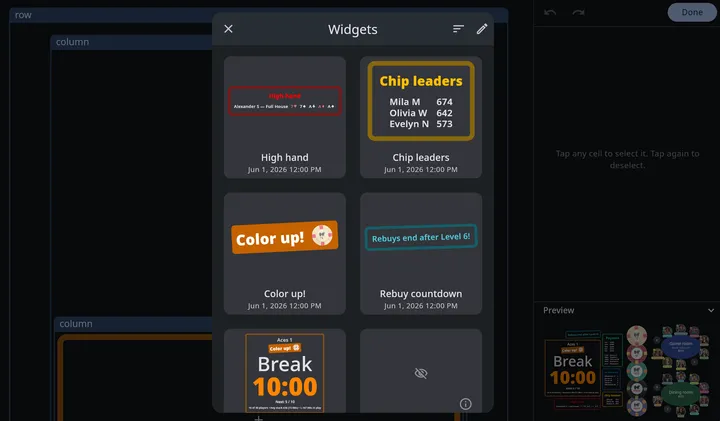
## Built-in widgets
Seventeen widgets ship with the app. Most of them hide themselves until the tournament actually has something to show, so it’s safe to add them at any point — a Payouts widget added before anyone has bought in simply stays invisible until money comes in.
| Widget | Shows | Appears when |
| ------------------------ | ------------------------------------------------------------------------------------------------------------------------------------------------------------- | -------------------------------------------------------------------------------------------------- |
| **Knockouts** | The top five players by knockouts, with their totals | Someone has been eliminated |
| **Bounties** | The top ten bounty winners and their winnings | The tournament uses bounty chips and someone has won one |
| **Points** | The final standings — the top ten finishers and the points each earned | The tournament has finished |
| **Leaderboard** | The season standings of the tournament’s folder: the top ten players by [Club stats](/info/club-stats/) points, with their totals | The folder has a completed tournament |
| **Payouts** | The prize list — place, player, and amount, in three aligned columns | Money has been collected |
| **High hand** | Who holds the current high hand, the hand’s name, and its cards | A high hand has been recorded |
| **Chip leaders** | The top three active players by stack, with their totals | A player has reported a chip count and the tournament is still running |
| **Color up!** | Which chip denominations to take off the table, drawn as the chips themselves | It’s a color-up level (a break, by default) and the blinds have outgrown a chip since the last one |
| **Rebuy countdown** | How much of the rebuy period is left | Rebuys are on, a rebuy period is set, and the tournament is under way |
| **Timer** | The full default block — tournament title, level title and subtitle, the countdown clock, a **Color up!** banner, and the next three widgets nested inside it | Until the tournament finishes |
| **Blinds and antes** | The small and big blind for the current level, plus any ante | The level has a blind or an ante |
| **Next level and break** | What’s coming next — the next blinds, or the length of the next break, and how long until the break after that | There is a level after the current one |
| **Player count, etc.** | Players remaining out of the total, average stack, and big blinds in play | There are chips in play |
| **Current time** | The time of day | Always |
| **Chips** | The chips in use at the current level, drawn as your chip images | The tournament has chips |
| **Tables** | The open tables, with the players in their seats | A table is open |
| **QR code** | The tournament’s [QR code](/info/qr-sharing/), with its short code underneath | The tournament has a QR code, and it’s shown on this device |
Payouts, bounties, and knockouts follow the same data the [Payouts](/info/payouts/), [Bounties](/info/bounties/), and [Managing players](/info/players/) screens use, so they update as you run the tournament.
The default timer layout is built from these: a **Rebuy countdown**, a **Timer**, a **Points**, and a **High hand** in one column, a **Payouts**, a **Knockouts**, and a **Chip leaders** in another. The Payouts *screen* layout is a **Points**, a **Payouts**, and a **Bounties** side by side.
Because those conditions are opposites, the screen changes character when the last player is knocked out — see [When the tournament finishes](#when-the-tournament-finishes).
### Points
The **Points** widget is the final standings: everyone who finished, winner first, with the points each earned in two aligned columns. It lists the top ten and marks a longer field with a trailing ”…”.
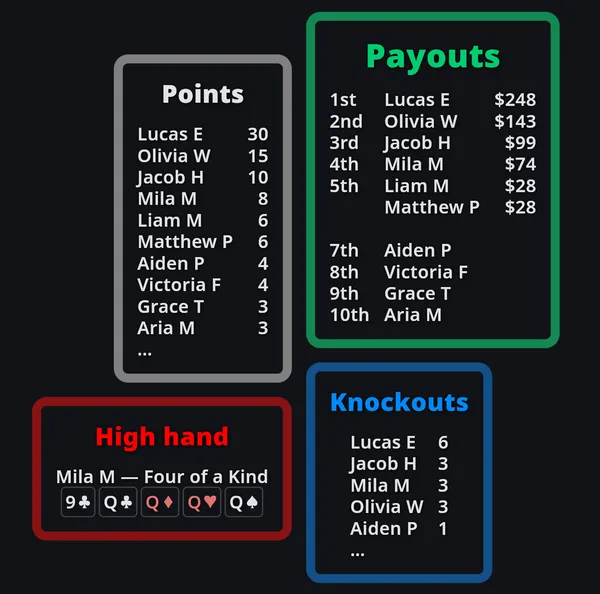
The scores come from the **Player points formula** on the [Stats screen](/info/stats/#points-formula) — the same formula that feeds the [Club stats](/info/club-stats/) leaderboard. Whatever scoring your league uses, the widget shows it. There is nothing to configure and nothing to keep in sync: change the formula and the widget follows.
It waits for the tournament to be over, because until then the numbers would keep moving. A player scores nothing until they have a finishing place, so mid-game the list would grow as players bust. Worse, a rebuy clears that player’s place and shifts everyone else’s up, which would retract points already on the screen. Once the last player is knocked out, every place is settled and the winner joins the list.
To watch the standings build instead, waiting for the rebuy period to close is safer than dropping the gate outright:
```plaintext
!rebuysOpen && playersEliminated.count > 0
```
Once rebuys are closed, no place can be taken back, so the scores only ever grow. Put that condition in all four places: on the block, and on each of the three content items inside it (see [A widget can be gated twice](#a-widget-can-be-gated-twice)). If the tournament has no rebuy end level, `rebuysOpen` never turns false, so use `playersEliminated.count > 0` on its own.
Points is part of the default layout and of the Payouts screen, so a tournament you haven’t customized shows the standings on its own when it ends. If you have customized your layout, it’s kept as you built it — add **Points** from the gallery wherever you want it.
Any text you write can read the same values: `p.points` gives a player’s score under your formula. See [Tournament data](/info/scripting-data/#objects).
### Leaderboard
The **Leaderboard** widget puts the [Club stats](/info/club-stats/) leaderboard on the timer: the players of the tournament’s folder (subfolders included), most season points first, in two aligned columns. It lists the top ten and marks a longer field with a trailing ”…”.
Only completed tournaments count, as on the Club stats screen. During a game it shows the standings coming into tonight, and when the game ends, tonight’s results join them. Reopen an earlier game and it shows the standings as they stood right after that game, so you can follow the season day by day. A tournament that isn’t in a folder has no season, so the widget stays hidden. On a [shared tournament](/info/qr-sharing/), viewers see the owner’s season wherever they keep the link; see [Club stats](/info/club-stats/#leaderboard).
It isn’t part of the default layout, so add it from the gallery wherever you want it. Any text you write can read the same numbers from `clubStats`. See [Tournament data](/info/scripting-data/#club-stats).
### Chip leaders
The **Chip leaders** widget is driven by the counts players report themselves. When players connect to a shared tournament and report their current chips (see [Player profile updates](/info/player-updates/)), the app tracks each active player’s latest count and lists the top three by stack — names and totals in two aligned columns, most chips first, like the Knockouts widget. When a fourth player is tied with the third shown, a trailing ”…” marks that the leaderboard doesn’t stop there.
### Color up!
As the blinds climb, the smallest chips stop being needed. Nobody makes change for a 25 when the small blind is 500. The **Color up!** widget watches for that and names the denominations that became retirable since the *previous* color-up point: a compact orange banner reading **Color up!** followed by the chips themselves, drawn as your actual chip images.
Where those points fall is up to you, under **Color up chips** in the tournament’s [settings](/info/setup/). By default they’re your breaks, which is where chips usually come off the table. Set it to **At any level** and every level is one, so the banner names a chip at the level it actually retires instead of waiting for the next break. A tournament with no breaks at all works that way already, since there’s no break to wait for.
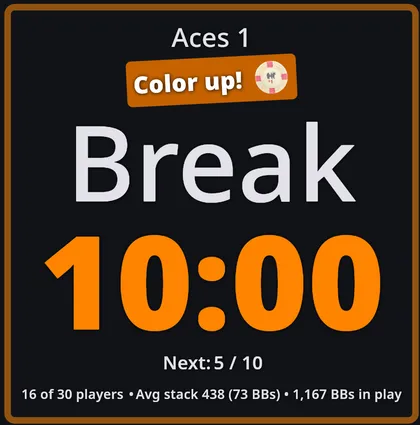
It only shows the chips coming *off* the table. Which chip they turn into is deliberately left out — people read that second chip as also being removed.
A chip is only suggested once. If the 25s became unnecessary at the first break, the second break doesn’t mention them again — it names whatever has become retirable since. And a chip is never suggested while any blind, ante, or bring-in from the current level onward still needs it.
The banner is part of the default **Timer** block, so a new tournament gets it during breaks without you doing anything. It’s also in the gallery on its own, for layouts you’ve built yourself.
It’s driven by the `colorUpChips` value — see [Tournament data](/info/scripting-data/#chips-in-play). Any text you write can show chips too: type a chip’s value followed by an `s` (`25s`, `1,000s`) in a [content item](/info/content/#chips-in-your-text) and the timer draws the chip in place of the text.
### Rebuy countdown
Set **Rebuys end after** in [Settings](/info/setup/#buy-in-and-features) and this widget appears on the timer for the rest of the rebuy period, then disappears on its own when the period closes. It counts the break that follows the last rebuy level as part of the period, so it keeps running through the break where rebuys and add-ons are usually taken.
What it says depends on the clock. While the timer is running it counts down — “Rebuys end in 32:00!” A remaining time means nothing while the timer is stopped, so when you pause it switches to naming the deadline instead: “Rebuys end after Level 3!”
That’s two content items, `rebuy countdown` and `rebuy countdown paused`, stacked in one cell with opposite conditions — so only one is ever showing. Edit either one to reword it; see [Content](/info/content/#some-built-ins-worth-knowing).
### Chips, tables, and the QR code
The chips in play, the table diagrams, and the QR code normally sit beside your layout, where the timer places them on its own (see [Adaptive layout](/info/timer-display/#adaptive-layout)). As widgets, they go exactly where you put them, at the size you choose.
Each is decided on its own. While the layout on screen has a **Tables** widget, no tables are placed beside it, but the chips and the QR code still are, unless the layout has their widgets too. A layout with none of them works just as before.
* **Chips** shows the chips in use at the current level. Denominations the blinds have outgrown drop off, as they do beside the timer.
* **Tables** shows the open tables with the players in their seats, this tournament’s players highlighted, as photos or names following the [player photos or names](/info/tables/#player-photos-or-names) setting.
* **QR code** shows the code and its short code. It follows **Show QR code** and **Hide QR code** on each device, like the one in the corner, so hiding it on your phone leaves it up on the TV.
Like an image on its own, each needs a **Minimum width** or **Minimum height**, and the ones in the gallery come with one set. The sizes use the same scale as every other cell, so the widget grows and shrinks with the rest of the layout.
* **Chips**: whichever minimum you set is the size of each chip, and the run of chips is as long as the chips in use need. They run across the row or column holding them, top to bottom in a row and left to right in a column, so in an [Auto](/info/screen-contents/#rows-and-columns-that-follow-the-screen) layout they turn with it. Set both minimums and the chips fit inside that box instead, along its longer side.
* **Tables**: the tables are arranged the way they’d best fill the screen, at the width or height you set, so a wide screen gets more of them side by side. Set both minimums to choose the shape yourself.
* **QR code**: set one minimum and the other follows the panel’s shape. Set both and it fits inside.
With no chips in use, no open tables, or no QR code to show on this device, the widget disappears and the cells around it close up. In edit mode it keeps its place and says why.
The **Show/hide chips** and **Show/hide tables** switches in the **Customize** menu work on these widgets too. Switch one off and the widget disappears, just as the chips or tables beside the layout would, so you can hide the tables on some levels and show them on others. In edit mode the widget keeps its place and names the switch that hides it. The **Seating** and **Payouts** layouts start with the chips switched off, and **Payouts** with the tables off too, so the matching widget you add to one of them, or to a copy of one, stays hidden until you switch it on.
Unlike the chips and tables beside the layout, these widgets don’t disappear when the tournament ends. They have no condition, so they stay until you give them one. Add `!isPostgame` to have one leave with the rest of the game.
### The conditions behind “appears when”
Nothing about the “appears when” column is hard-coded — each built-in widget carries an ordinary [condition](/info/scripting/) that you can read, edit, or remove after inserting it. Select the widget’s outermost cell in edit mode and open **Condition**:
| Widget | Condition |
| ------------------------ | --------------------------------------------------------------------------------- |
| **Knockouts** | `playersEliminated.count > 0` |
| **Bounties** | `useBountyChips && players.where(func(p) { p.bountyChipWinnings > 0 }).count > 0` |
| **Points** | `isPostgame` |
| **Leaderboard** | `clubStats.players.isNotEmpty` |
| **Payouts** | `totalCollected > 0` |
| **High hand** | `hasHighHand` |
| **Chip leaders** | `chipLeaders.isNotEmpty && !isPostgame` |
| **Timer** | `!isPostgame` |
| **Color up!** | `autoColorUp && isColorUpLevel && colorUpChips.isNotEmpty` |
| **Rebuy countdown** | `rebuysAllowed && secondsUntilRebuysEnd > 0 && isInGame && !isPregameLevel` |
| **Blinds and antes** | `currentLevel.bigBlind > 0 \|\| currentLevel.ante > 0` |
| **Next level and break** | `levelIndex + 1 < levels.length` |
| **Player count, etc.** | `totalChipsInPlay > 0` |
**Current time**, **Chips**, **Tables**, and **QR code** have no condition. Current time always shows; the other three hide themselves whenever they have nothing to draw.
### A widget can be gated twice
The block’s condition is not always the only one in play. Several widgets also carry a condition on the [content](/info/content/#condition-when-to-show-it-at-all) inside them, and a block whose items are all hidden renders nothing at all. Change the outer condition on one of these and it can stay invisible, because the content is still holding it back:
| Widget | Content items | Their condition |
| ------------------- | -------------------------------------------------------------- | ---------------------------------------------------------------------------------------------- |
| **Points** | `points title`, `points names`, `points totals` | `isPostgame` |
| **Leaderboard** | `leaderboard title`, `leaderboard names`, `leaderboard totals` | `clubStats.players.isNotEmpty` |
| **High hand** | `high hand title`, `high hand` | `hasHighHand` |
| **Chip leaders** | `chip leader title`, `chip leader names`, `chip leader totals` | `chipLeaders.isNotEmpty` |
| **Color up!** | `color up title`, `color ups` | `autoColorUp && isColorUpLevel && colorUpChips.isNotEmpty` |
| **Rebuy countdown** | `rebuy countdown`, `rebuy countdown paused` | the widget’s condition, plus `isTimerRunning` on the first and `!isTimerRunning` on the second |
To reach them, select a text cell in the block and open **Content**: the highlighted item has an **Edit** button, and **Manage content** at the top right lists them all. Every other built-in widget leaves its content unconditional, so the outer condition is the only gate.
The ⓘ on a hidden gallery card names whichever condition is the one still blocking, which is the quickest way to tell the two apart. See [Why a widget looks empty](#why-a-widget-looks-empty).
## When the tournament finishes
Knock out the last player and the timer screen turns into a results board. Nothing is switched off manually; the widgets simply have opposite conditions, and `isPostgame` flips the moment the tournament has a winner.
Away go the things that describe a game in progress:
* the **Timer** block, and with it the tournament title, the clock, the blinds, the next level, and the player count
* **Chip leaders**, since there are no stacks left to lead
* the **chip images** and the **table diagrams** along the edge of the screen
In their place, **Points** appears beside the results that were already there — **Payouts**, **Knockouts**, and the **High hand**.
The chips and tables beside the layout are the one part that isn’t a widget condition. They go in every view, **Seating** included, which is left blank. To keep them on screen after the game, put a [Chips or Tables widget](#chips-tables-and-the-qr-code) in the layout instead. See [After the tournament ends](/info/timer-display/#after-the-tournament-ends).
Every part of this is yours to change. Delete `!isPostgame` from the Timer block’s condition and the clock stays up after the game. Points takes one step more, because its three content items carry `isPostgame` too: clear it there as well and it shows the standings as they build, moving numbers and all. See [A widget can be gated twice](#a-widget-can-be-gated-twice).
## Why a widget looks empty
Every card in the gallery is a **live preview**, rendered against your tournament as it stands right now — not a stock picture. That’s useful, but it means a widget with nothing to say looks blank.
When that happens the card shows a crossed-out eye and an ⓘ button (its tooltip reads **Currently hidden**). Tap it and the app explains why, in plain terms:
* **The condition ”…” is currently false.** — the widget’s own condition, or the condition on the content inside it, isn’t met yet
* **”…” currently has no value.** — the content resolves, but produces no text
* **Missing variable ”…”.** — a text cell points at a content item that no longer exists
* **The widget has no content.** — an empty row or column
* **This widget needs a minimum width or height.** — a Chips, Tables, or QR code widget with neither minimum set
* **No chips are in use.**, **No tables are open.**, **This tournament has no QR code.**, or **The QR code is hidden on this device.** — a Chips, Tables, or QR code widget with nothing to draw right now
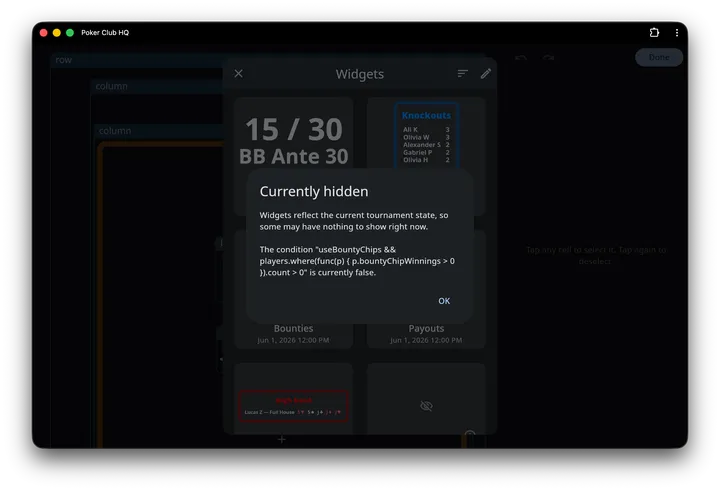
An empty card is almost never a problem. Add the widget anyway; it will fill in when the tournament reaches it.
Note
Inside [edit mode](/info/screen-contents/#reading-the-editor) the signal is different — hidden cells stay visible with a diagonally striped label bar rather than being replaced by the eye icon, and a Chips, Tables, or QR code widget writes its reason inside the cell.
## Saving your own widgets
Once you’ve built a block you like, select its outermost cell and tap **Save as widget**. Give it a name and it joins the gallery’s **My widgets** tab, ready to drop into any tournament.
Tip
On a portrait phone, **Save as widget** is inside the sheet that the **Edit settings** button opens, not on the inline command bar.
Saved widgets are stored with your account, so when you’re signed in they follow you to all your devices.
A saved widget carries the [content](/info/content/#where-content-lives) its cells use, so it reads the same in every tournament, and inserting it never changes a tournament’s own content. Select one of its text cells and that content is listed under **This widget**. Built-in content it uses stays the app’s version, so it picks up the app’s own fixes, but a tournament’s own edit to that item doesn’t reach inside the widget. To change what the widget says, edit its content there.
### Managing the gallery
Once you’ve saved a widget, the gallery has two tabs: **My widgets**, your own, and **Browse**, the built-in widgets and any that Poker Club HQ adds without an app update. It opens on the tab you used last.
* **Sort** orders each tab by **Modified** or **Name**, and the choice sticks between sessions. Built-in widgets share a single fixed modified date, so on **Browse**, sorting by Modified keeps them together and puts newer additions first.
* **Edit**, on **My widgets**, puts a **Rename** and a **Delete** button on each of your saved widgets. Deleting asks for confirmation. Widgets on **Browse** can’t be renamed or deleted, so if you want your own version of one, insert it, adjust it, and save the result under a new name.
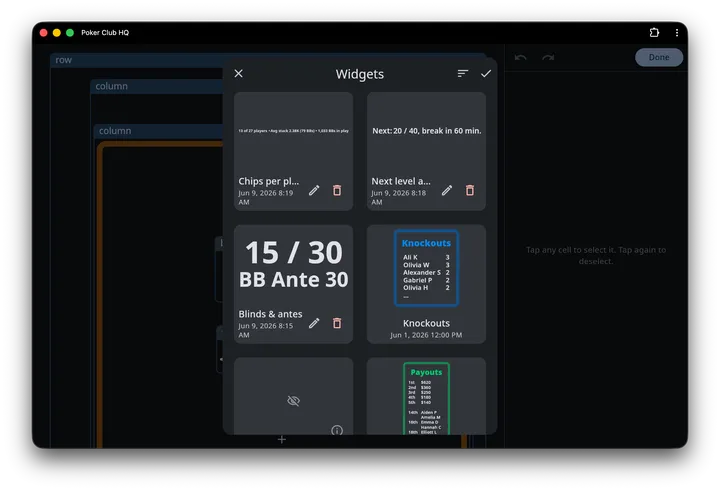
While Edit is on, tapping a card no longer inserts it. Tap **Done** to go back to inserting.
Layouts you save from **Manage layouts** are listed in a gallery of their own, which **Layout gallery** opens. See [Layout gallery](/info/timer-display/#layout-gallery).