Payouts & chops
The Payouts screen calculates prize distribution based on buy-ins and lets you handle end-of-tournament chops.
Payouts run one of two ways: classic percentages that you edit by hand, or a script that computes the amounts — and how many places get paid — from live tournament values.
Prize pool
Section titled “Prize pool”The top of the screen shows four fields:
- Total collected — The sum of all buy-ins, addons, and rebuys. Calculated automatically; not editable.
- Adjustment — Add to or subtract from the total. Enter a percentage (
-10%) or the equivalent fraction between -1 and 1 (-0.1) — they mean the same thing, and the field always redisplays it as a percentage. Any other number is a flat amount, e.g.-50to take out a $50 venue fee. Percentages are capped at ±100%. - Net prize — The final prize pool after the adjustment is applied.
- Round to nearest — How payout amounts are rounded, in both modes. The default is 1 (whole dollars). Set it to 0.25 for quarter-dollar precision, or 10 to round to the nearest ten.
Payout positions
Section titled “Payout positions”Below the prize pool, the Percentages / Script selector chooses how payouts are calculated:
- Percentages — The classic mode: pick the number of paid positions and edit each position’s percentage or amount directly.
- Script — Payouts come from a script, so the amounts and even the number of paid positions can react to the tournament automatically — more buy-ins, more places paid.
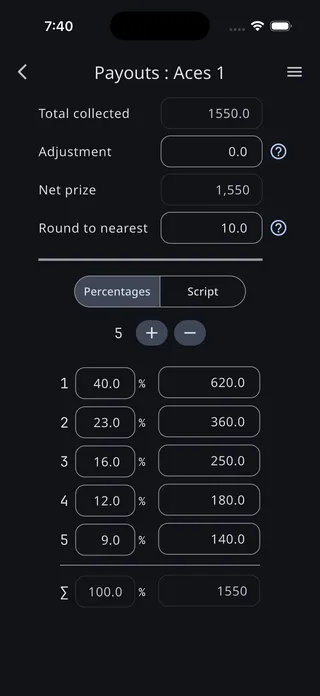
Percentages
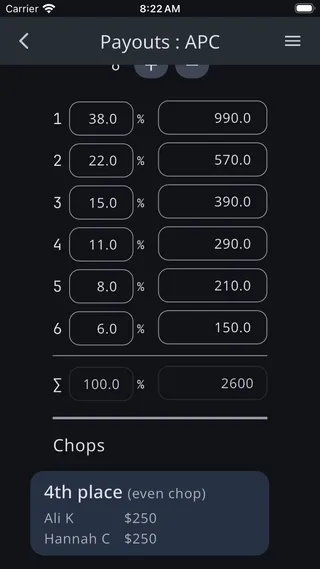
Section titled “Percentages”The payout table shows a row for each paid position. Use the + and - buttons next to the payout count to add or remove positions.
Each row has:
- Position number (1st, 2nd, 3rd, etc.)
- Percentage — Editable field for the payout percentage
- Amount — Calculated from the percentage and net prize; editing an amount updates its percentage to match
The percentages are auto-generated based on the number of positions, but you can edit any percentage manually.
Script
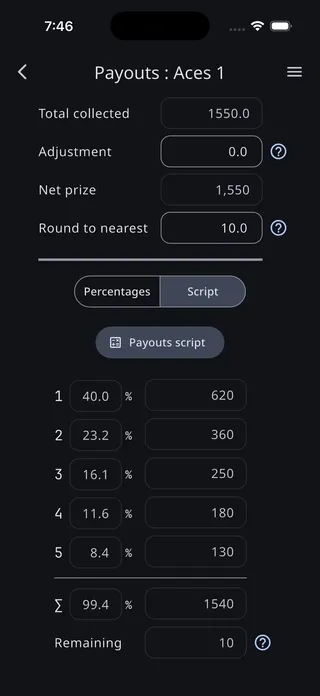
Section titled “Script”Switch the selector to Script and the app writes a starting script for you — one that reproduces your current percentages against the live net prize — and opens the script editor. From then on the payout table is read-only: the script alone determines each amount, and the number of amounts it produces determines the number of positions paid (up to 20). A Remaining row shows any part of the net prize the script doesn’t allocate.
To edit the script later, tap the Script selector again or the Payouts script button. Switching back to Percentages deletes the script, so the app asks first.
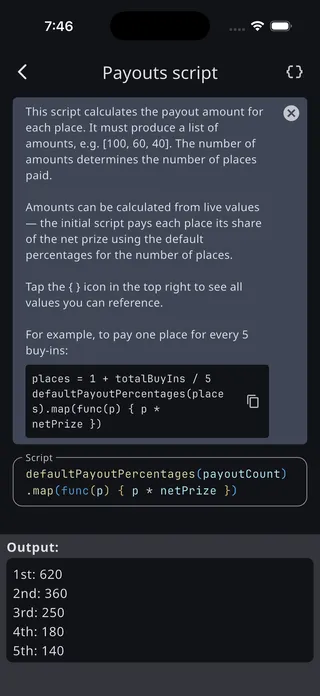
The editor gives you syntax highlighting, code completion, and a live preview of the resolved payouts as you type.
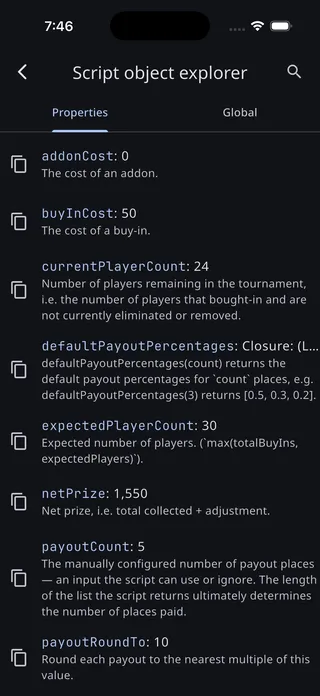
Tap the { } icon in the top right to browse every value your script can reference — including:
| Value | Description |
|---|---|
netPrize | Total collected plus the adjustment |
totalCollected | Buy-ins + addons + rebuys |
totalBuyIns, totalRebuys, totalAddons | Individual counts |
totalPlayerCount | Players who actually played |
currentPlayerCount | Players still in the tournament |
expectedPlayerCount | The larger of totalBuyIns and your expected player count |
payoutCount | The manually configured number of positions |
payoutRoundTo | The Round to nearest setting |
buyInCost, rebuyCost, addonCost | Configured costs |
defaultPayoutPercentages(count) | The app’s default percentage table for count positions |
A payout script runs before payouts exist, so payouts and playersWithPayouts are deliberately unavailable here. See Tournament data for the full picture, and Scripting for the language.
Results are rounded using the Round to nearest setting, preserving the total.
Example: more places as the field grows
Section titled “Example: more places as the field grows”Pay one place for every 5 buy-ins, splitting the net prize with the app’s default percentages:
places = 1 + totalBuyIns / 5defaultPayoutPercentages(places).map(func(p) { p * netPrize })Example: a payout chart
Section titled “Example: a payout chart”If your league uses a fixed chart — set payouts for each number of buy-ins — enter it once as a table. Each row lists the amounts for one buy-in count, and the last lines pick the right row automatically:
table = [ [90, 30], [110, 40], [130, 50], [150, 60], [160, 60, 20], [170, 70, 30]]n = totalBuyIns + totalRebuystable[min(max(n, 4), 9) - 4]This chart covers 4–9 buy-ins (counts outside that range use the first or last row) — extend the table with one row per line to cover your whole chart. Note that rows can have different lengths, so the number of paid positions can change as the chart progresses.
More payout structures — tiers by field size, and holding back a fixed amount for one place — are on the Examples page.
Chops aren’t created from this screen — they come from the Players screen, whenever two or more players finish in the same place in the money. That happens two ways:
- The players agree to split. Select all of the remaining players and choose Left game or Chop. They finish in the same place.
- Two or more players are eliminated at once. Select them together and choose Was eliminated — players knocked out in the same hand share the place they went out in.
Either way, if those places are in the money the app adds a chop for them and opens the chop settings right there, so you can settle the split while everyone is still at the table. A chop card for that place also appears on this screen.
Every chop starts as an even chop — the prize money for the places involved, divided equally — so simultaneous eliminations are handled sensibly without you doing anything. Tap the chop card here (or the sheet that opened at elimination time) to change it to any of four methods:
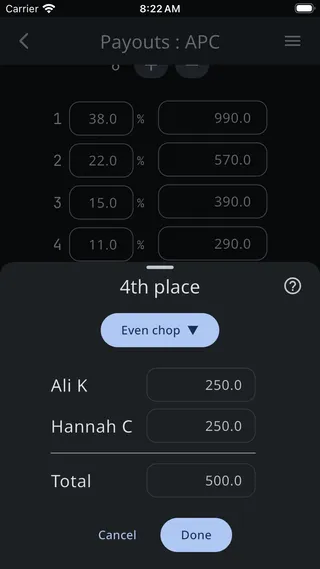
Even chop
Section titled “Even chop”Splits the prize money for the chopped places equally among the chopping players.
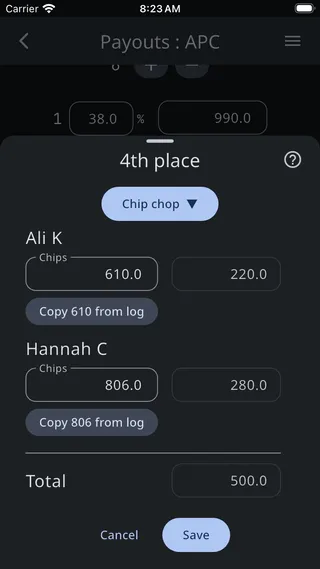
Chip chop
Section titled “Chip chop”Divides that money proportionally based on each player’s current chip count. Enter each player’s stack size and the amounts are calculated automatically.
ICM chop
Section titled “ICM chop”Uses the Independent Chip Model to calculate each player’s equity. Like chip chop, you enter chip counts, but ICM accounts for the non-linear relationship between chips and tournament equity — having twice the chips doesn’t mean twice the equity.
Custom chop
Section titled “Custom chop”Manually set the exact payout amount for each player in the chop. A Total row at the bottom warns you if the amounts don’t add up to the prize money being split.
The ? button in the top corner of the chop settings gives a one-line reminder of what each method does.