Player Directory
The Player Directory is your club’s full roster: every player across every tournament, in one place.
Where Managing players covers the players in a single tournament, the directory is where you see which tournaments each player has been in, keep contact info and notes, import and export player lists, and clean up duplicates.
Opening the Player Directory
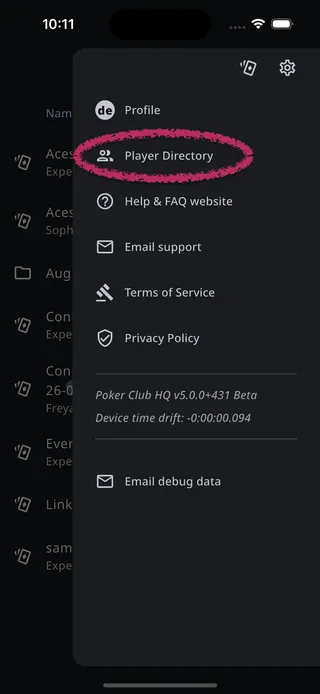
Section titled “Opening the Player Directory”Open the main menu and tap Player Directory.
The player list
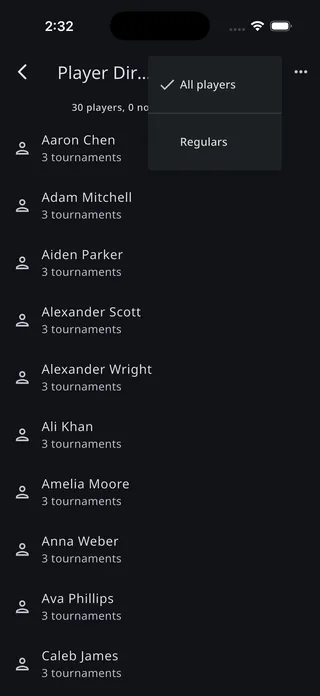
Section titled “The player list”The header shows a summary of your roster — how many players you have, and how many aren’t in any tournament. Each tile shows the player’s photo (or their initials when they don’t have one), their name with any nickname in front of it, and how many tournaments they appear in, followed by whatever phone, email, and notes you’ve recorded.
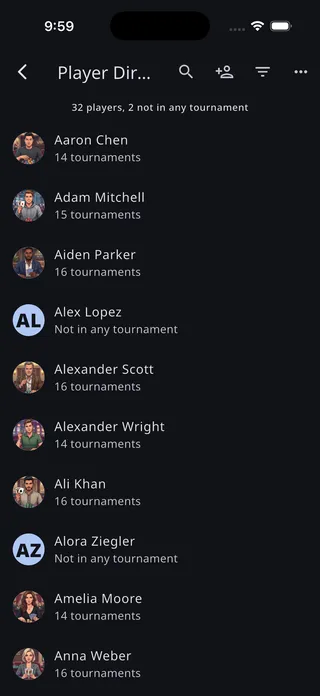
Use the buttons in the top bar to:
- Search — Filter the list as you type. Search matches names, nicknames, and email addresses.
- Add player — Add someone to your roster before they’ve played in any tournament.
- Filter by group — Appears once you’ve created a group; show only the players in one group. See Groups.
- More (⋯) — Sorting, CSV import and export, group tools, and cleanup.
Sorting, import, and export
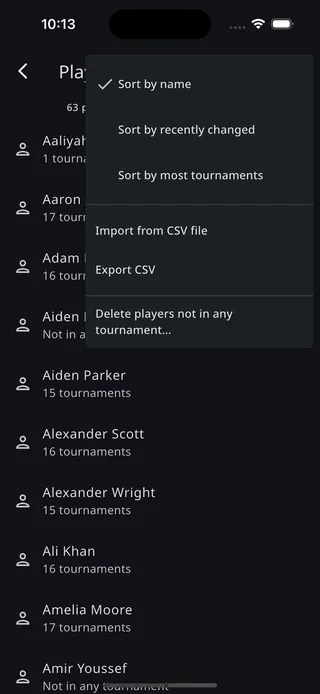
Section titled “Sorting, import, and export”The ⋯ menu sorts the list by name, by recently changed, or by most tournaments — and holds the roster-wide tools.
Export CSV
Section titled “Export CSV”Exports your whole roster as a CSV file with columns for Name, Nickname, Email, Phone, Street Address, City, State, Zip, Country, Notes, Groups (semicolon-separated), and Role — ready for spreadsheets or a backup. On the web this reads Download CSV.
Import from CSV file
Section titled “Import from CSV file”Brings players in from a CSV file. The importer accepts the app’s own exports as well as player lists exported from Tournament Director (First/Last Name columns, “Email 1”, “Phone 1”, “Zipcode”, and similar variations are recognized). A Groups (or Group) column with semicolon-separated group names is recognized too — memberships from the file are added to each player, never removed. A Role column holding Table Captain or Director is applied to players who don’t already have a role; see Roles.
Importing is safe to repeat: new players are added with all their fields, while players already in your directory only have their empty fields filled in — existing information is never overwritten.
Delete players not in any tournament
Section titled “Delete players not in any tournament”Bulk cleanup for roster entries that never played. Players who appear in a tournament can’t be deleted, so this only offers the unused ones.
Groups
Section titled “Groups”Groups are tags for organizing your roster — “Regulars”, “Tuesday league”, whatever fits your club. A player can belong to any number of groups.
There’s no separate screen for managing groups: a group exists as long as at least one player belongs to it, and any New group button can create one.
Groups make tournament setup fast — on a tournament’s Players screen you can add a whole group’s players at once. See Managing players.
Adding a player to groups
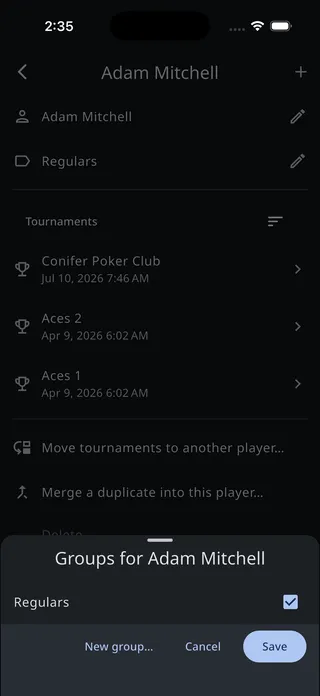
Section titled “Adding a player to groups”On a player’s details screen, tap + and choose Add to group — or, if the player is already in groups, tap the row listing them. A sheet shows every group with a checkbox; check the ones the player belongs to, or tap New group to create one.
Adding many players at once
Section titled “Adding many players at once”In the directory’s ⋯ menu, choose Add players to a group. Select the players (there’s a select-all checkbox in the top bar), tap Next, and pick the group — or create a new one.
Filtering by group
Section titled “Filtering by group”Once a group exists, a filter button appears in the directory’s top bar. Tap it to show only the players in one group; choose All players to clear the filter.
Player details
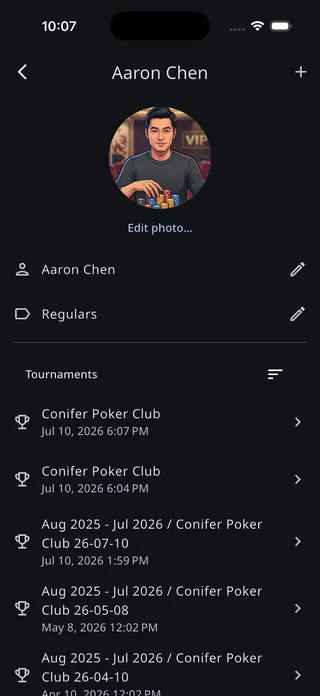
Section titled “Player details”Tap a player to open their details. Tap the name row — the one with the pencil — to rename them. Below it, every tournament they appear in is listed; tap one to open it.
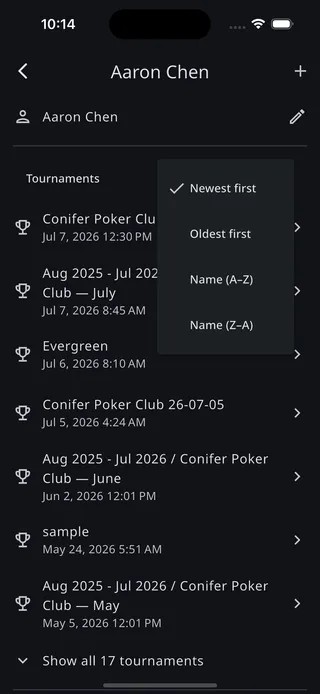
The sort button orders the tournament list by date or by name, and long histories start collapsed with a “Show all” row.
Player photos
Section titled “Player photos”Give a player a photo by tapping the circle at the top of their details screen (or the Add photo button below it). Pick an image and it’s cropped to a circle. Once a player has a photo, the button reads Edit photo and lets you replace or remove it.
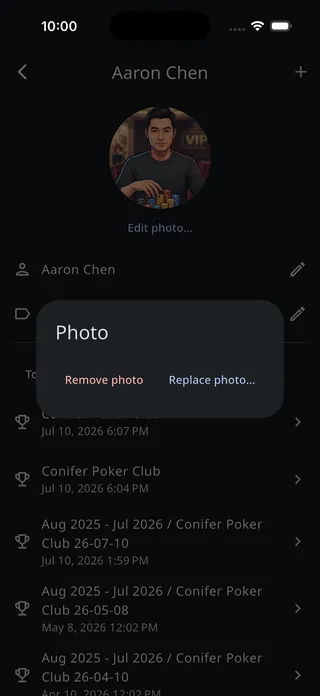
The photo appears everywhere the player does: in the directory list, on a tournament’s Players screen, and at their seat on the Tables screen — which can even show every seated player as a large photo; see Player photos or names. Players without a photo show their initials instead.
Contact info & notes
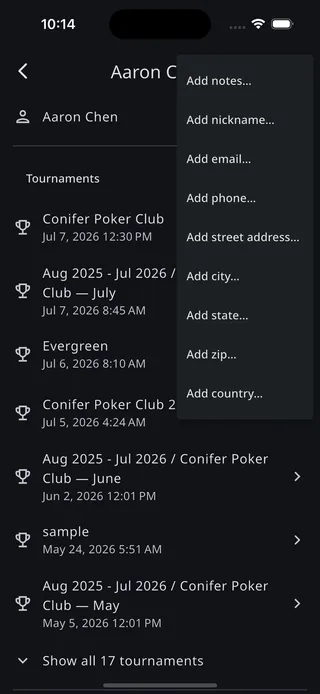
Section titled “Contact info & notes”Tap + in the top bar to add notes, a nickname, an email address, a phone number, or mailing address fields to the player. Anything you add appears on the details screen, where you can tap it to edit.
Every player’s details screen has a role row, and it’s how you hand off part of running your tournaments:
- Player — the default. No edit access.
- Table Captain — can enter buy-ins, knockouts, seating, chip counts, and hands in your shared tournaments.
- Director — full control of your shared tournaments.
Tap the row, pick a role, and tap Save. The role is global to your account: it applies to every tournament of yours that player connects to, not just one.
For it to do anything, the player needs an email address here, and they have to sign into Poker Club HQ with that same verified address. See Roles & shared control for the full walkthrough, including exactly what each role can and can’t reach.
Merging duplicates
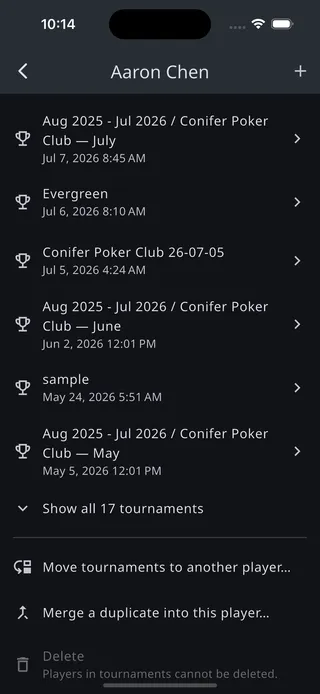
Section titled “Merging duplicates”The same person can end up in your directory twice — say, “Bob” in one tournament and “Bob Smith” in another. On the details screen of the player you want to keep, tap Merge a duplicate into this player and pick the duplicate. The duplicate’s tournament history moves to the kept player, their notes and groups are combined, and any contact fields the kept player was missing are filled in from the duplicate.
Merging also combines the players’ rows in Club stats, so a season leaderboard no longer splits one person’s results across two names.
Moving tournaments to another player
Section titled “Moving tournaments to another player”The opposite of a merge: one directory entry actually covers two different people with the same name. Tap Move tournaments to another player, check the tournaments that belong to the other person, and choose an existing player — or type a new name to create one. The selected tournaments are reassigned, splitting the history between the two players.
Deleting players
Section titled “Deleting players”Delete on the details screen permanently removes a player, but only when they don’t appear in any tournament — players with history can’t be deleted, so merge them instead. To clear out many unused entries at once, use Delete players not in any tournament in the directory’s ⋯ menu.