Setting up a tournament
This guide walks you through creating and setting up a tournament in Poker Club HQ.
Creating a tournament
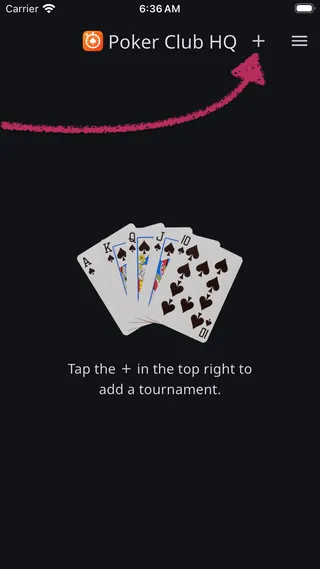
Section titled “Creating a tournament”To create a tournament, in the home screen, tap the + in the top right:
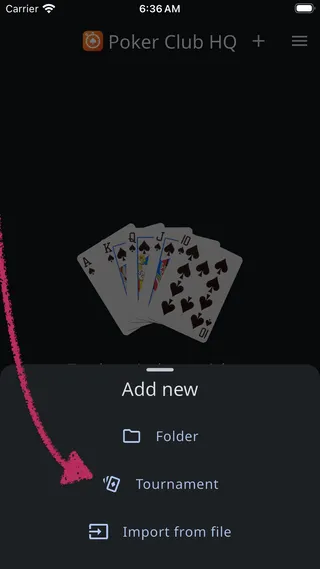
In the ‘Add new’ menu, tap ‘Tournament’:
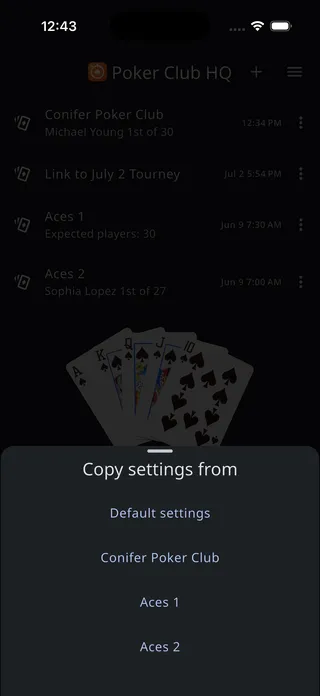
If you already have other tournaments, a Copy settings from menu appears next. Choose Default settings for a fresh tournament, or pick an existing tournament (listed newest first) to reuse its setup.
A new tournament is added and opened to its Settings screen:
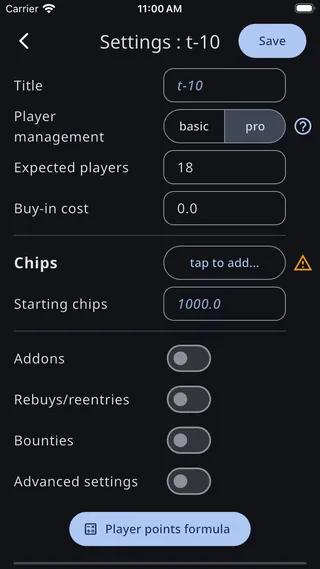
Tournament settings
Section titled “Tournament settings”It’s a good idea to give the tournament a title. A month and day works well — ‘01/17’ for Jan 17:
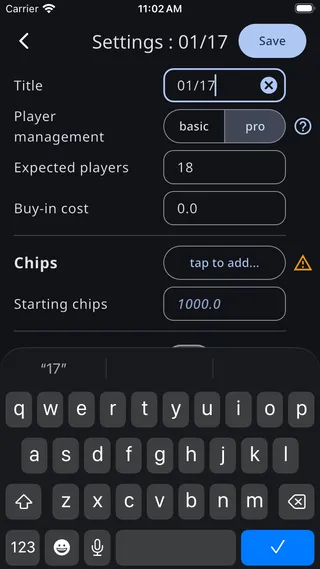
Just below the title, Player management decides how players are tracked: pro follows each player by name, and basic only keeps a count. See Player management: basic or pro.
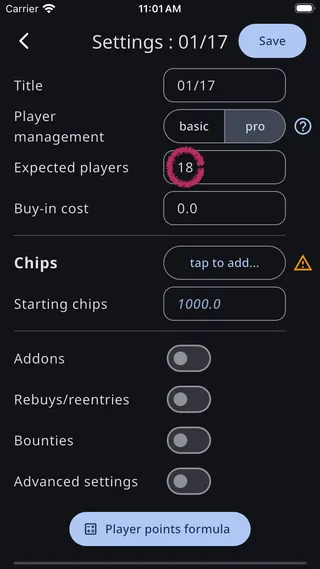
Next, update the number of expected players. This is important so that the blind structure includes enough levels. This example expects 18 players:
Adding chips
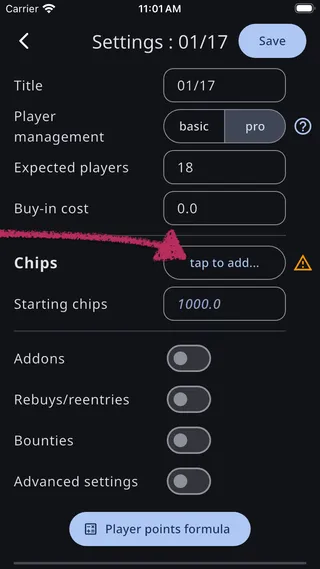
Section titled “Adding chips”Then, tap to add chips:
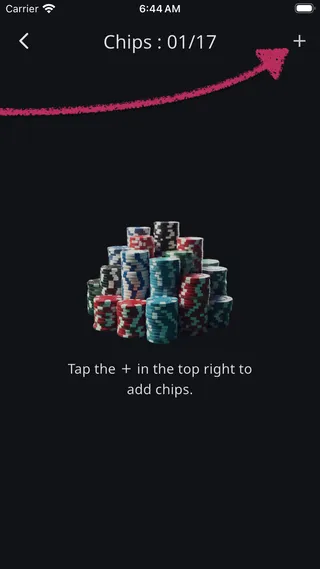
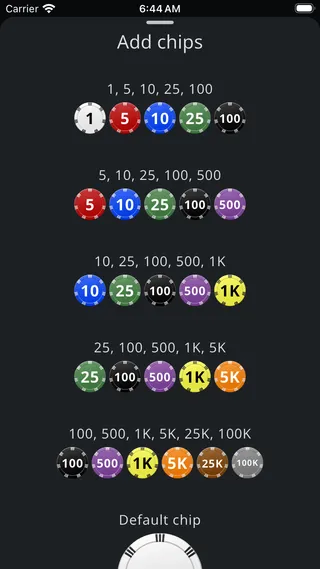
The chips screen opens with the Add chips sheet already showing, because the tournament has no chips yet. (Coming back to a chip set that already has chips, tap the + in the top right to open the same sheet.)
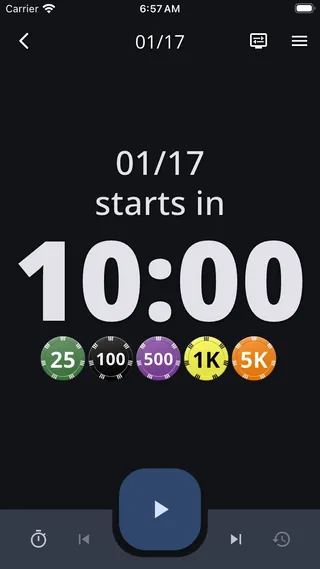
Then tap the chip set that most closely matches the values of your chip set. Don’t worry about colors or chip design, those can be changed later. In this example the closest match is 25, 100, 500, 1K, 5K:
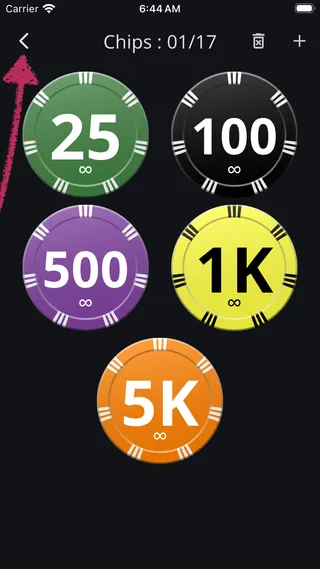
The chip set you chose will be created. You can tap a chip to edit its color and value, or to delete it. (If you’re signed into an account, you can also upload custom images of your chips!) Once you’re finished, tap the back button in the top left to go back to the tournament settings screen:
Buy-in and features
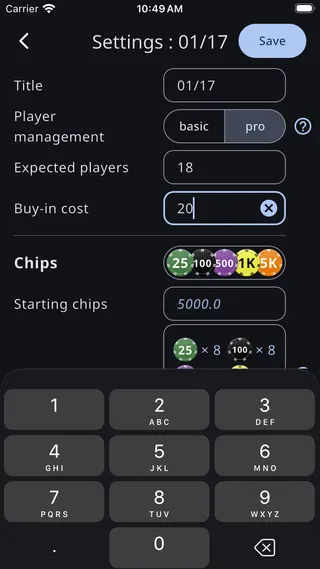
Section titled “Buy-in and features”Back in the Settings screen, tap the ‘Buy-in cost’ box and update its value — $20 here:
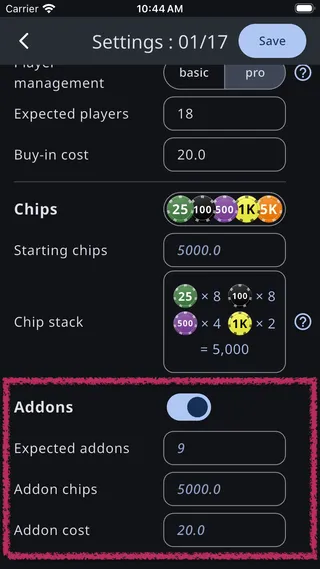
The next section has some switches you can turn on for the features you want your tournament to support. This tournament supports addons, so tap the Addons switch to turn it on:
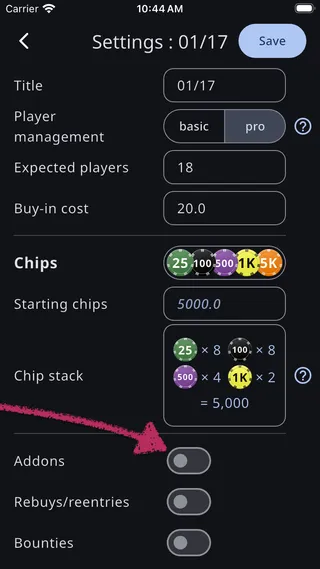
Turning on a feature will show related settings that can be adjusted:
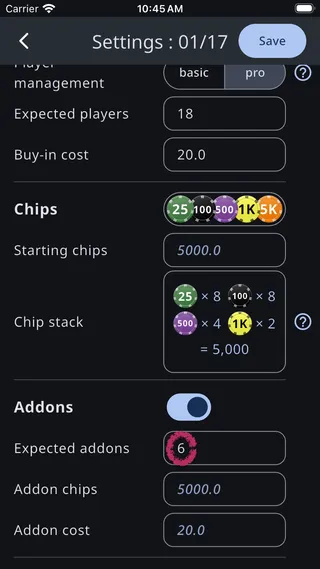
If you expect around 6 players to purchase addons, update that setting to match:
Rebuys/reentries is the next switch, and it has one setting the others don’t: Rebuys end after. Leave it on No limit and rebuys stay open all game. Pick a level instead and the rebuy period closes — “Level 3” means rebuys run through the third blind level and through the break that follows it, since that break is when rebuys and add-ons are usually taken. They close the moment the next blind level starts.
Levels are counted ignoring breaks, so the number matches what the timer shows. Only the first seven are listed, because rebuy periods are rarely longer than that — tap Show more if yours is.
Setting a period doesn’t lock anything down. The app never refuses a late rebuy; it just notes on the Rebuy sheet that the period has ended and leaves the call to you. On the timer, a Rebuy countdown widget shows the players how long they have left.
This tournament also supports bounties, so turn on the Bounties feature:
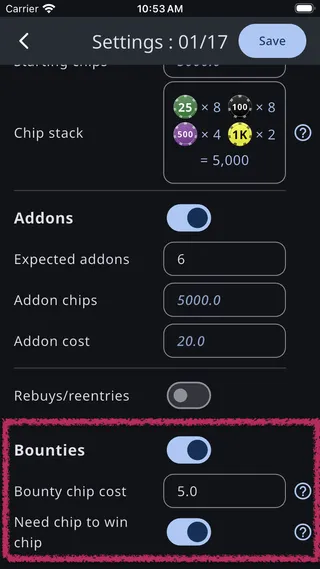
The Bounty chip cost is charged in addition to the buy-in cost — it is not part of it. A player who buys in and takes a bounty chip pays the buy-in plus the bounty chip cost. Money paid for bounty chips is kept separate from the prize pool. See Bounties for the full walkthrough.
Blind structure
Section titled “Blind structure”The next section in Settings is related to the blind structure:
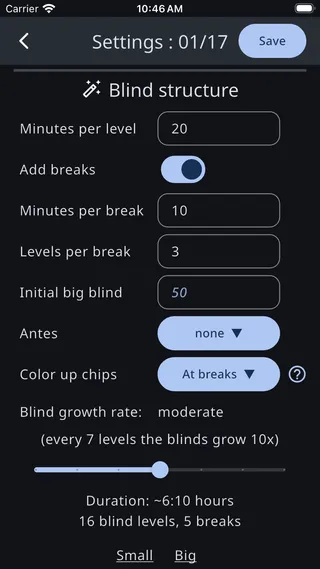
To keep the tournament short, drag the ‘Blind growth rate’ slider to the far right — the further right, the faster the blinds grow:
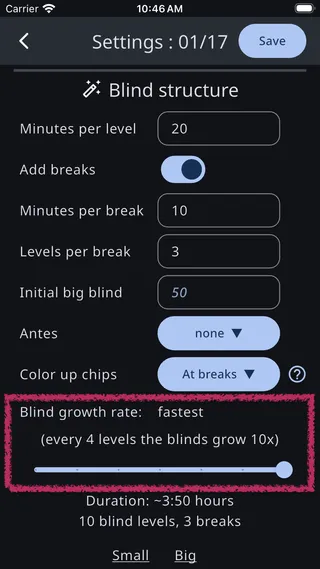
Scrolling down you can see the entire blind structure that will be created:
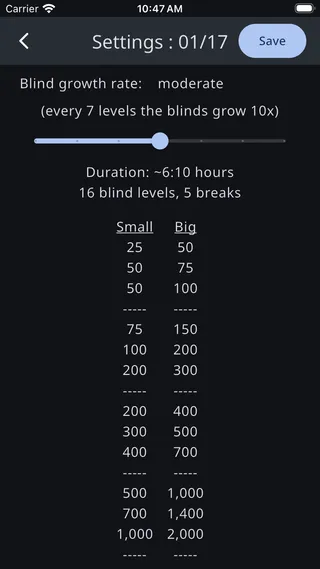
This is a preview. It updates live as you change the settings above, but it isn’t applied to the tournament until you tap Save this blind structure below it — and if the tournament already has a structure, you’ll be asked to confirm before it’s overwritten. Show current blinds opens the level editor if you’d rather build or adjust levels by hand. See Blind structure.
Saving and starting
Section titled “Saving and starting”The rest of the settings save as you edit them, so there’s no separate save step for them. A brand-new tournament has no blind levels yet, so a ‘Save’ button appears in the top right — tap it to create the blind structure from your settings:
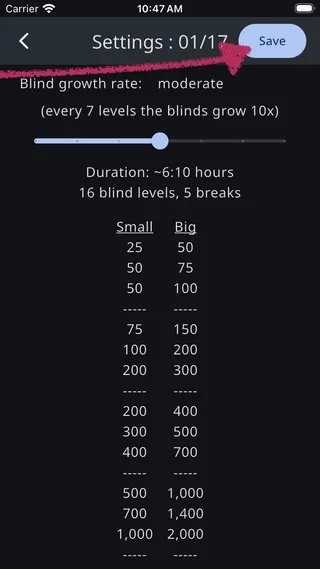
Once the tournament has a blind structure, you’ll be taken to the tournament timer screen:
Next steps
Section titled “Next steps”- Managing players — add players, take buy-ins, and record knockouts.
- Managing tables — seat players, balance tables, and consolidate.
- Timer screen — run the clock and customize what it shows.