Content
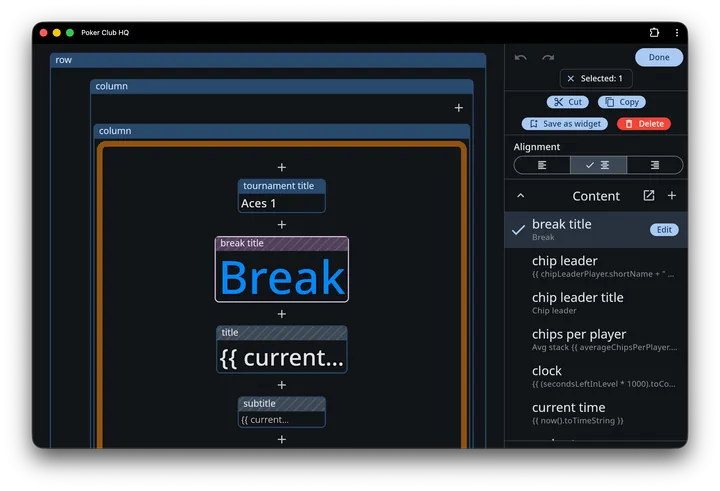
A text cell on the timer screen doesn’t hold fixed text. It points at a named content item, and that item decides what — and whether — to draw.
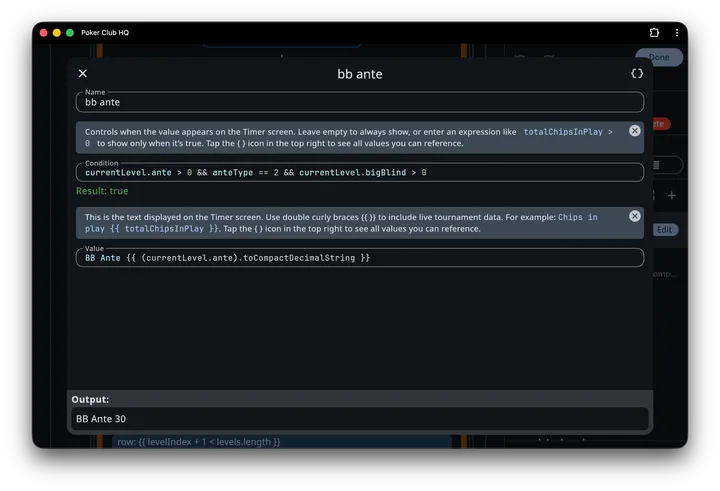
Every content item has three parts:
- Name — what you pick it by, e.g.
clock,blinds,player count - Value — the text shown on the timer, which can pull in live tournament data
- Condition — an optional test; while it’s false, any cell using this content hides itself
Separating the three is what lets one layout work all tournament long. The built-in ante item, for example, is conditioned on the level actually having a standard ante — so the ante line simply isn’t there during levels without one, and you don’t have to build a different screen for each phase of the tournament.
Where to find it
Section titled “Where to find it”From edit mode:
- Tap + → Content to insert a text cell and choose its content in one step.
- Select an existing text cell and open its Content setting to point it somewhere else, or to tap Edit and change the item itself.
- Manage content, from that same setting, opens the full list: every item that cell can see, whether or not the timer currently uses it.
Each list shows what can be seen from where you are, the selected cell or the spot you’re inserting into, grouped by where it lives.
Value: mixing text and live data
Section titled “Value: mixing text and live data”Inside Value, double curly braces insert live tournament data. Everything outside the braces is shown as-is, so you can mix the two freely:
Chips in play {{ totalChipsInPlay }}Anything between the braces is an expression, so it can do arithmetic and formatting, not just name a value:
Level {{ blindLevelNumber }} of {{ blindLevelCount }}{{ (secondsLeftInLevel * 1000).toCompactTimeDurationString }}A footer under the field always shows the rendered result, so you can see exactly what the timer will draw. See Scripting for the language and Tournament data for everything you can reference.
Chips in your text
Section titled “Chips in your text”Two kinds of token in the finished text are drawn as pictures rather than letters, wherever they turn up on the timer screen:
- A chip value followed by an
s—25s,1,000s— becomes that chip, using your own colors or chip photo. The value has to match one of the tournament’s chips exactly, written the way the app writes it, and it has to stand on its own: the100sinside2,100sisn’t a token. - A card —
A♠,10♥— becomes a small bordered card, red or black by suit.
So a content item whose value is
Color up the {{ colorUpChips.map(func(c) { c.value.toString + "s" }).join(" and the ") }}draws real chips in the sentence. That’s how the Color up! widget is built, and nothing stops you using it in a line of your own.
Condition: when to show it at all
Section titled “Condition: when to show it at all”The Condition field takes the same expressions, but without the braces, and it must come out true or false. Leave it empty and the content always shows.
chipLeaders.isNotEmptycurrentLevel.ante > 0 && currentLevel.bigBlind == 0Writing the fields
Section titled “Writing the fields”Both fields use the same editor: syntax highlighting, line and column readout, and autocomplete. Start typing a name and matching tournament values are offered with their descriptions.
The { } Script explorer button in the app bar is the fastest way to find something. It lists every value available with a description and its current value, lets you drill into objects like a player or a level, and copies a name to the clipboard with one tap.
If an expression is wrong, the editor says so in red underneath rather than failing silently. A condition that produces something other than true or false is rejected with Condition must evaluate to true or false.
Where content lives
Section titled “Where content lives”Content is kept in one of four places, and the lists group it under the same headings, nearest first:
- This widget: content a widget carries. Only the cells inside it see it.
- This layout: content that belongs to the layout showing. All its cells see it, at every level, and other layouts don’t.
- All layouts: content every layout in the tournament shares.
- Built-in: the items the app comes with.
When a name is defined in more than one place, the nearest wins: a widget’s own title comes before the layout’s, which comes before the one all layouts share. The list shows each name once, under the place the cell gets it from.
New content asks where it goes, This layout or All layouts, and starts on This layout. That suits something one screen needs, like seat changes or a points table. Pick All layouts for something every screen shows, like your club’s name. Content under This layout belongs to the layout: duplicating the layout copies it, and deleting the layout deletes it.
Built-in and custom items
Section titled “Built-in and custom items”An edit changes an item where it lives, except that built-in content is never changed in place:
- Editing a built-in item gives this tournament its own version under All layouts, which then stands in for the shipped one.
- Editing built-in content listed under This widget gives that widget its own copy, and leaves the rest of the tournament alone.
Items that differ from what the app ships are shown in bold: every item you created, and every built-in you’ve changed.
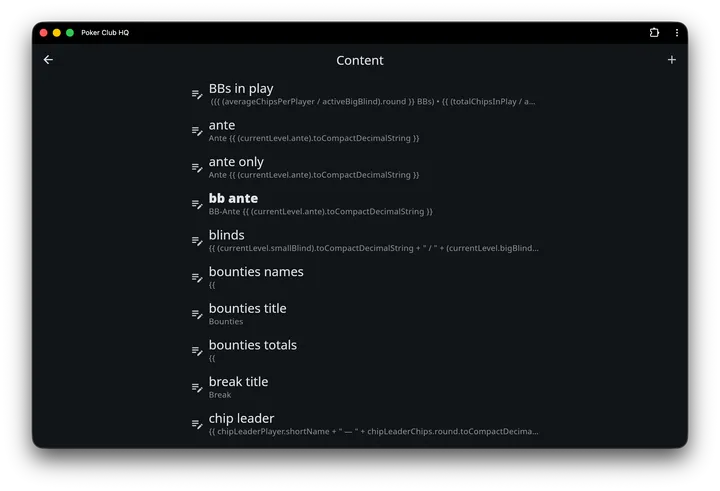
Swipe an item left in Manage content to delete it from where it lives. If a cell on the timer shows it from there, the app warns you and names it first. Built-in items can’t be deleted.
Names must be unique among everything the cell can see, built-in names included. So you can’t make a second clock. Either edit clock itself, or create one under another name like clock big and point the cell at that.
Content travels with the cells that use it. Saving a widget puts the content its cells use inside the widget, and cutting or copying a cell does the same, so text you paste into another layout or out of a widget still reads the same. Import layouts copies a whole look across, layouts and content together.
Some built-ins worth knowing
Section titled “Some built-ins worth knowing”These are ordinary content items — open any of them to see how it’s put together, or copy the approach into your own.
| Name | Value | Condition |
|---|---|---|
tournament title | {{ title }} | always |
title | {{ currentLevel.title }} | always |
break title | Break | isBreakLevel && currentLevel.title.isEmpty |
level number | Level {{ blindLevelNumber }} of {{ blindLevelCount }} | isBlindsLevel |
clock | {{ (secondsLeftInLevel * 1000).toCompactTimeDurationString }} | always |
blinds | small / big blind, compactly formatted | currentLevel.bigBlind > 0 |
ante | Ante {{ (currentLevel.ante).toCompactDecimalString }} | standard antes only |
bb ante | BB Ante {{ … }} | big-blind antes only |
next level blinds | the next level’s blinds | nextLevel.bigBlind > 0 |
next break time | , break in {{ (secondsUntilNextBreak / 60).round }} min. | a break is coming |
player count | {{ currentPlayerCount }} of {{ totalPlayerCount }} players | always |
chips per player | Avg stack {{ averageChipsPerPlayer.round.toCompactDecimalString }} | always |
BBs in play | average and total stacks in big blinds | activeBigBlind > 0 |
current time | {{ now().toTimeString }} | always |
chip leaders | the top three stacks, names and totals | chipLeaders.isNotEmpty |
high hand | the hand’s owner, name, and cards | hasHighHand |
rebuy countdown | Rebuys end in {{ (secondsUntilRebuysEnd * 1000).toApproximateDurationString }}! | a rebuy period is running |
rebuy countdown paused | Rebuys end after Level {{ rebuyEndLevel }}! | the same, but the timer is paused |
color up title | Color up! | it’s a color-up level (a break, by default) and a chip has become retirable |
color ups | the chips to retire, drawn as chips | the same |
separator | • | always |
Level numbers and breaks
Section titled “Level numbers and breaks”Breaks are levels too, so levelIndex counts them — with a break between them, level 4 is followed by level 6. To number only the blind levels, use blindLevelNumber and blindLevelCount, which is what the built-in level number item does. Its condition is isBlindsLevel, so the cell hides during breaks rather than holding at the level that just finished.