Widgets
A widget is a complete, pre-assembled block of timer screen content: the countdown with its blinds and player count, a payout list, a knockout leaderboard. Instead of building one cell at a time, you drop a widget in and it arrives fully styled and already wired to live tournament data.
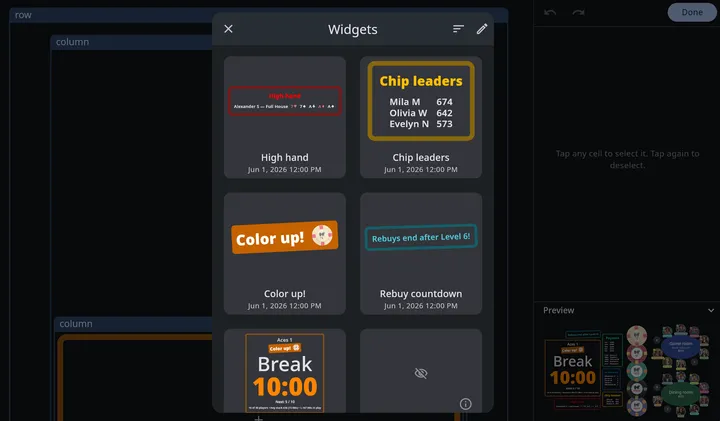
Open the gallery from edit mode: tap a + button where you want the block to land, then choose Widget.
Built-in widgets
Section titled “Built-in widgets”Seventeen widgets ship with the app. Most of them hide themselves until the tournament actually has something to show, so it’s safe to add them at any point — a Payouts widget added before anyone has bought in simply stays invisible until money comes in.
| Widget | Shows | Appears when |
|---|---|---|
| Knockouts | The top five players by knockouts, with their totals | Someone has been eliminated |
| Bounties | The top ten bounty winners and their winnings | The tournament uses bounty chips and someone has won one |
| Points | The final standings — the top ten finishers and the points each earned | The tournament has finished |
| Leaderboard | The season standings of the tournament’s folder: the top ten players by Club stats points, with their totals | The folder has a completed tournament |
| Payouts | The prize list — place, player, and amount, in three aligned columns | Money has been collected |
| High hand | Who holds the current high hand, the hand’s name, and its cards | A high hand has been recorded |
| Chip leaders | The top three active players by stack, with their totals | A player has reported a chip count and the tournament is still running |
| Color up! | Which chip denominations to take off the table, drawn as the chips themselves | It’s a color-up level (a break, by default) and the blinds have outgrown a chip since the last one |
| Rebuy countdown | How much of the rebuy period is left | Rebuys are on, a rebuy period is set, and the tournament is under way |
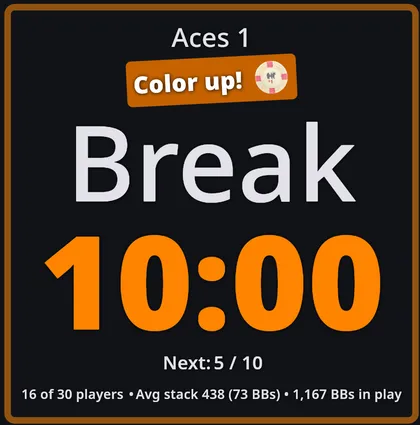
| Timer | The full default block — tournament title, level title and subtitle, the countdown clock, a Color up! banner, and the next three widgets nested inside it | Until the tournament finishes |
| Blinds and antes | The small and big blind for the current level, plus any ante | The level has a blind or an ante |
| Next level and break | What’s coming next — the next blinds, or the length of the next break, and how long until the break after that | There is a level after the current one |
| Player count, etc. | Players remaining out of the total, average stack, and big blinds in play | There are chips in play |
| Current time | The time of day | Always |
| Chips | The chips in use at the current level, drawn as your chip images | The tournament has chips |
| Tables | The open tables, with the players in their seats | A table is open |
| QR code | The tournament’s QR code, with its short code underneath | The tournament has a QR code, and it’s shown on this device |
Payouts, bounties, and knockouts follow the same data the Payouts, Bounties, and Managing players screens use, so they update as you run the tournament.
The default timer layout is built from these: a Rebuy countdown, a Timer, a Points, and a High hand in one column, a Payouts, a Knockouts, and a Chip leaders in another. The Payouts screen layout is a Points, a Payouts, and a Bounties side by side.
Because those conditions are opposites, the screen changes character when the last player is knocked out — see When the tournament finishes.
Points
Section titled “Points”The Points widget is the final standings: everyone who finished, winner first, with the points each earned in two aligned columns. It lists the top ten and marks a longer field with a trailing ”…”.
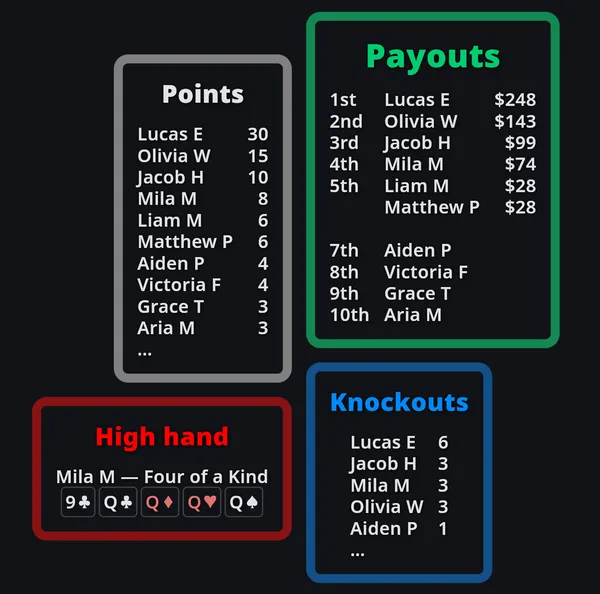
The scores come from the Player points formula on the Stats screen — the same formula that feeds the Club stats leaderboard. Whatever scoring your league uses, the widget shows it. There is nothing to configure and nothing to keep in sync: change the formula and the widget follows.
It waits for the tournament to be over, because until then the numbers would keep moving. A player scores nothing until they have a finishing place, so mid-game the list would grow as players bust. Worse, a rebuy clears that player’s place and shifts everyone else’s up, which would retract points already on the screen. Once the last player is knocked out, every place is settled and the winner joins the list.
To watch the standings build instead, waiting for the rebuy period to close is safer than dropping the gate outright:
!rebuysOpen && playersEliminated.count > 0Once rebuys are closed, no place can be taken back, so the scores only ever grow. Put that condition in all four places: on the block, and on each of the three content items inside it (see A widget can be gated twice). If the tournament has no rebuy end level, rebuysOpen never turns false, so use playersEliminated.count > 0 on its own.
Points is part of the default layout and of the Payouts screen, so a tournament you haven’t customized shows the standings on its own when it ends. If you have customized your layout, it’s kept as you built it — add Points from the gallery wherever you want it.
Any text you write can read the same values: p.points gives a player’s score under your formula. See Tournament data.
Leaderboard
Section titled “Leaderboard”The Leaderboard widget puts the Club stats leaderboard on the timer: the players of the tournament’s folder (subfolders included), most season points first, in two aligned columns. It lists the top ten and marks a longer field with a trailing ”…”.
Only completed tournaments count, as on the Club stats screen. During a game it shows the standings coming into tonight, and when the game ends, tonight’s results join them. A tournament that isn’t in a folder has no season, so the widget stays hidden.
It isn’t part of the default layout, so add it from the gallery wherever you want it. Any text you write can read the same numbers from clubStats. See Tournament data.
Chip leaders
Section titled “Chip leaders”The Chip leaders widget is driven by the counts players report themselves. When players connect to a shared tournament and report their current chips (see Player profile updates), the app tracks each active player’s latest count and lists the top three by stack — names and totals in two aligned columns, most chips first, like the Knockouts widget. When a fourth player is tied with the third shown, a trailing ”…” marks that the leaderboard doesn’t stop there.
Color up!
Section titled “Color up!”As the blinds climb, the smallest chips stop being needed. Nobody makes change for a 25 when the small blind is 500. The Color up! widget watches for that and names the denominations that became retirable since the previous color-up point: a compact orange banner reading Color up! followed by the chips themselves, drawn as your actual chip images.
Where those points fall is up to you, under Color up chips in the tournament’s settings. By default they’re your breaks, which is where chips usually come off the table. Set it to At any level and every level is one, so the banner names a chip at the level it actually retires instead of waiting for the next break. A tournament with no breaks at all works that way already, since there’s no break to wait for.
It only shows the chips coming off the table. Which chip they turn into is deliberately left out — people read that second chip as also being removed.
A chip is only suggested once. If the 25s became unnecessary at the first break, the second break doesn’t mention them again — it names whatever has become retirable since. And a chip is never suggested while any blind, ante, or bring-in from the current level onward still needs it.
The banner is part of the default Timer block, so a new tournament gets it during breaks without you doing anything. It’s also in the gallery on its own, for layouts you’ve built yourself.
It’s driven by the colorUpChips value — see Tournament data. Any text you write can show chips too: type a chip’s value followed by an s (25s, 1,000s) in a content item and the timer draws the chip in place of the text.
Rebuy countdown
Section titled “Rebuy countdown”Set Rebuys end after in Settings and this widget appears on the timer for the rest of the rebuy period, then disappears on its own when the period closes. It counts the break that follows the last rebuy level as part of the period, so it keeps running through the break where rebuys and add-ons are usually taken.
What it says depends on the clock. While the timer is running it counts down — “Rebuys end in 32:00!” A remaining time means nothing while the timer is stopped, so when you pause it switches to naming the deadline instead: “Rebuys end after Level 3!”
That’s two content items, rebuy countdown and rebuy countdown paused, stacked in one cell with opposite conditions — so only one is ever showing. Edit either one to reword it; see Content.
Chips, tables, and the QR code
Section titled “Chips, tables, and the QR code”The chips in play, the table diagrams, and the QR code normally sit beside your layout, where the timer places them on its own (see Adaptive layout). As widgets, they go exactly where you put them, at the size you choose.
Each is decided on its own. While the layout on screen has a Tables widget, no tables are placed beside it, but the chips and the QR code still are, unless the layout has their widgets too. A layout with none of them works just as before.
- Chips shows the chips in use at the current level. Denominations the blinds have outgrown drop off, as they do beside the timer.
- Tables shows the open tables with the players in their seats, this tournament’s players highlighted, as photos or names following the player photos or names setting.
- QR code shows the code and its short code. It follows Show QR code and Hide QR code on each device, like the one in the corner, so hiding it on your phone leaves it up on the TV.
Like an image on its own, each needs a Minimum width or Minimum height, and the ones in the gallery come with one set. The sizes use the same scale as every other cell, so the widget grows and shrinks with the rest of the layout.
- Chips: whichever minimum you set is the size of each chip, and the run of chips is as long as the chips in use need. They run across the row or column holding them, top to bottom in a row and left to right in a column, so in an Auto layout they turn with it. Set both minimums and the chips fit inside that box instead, along its longer side.
- Tables: the tables are arranged the way they’d best fill the screen, at the width or height you set, so a wide screen gets more of them side by side. Set both minimums to choose the shape yourself.
- QR code: set one minimum and the other follows the panel’s shape. Set both and it fits inside.
With no chips in use, no open tables, or no QR code to show on this device, the widget disappears and the cells around it close up. In edit mode it keeps its place and says why.
The Show/hide chips and Show/hide tables switches in the Customize menu work on these widgets too. Switch one off and the widget disappears, just as the chips or tables beside the layout would, so you can hide the tables on some levels and show them on others. In edit mode the widget keeps its place and names the switch that hides it. The Seating and Payouts layouts start with the chips switched off, and Payouts with the tables off too, so the matching widget you add to one of them, or to a copy of one, stays hidden until you switch it on.
Unlike the chips and tables beside the layout, these widgets don’t disappear when the tournament ends. They have no condition, so they stay until you give them one. Add !isPostgame to have one leave with the rest of the game.
The conditions behind “appears when”
Section titled “The conditions behind “appears when””Nothing about the “appears when” column is hard-coded — each built-in widget carries an ordinary condition that you can read, edit, or remove after inserting it. Select the widget’s outermost cell in edit mode and open Condition:
| Widget | Condition |
|---|---|
| Knockouts | playersEliminated.count > 0 |
| Bounties | useBountyChips && players.where(func(p) { p.bountyChipWinnings > 0 }).count > 0 |
| Points | isPostgame |
| Leaderboard | clubStats.players.isNotEmpty |
| Payouts | totalCollected > 0 |
| High hand | hasHighHand |
| Chip leaders | chipLeaders.isNotEmpty && !isPostgame |
| Timer | !isPostgame |
| Color up! | autoColorUp && isColorUpLevel && colorUpChips.isNotEmpty |
| Rebuy countdown | rebuysAllowed && secondsUntilRebuysEnd > 0 && isInGame && !isPregameLevel |
| Blinds and antes | currentLevel.bigBlind > 0 || currentLevel.ante > 0 |
| Next level and break | levelIndex + 1 < levels.length |
| Player count, etc. | totalChipsInPlay > 0 |
Current time, Chips, Tables, and QR code have no condition. Current time always shows; the other three hide themselves whenever they have nothing to draw.
A widget can be gated twice
Section titled “A widget can be gated twice”The block’s condition is not always the only one in play. Several widgets also carry a condition on the content inside them, and a block whose items are all hidden renders nothing at all. Change the outer condition on one of these and it can stay invisible, because the content is still holding it back:
| Widget | Content items | Their condition |
|---|---|---|
| Points | points title, points names, points totals | isPostgame |
| Leaderboard | leaderboard title, leaderboard names, leaderboard totals | clubStats.players.isNotEmpty |
| High hand | high hand title, high hand | hasHighHand |
| Chip leaders | chip leader title, chip leader names, chip leader totals | chipLeaders.isNotEmpty |
| Color up! | color up title, color ups | autoColorUp && isColorUpLevel && colorUpChips.isNotEmpty |
| Rebuy countdown | rebuy countdown, rebuy countdown paused | the widget’s condition, plus isTimerRunning on the first and !isTimerRunning on the second |
To reach them, select a text cell in the block and open Content: the highlighted item has an Edit button, and Manage content at the top right lists them all. Every other built-in widget leaves its content unconditional, so the outer condition is the only gate.
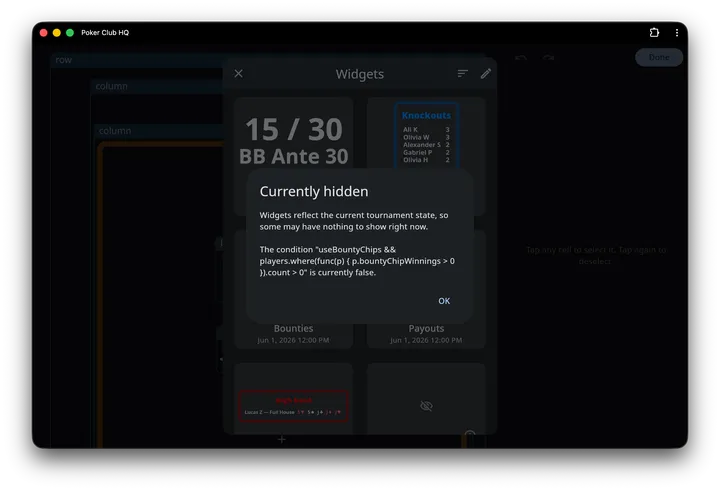
The ⓘ on a hidden gallery card names whichever condition is the one still blocking, which is the quickest way to tell the two apart. See Why a widget looks empty.
When the tournament finishes
Section titled “When the tournament finishes”Knock out the last player and the timer screen turns into a results board. Nothing is switched off manually; the widgets simply have opposite conditions, and isPostgame flips the moment the tournament has a winner.
Away go the things that describe a game in progress:
- the Timer block, and with it the tournament title, the clock, the blinds, the next level, and the player count
- Chip leaders, since there are no stacks left to lead
- the chip images and the table diagrams along the edge of the screen
In their place, Points appears beside the results that were already there — Payouts, Knockouts, and the High hand.
The chips and tables beside the layout are the one part that isn’t a widget condition. They go in every view, Seating included, which is left blank. To keep them on screen after the game, put a Chips or Tables widget in the layout instead. See After the tournament ends.
Every part of this is yours to change. Delete !isPostgame from the Timer block’s condition and the clock stays up after the game. Points takes one step more, because its three content items carry isPostgame too: clear it there as well and it shows the standings as they build, moving numbers and all. See A widget can be gated twice.
Why a widget looks empty
Section titled “Why a widget looks empty”Every card in the gallery is a live preview, rendered against your tournament as it stands right now — not a stock picture. That’s useful, but it means a widget with nothing to say looks blank.
When that happens the card shows a crossed-out eye and an ⓘ button (its tooltip reads Currently hidden). Tap it and the app explains why, in plain terms:
- The condition ”…” is currently false. — the widget’s own condition, or the condition on the content inside it, isn’t met yet
- ”…” currently has no value. — the content resolves, but produces no text
- Missing variable ”…”. — a text cell points at a content item that no longer exists
- The widget has no content. — an empty row or column
- This widget needs a minimum width or height. — a Chips, Tables, or QR code widget with neither minimum set
- No chips are in use., No tables are open., This tournament has no QR code., or The QR code is hidden on this device. — a Chips, Tables, or QR code widget with nothing to draw right now
An empty card is almost never a problem. Add the widget anyway; it will fill in when the tournament reaches it.
Saving your own widgets
Section titled “Saving your own widgets”Once you’ve built a block you like, select its outermost cell and tap Save as widget. Give it a name and it joins the gallery’s My widgets tab, ready to drop into any tournament.
Saved widgets are stored with your account, so when you’re signed in they follow you to all your devices.
A saved widget carries the content its cells use, so it reads the same in every tournament, and inserting it never changes a tournament’s own content. Select one of its text cells and that content is listed under This widget. Built-in content it uses stays the app’s version, so it picks up the app’s own fixes, but a tournament’s own edit to that item doesn’t reach inside the widget. To change what the widget says, edit its content there.
Managing the gallery
Section titled “Managing the gallery”Once you’ve saved a widget, the gallery has two tabs: My widgets, your own, and Browse, the built-in widgets and any that Poker Club HQ adds without an app update. It opens on the tab you used last.
- Sort orders each tab by Modified or Name, and the choice sticks between sessions. Built-in widgets share a single fixed modified date, so on Browse, sorting by Modified keeps them together and puts newer additions first.
- Edit, on My widgets, puts a Rename and a Delete button on each of your saved widgets. Deleting asks for confirmation. Widgets on Browse can’t be renamed or deleted, so if you want your own version of one, insert it, adjust it, and save the result under a new name.
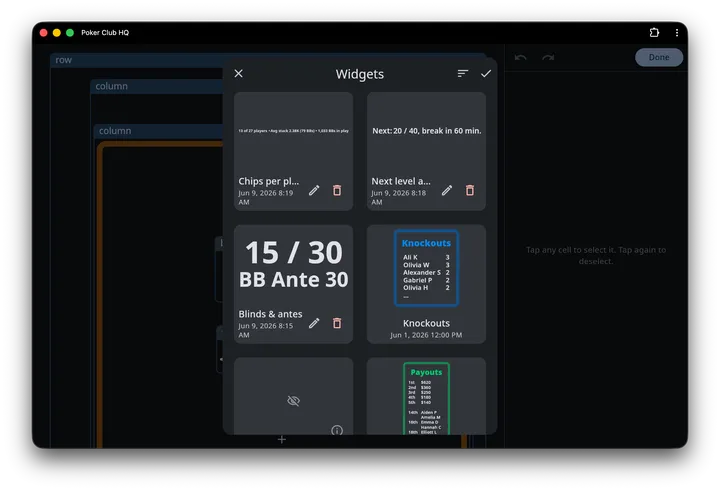
While Edit is on, tapping a card no longer inserts it. Tap Done to go back to inserting.
Layouts you save from Manage layouts are listed in a gallery of their own, which Layout gallery opens. See Layout gallery.