Managing tables
The Tables screen gives you a visual overview of every table in your tournament, with drag-and-drop seating and tools for keeping tables balanced.
Table view layout
Section titled “Table view layout”The screen is split into two areas:
- Top panel — A visual grid showing all tables with seats arranged around each one. Seated players are shown as photos or as name pills (see below); empty seats show the seat number. Each table’s oval carries its name, its filled/total seat count, its break down order (when it isn’t “any”), and a warning when it’s short. A running total sits in the lower left: “3 tables · 17/27 seats”.
- Bottom panel — A draggable sheet with a tab for each category of player not currently seated.
Player photos or names
Section titled “Player photos or names”Seated players can be displayed two ways:
- Photos (the default) — A large photo disc on each seat, with the player’s name in a label below it and the seat number in a badge on the disc’s edge. Players without a photo show their initials in the player’s color.
- Names — A name pill, with the seat number in the left cap and the player’s photo in the right.
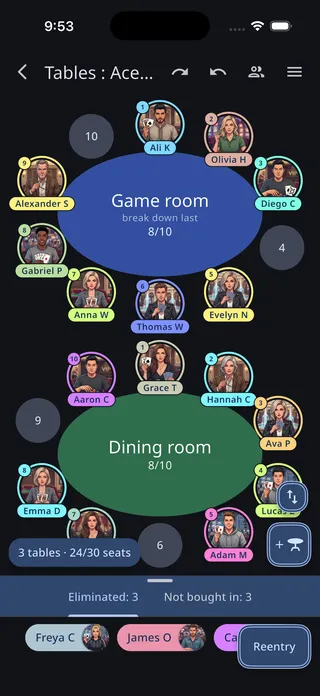
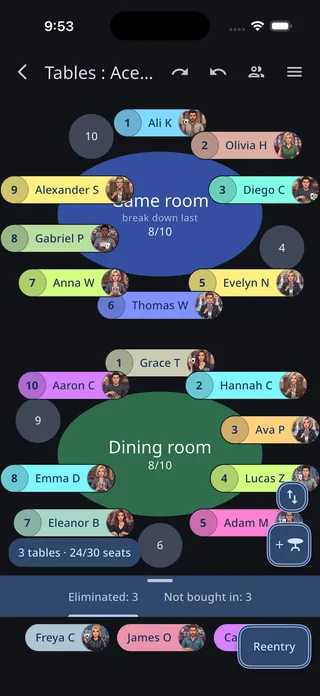
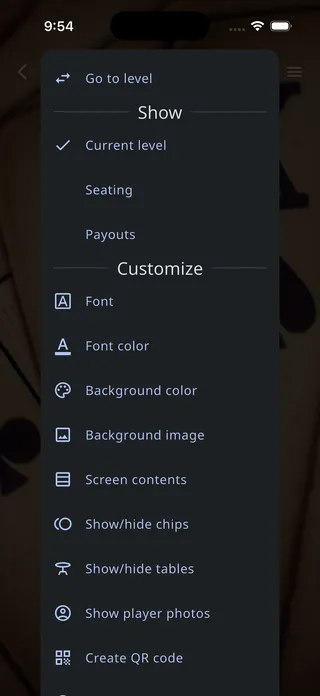
To switch, open the timer’s Customize menu and tap Show player names (or Show player photos) in the Customize section, below its dividing line. The option appears once your tournament has tables in use. It applies to the tables beside the timer and to a Tables widget alike.
Player tabs
Section titled “Player tabs”The bottom sheet has a tab for each category:
- Ready to seat — Players on the bench waiting to be seated. These can be dragged to table seats.
- Eliminated — Knocked-out players. Tap the Rebuy button to bring them back in.
- Not bought in — Players not yet participating. Tap the Buy-in button to get them started.
Each tab shows the count of players in that category.
Seating players
Section titled “Seating players”There are several ways to seat players:
Drag and drop
Section titled “Drag and drop”On the “Ready to seat” tab, drag a player pill to any empty seat on any table and they’re seated there instantly. On phones and tablets, press and hold the pill first to pick it up. Dragging a seated player onto the bottom sheet sends them back to the bench.
Seat action button
Section titled “Seat action button”Tap the Seat button in the lower right of the “Ready to seat” tab to open the seating dialog, which seats one or more players with additional options:
- Starting table and seat — Choose where to begin seating
- Random order / Selected order — Shuffle the player order or keep the order you selected them in
- Balance tables / Fill every seat — Distribute players evenly across tables, or fill consecutive seats at one table first
- Default seats per table — Sets the tournament’s default seat count, saved when you tap Seat players
The dialog previews the seating as you adjust it, and has its own add-table button if you need more room.
After buy-in or rebuy
Section titled “After buy-in or rebuy”When a player buys in or re-enters, you’re automatically asked if you want to seat them right away.
Adding tables
Section titled “Adding tables”Tap the add-table button (a plus sign and a table icon) in the lower right of the main panel. If a closed, empty table is available it’s reopened; otherwise a new table is added, and the view scrolls to it automatically. Once there are two or more tables, a Reorder tables button appears just above it for changing the order they’re laid out in.
Table settings
Section titled “Table settings”Tap an empty table to open its settings. Tapping a table that has players seated at it opens the action menu for those players instead — Table settings is one of the options there, along with Balance table when the table is short.
The settings are:
- Name — Give the table a custom name (e.g., “Feature Table”). If left blank, tables are auto-named “Table 1,” “Table 2,” etc.
- Seats — Set the number of seats (2–14). Leave blank to use the tournament’s default.
- Color — Give the table its own color; the oval is filled with it and its text switches to black or white for contrast. Tap the reset icon beside the swatch to go back to the default color.
- Break down order — Controls which tables close first during consolidation:
- first — Prioritized to close before others
- any — Closes whenever needed (default)
- last — Kept open until every “first” and “any” table has closed
The same dialog can close the table, and offers to close all empty tables at once when more than one is empty. If the table still has players seated at it, closing asks for confirmation and returns those players to the bench for reseating.
Table balancing
Section titled “Table balancing”When tables become unbalanced (one table has significantly more players than another), a warning button appears at the top of both the Tables and Players screens: “Table 2, short by 2.” It’s orange when the table is short by exactly the threshold and red when it’s worse, and the same warning shows on the table’s own oval.
Tap the warning to start the balancing process:
- Select the seat to fill at the short table. The app suggests choosing the worst seat — the one that is big blind or will be soon.
- Select the player to move from a table with the most players. The app recommends choosing the player who will be big blind next, as per TDA 2024 rules. Players who have been moved before are flagged with a red badge showing their move count, and a confirmation dialog appears if you pick them again.
A help button in each step spells out the TDA balancing rules in full.
Table consolidation
Section titled “Table consolidation”When there are enough empty seats to close a table, an orange Consolidate tables button appears alongside any short-table warnings.
Tap it to see which tables will close and have their players reseated. The consolidation respects the break down order you set in each table’s settings — tables marked “first” close before “any” tables, which close before “last” tables.
To change which tables close first, cancel the consolidation dialog, then tap each table, choose Table settings, and adjust its break down order.