Timer screen
The timer screen is where you spend most of your time while running a tournament. It shows the current blind level, countdown clock, and upcoming levels at a glance.
On a foldable phone held partly open, the timer can share the screen with another of the tournament’s screens. See Foldable phones.
Timer layout
Section titled “Timer layout”The default layout centers a timer panel, with panels for payouts, knockouts, and the high hand beside it. The timer panel shows:
- Tournament title at the top
- Level name — a break shows “Break”; a blind level shows the title you gave it in the blind structure. Untitled blind levels show no name until you add the Level number content (“Level 3 of 12”).
- Blind values — small blind, big blind, and ante (if applicable)
- Countdown clock — large, easy-to-read timer for the current level
- Next level preview — what’s coming after this level, and how long until the next break
- Misc info — player count, average stack, and big blinds in play
When the last player is knocked out the screen becomes a results board: the timer panel steps aside and a Points panel takes its place, showing the final standings next to the payouts and knockouts. See When the tournament finishes.
Every panel can be rearranged, removed, or replaced — see Timer display.
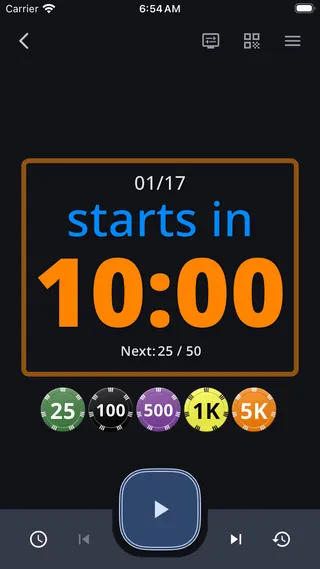
Here’s the timer screen before the tournament starts, showing the pregame countdown with chip set:
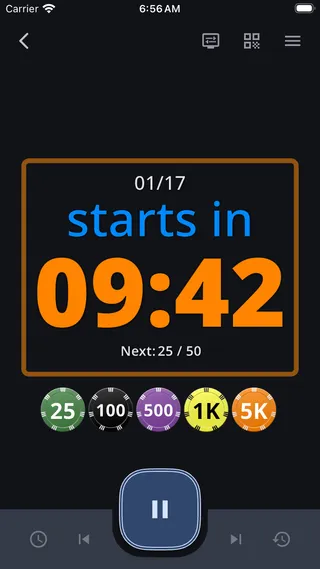
When the timer is running, the play button changes to a pause button and the countdown ticks down:
Play, pause, and level controls
Section titled “Play, pause, and level controls”Four icon buttons flank the large play/pause button. All four are disabled while the timer is running — pause first.
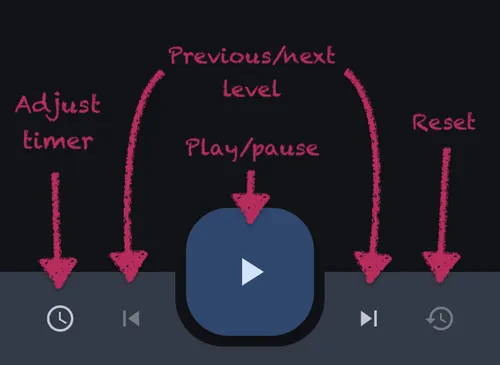
- Adjust timer (clock icon) — Opens a duration picker so you can add or subtract time from the current level.
- Previous level (skip back) — Jumps back to the previous level, or restarts the current level from its full time if it’s already underway. Long-press for the “Go to level” menu.
- Play / Pause (center button) — Starts or pauses the timer.
- Next level (skip forward) — Advances to the next level. Long-press for the “Go to level” menu.
- Reset (history icon) — Resets the entire tournament back to its initial state, after a confirmation. Available once there is something to reset.
A Simulate button sits in the lower right for rehearsing a tournament without real players — see Simulate.
Minimal mode
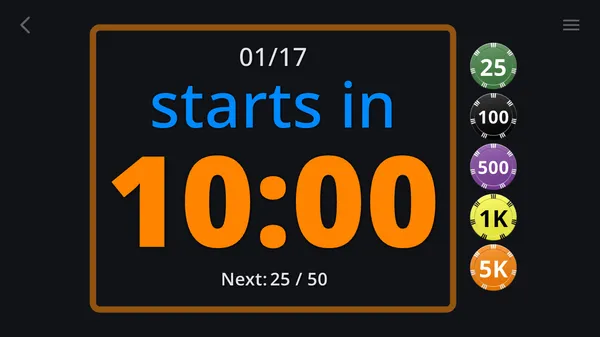
Section titled “Minimal mode”Tap anywhere on the timer display to toggle minimal mode. The bottom bar, the play/pause button, and the app bar fade away, giving the timer maximum screen space; a faint back button and menu button remain in the top corners.
The controls also hide themselves after about five seconds of no use, so the screen settles into minimal mode on its own.
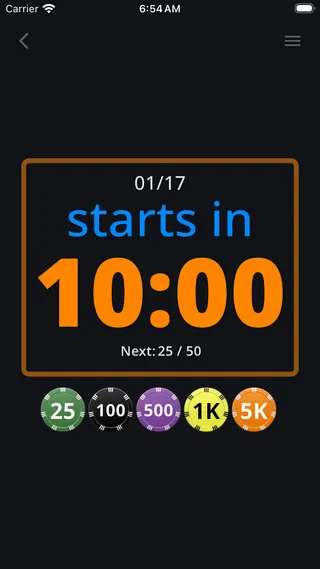
This is ideal when projecting the timer on a large screen — players see only the essential information without distracting controls. In landscape, chips move to the right side to make the most of the wider display:
Tap the screen again to bring back the full controls.
Navigation drawer
Section titled “Navigation drawer”Swipe in from the right edge, or tap the menu button in the top right, to open the navigation drawer. From here you can quickly jump to any tournament screen:
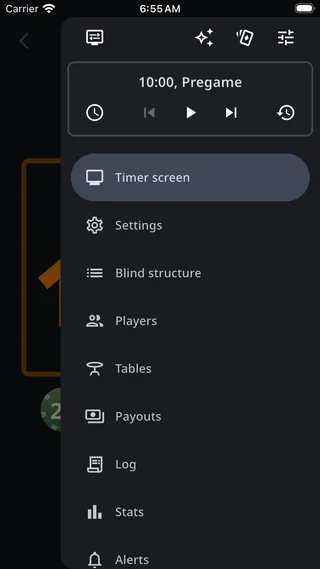
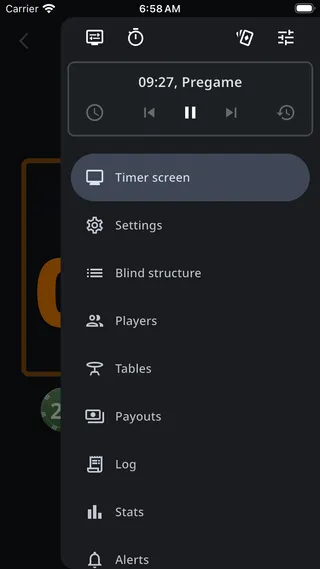
The drawer carries the same timer controls in compact form, along with the time remaining and the current level, so you can run the clock without leaving the screen you’re on:
The navigation items are:
- Timer screen
- Settings
- Blind structure
- Players
- Tables
- Payouts
- Log
- Stats
- Alerts
A row of buttons across the top of the drawer holds the Customize menu, Simulate, the hand evaluator, and Sound & display (mute, TTS voice, brightness, and accent color). While the tournament clock is running, a Hand timer button joins them — tap it to start the shot clock, or to stop one already running. See Hand timer.
Switching what the timer shows
Section titled “Switching what the timer shows”Tap the display-settings icon in the app bar to open the Customize menu. Its Layouts section switches the timer between layouts: Current level, Seating (table layouts), and Payouts (prize distribution) to start with, and any you add with Layout gallery or Manage layouts. See Layouts.
The same menu’s Customize section holds the display customizations — see Timer display — including whether tables show player photos or names.
The QR code button beside it creates the tournament’s QR code; once the code exists, the same button shows, hides, or deletes it.