Player profile updates
Players who connect to your tournament by scanning its QR code can update their own photo and contact details, and report their current chip count and current hand — all from their own phone, none of it typed in by you.
It’s verified and narrow: a player can only ever change their own player, and only after signing in with the email address you already have on file for them.
What a player can update
Section titled “What a player can update”Once connected and verified, a player can edit their own:
- Photo — the picture that shows in the Player Directory, on the Players screen, and at their seat on the Tables screen
- Display name and nickname
- Phone number and mailing address
They can also report their current game status while they’re still in the tournament:
- Current chips — their chip count right now
- Current hand — the cards they’re holding, entered with a card picker
How a player does it
Section titled “How a player does it”- The player opens your tournament by scanning its QR code (or opening the link).
- On their copy of the timer, they tap My player profile in the top app bar.
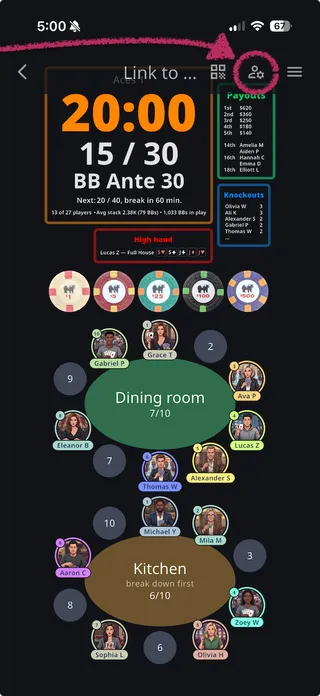
- They’re asked to sign in with the email address you have on file for them. If they sign in with an email that doesn’t match any player, they’re told to ask you to add their email address to their player.
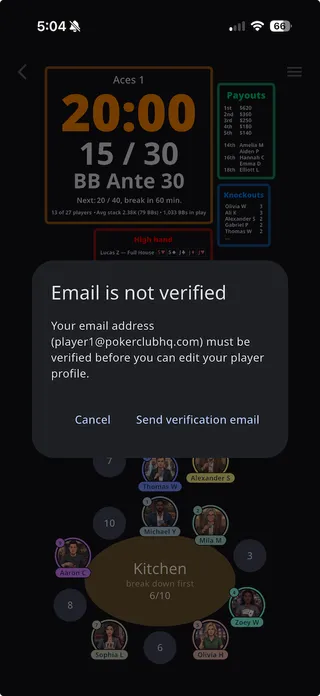
- If their email isn’t verified yet, they’re prompted to tap Send verification email, open the link in it, then come back and tap Continue.
- The My player profile sheet opens, with their photo and details at the top. If they’re still in the tournament and you’ve left reporting on, a Current game section below takes their Current chips and Current hand, the hand entered with a card picker. Send submits the report.
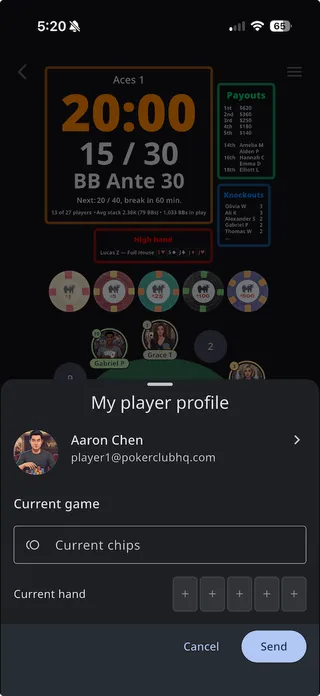
- Tapping their profile summary opens Edit profile — photo, name, nickname, phone, and address. Send submits the changes. Their email address is shown at the bottom, greyed out.
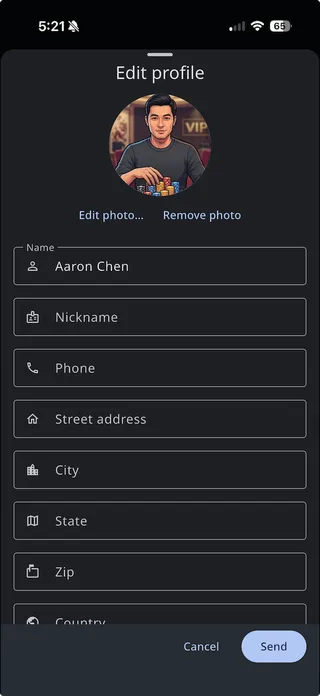
Every change is sent to you as the organizer — the player never edits your tournament directly.
Setting it up as the organizer
Section titled “Setting it up as the organizer”Two things make this work:
-
Give the player an email address. Add each player’s email in the Player Directory (or on the tournament’s Players screen). That address is what the player signs in with to prove who they are.
-
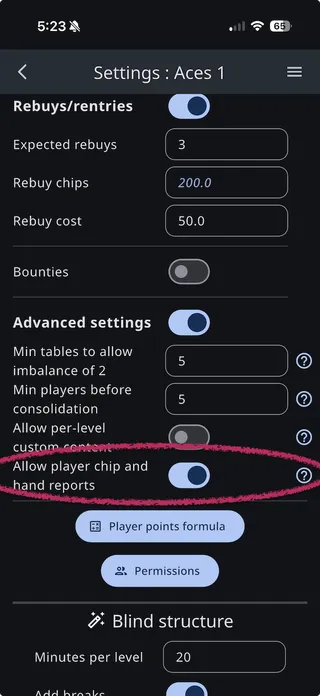
Leave chip and hand reports enabled (optional). Profile editing is always available to a verified matching email. Chip and hand reporting is controlled by a per-tournament setting: open the tournament’s Settings screen, turn on Advanced settings to reveal the advanced options, and you’ll find Allow player chip and hand reports. It’s on by default. Turn it off for a tournament where you’d rather players didn’t self-report.
Where a player’s updates show up
Section titled “Where a player’s updates show up”- Profile edits — a photo, name, or contact change is applied to that player automatically, and a message appears in your app noting that they updated their profile. The change shows up everywhere the player does, on all your devices.
- Chip and hand reports — each report is added to the tournament log as a “Player chips” or “Player hands” entry, so you have a record of what was reported and when. Like other log entries, they can be edited or deleted.
- Chip leaders — a player’s most recent reported chip count feeds the Chip leaders timer widget and its
chipLeadersscript variable, so the live timer can show who’s out in front. See Widgets.
A couple of edits can quietly not take. If the name a player picks already belongs to another player in your directory, the rename is skipped and the rest of their update still applies. A first photo is skipped the same way if your account has already hit its player-photo limit.