Roles & shared control
Need a hand running a tournament — someone working the players screen while you watch the clock, or a co-host on a second device? Give them a role in your Player Directory and they can help run your tournaments from their own device, with every change syncing between you in real time.
This is different from QR code sharing, which gives anyone a read-only view without an account. Use roles when someone needs to make changes; use QR sharing when they just need to watch.
The three roles
Section titled “The three roles”| Role | What they can do |
|---|---|
| Player | The default. No edit access — they get the same read-only timer any QR viewer sees. |
| Table Captain | Runs the game at the table: buy-ins, addons, rebuys, reentries, knockouts, seating, and chip counts and hands. |
| Director | Full control, the same as you. |
What a Table Captain sees
Section titled “What a Table Captain sees”A Table Captain gets four screens — Timer, Players, Tables, and Log — and nothing else in the navigation drawer.
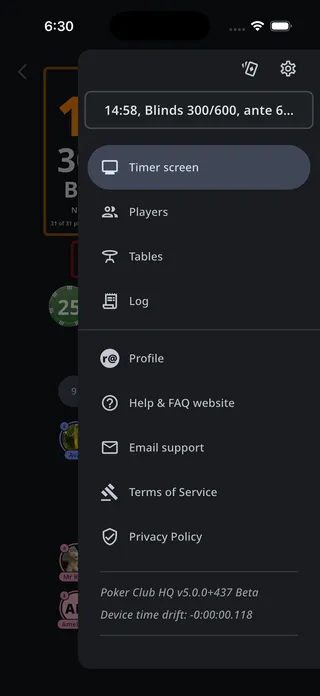
They can do everything on the Players, Tables, and Log screens that keeps the game moving: enter buy-ins, addons, rebuys and reentries, record knockouts, seat players and move them between tables and seats, and record chip counts and hands.
What they can’t touch:
- The clock. No play/pause, no bottom bar, no jumping to another level, no resetting the tournament. The drawer’s mini timer shows them the time and blinds, without the controls that change them.
- Settings, Blinds, Payouts, Stats, and Alerts. Those screens aren’t in their drawer.
- Customizing the timer display, importing layouts, or Simulate.
- Deleting players from the tournament. Every other player action is available to them.
What a Director sees
Section titled “What a Director sees”Everything you see. A Director can start and pause the timer, edit the blind structure, change settings and payouts, and delete players — the full app.
Two things stay with you as the owner: assigning roles, and deleting the tournament.
Assigning a role
Section titled “Assigning a role”-
Open the main menu and tap Player Directory.
-
Tap the player.
-
Tap the role row — it reads Player until you change it.
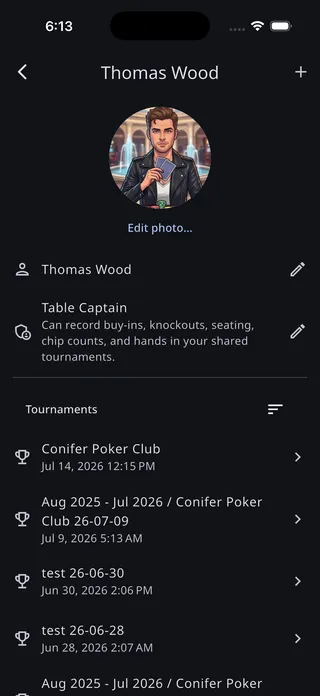
-
Pick Table Captain or Director and tap Save.
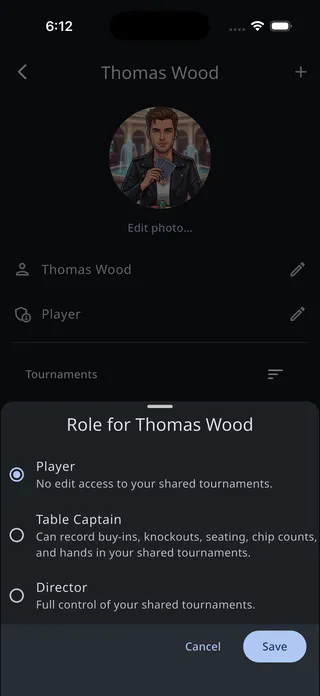
To take a role away, come back and set them to Player.
What has to be true for it to work
Section titled “What has to be true for it to work”A role is matched to a real person by email address. Three things have to line up:
- The player has an email address in your Player Directory. Add it from their details screen — tap + and choose Email. Assign a role to someone without one and the app tells you the role won’t take effect yet.
- They sign into Poker Club HQ with that same address. Capitalization doesn’t matter. A different address — a work one, say — won’t match.
- Their address is verified. Google and Apple sign-ins are verified automatically; accounts registered with a password need one extra step (see below).
Get one of these wrong and there’s no error — they simply land on the read-only viewer.
For the helper: your email address
Section titled “For the helper: your email address”Everything in this section is for the person being given a role.
Your address is on your Profile screen, and you can copy it straight from there:
- Open the navigation drawer and tap Profile.
- Tap the email address (or the copy icon beside it) to copy it to the clipboard.
- Paste it into a text or email and send it to the tournament owner, so they can put it on your player in their directory.
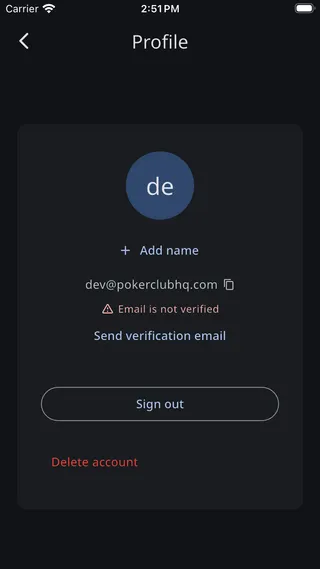
If you signed in with Google or Apple, your address is already verified — you’re done here.
If you registered with email and password, your account starts out unverified, and the Profile screen shows an orange Email is not verified warning with a Send verification email button (above). Editing shared tournaments won’t work until you clear it:
- Tap Send verification email.
- Open the email Poker Club HQ sends you and tap the link in it.
- Come back to the app and open Profile again.
If your edits still don’t stick a few minutes later, sign out and back in to refresh your credentials.
Connecting to a shared tournament
Section titled “Connecting to a shared tournament”A role decides what someone can do; they still need a link to the tournament itself. Two ways to get one:
- Scan the QR code. Point your camera at the QR code on the owner’s timer screen and tap the link that appears.
- Tap a link they sent you. The owner can tap the QR code on their timer to copy the link, then send it to you in a text or email.
Either way, the app opens the tournament with whatever access your role gives you. If the owner hasn’t put a QR code on their timer yet, they’ll need to create one first — see QR code sharing.
Roles in bulk
Section titled “Roles in bulk”The directory’s CSV export and import both carry a Role column, holding Table Captain or Director — blank means Player. Handy for setting up a room full of captains at once, or for keeping a record of who has access. See Import from CSV file.
On import, roles follow the same fill-empty rule as everything else: a player who already has a role keeps it, and the file can never take one away.